

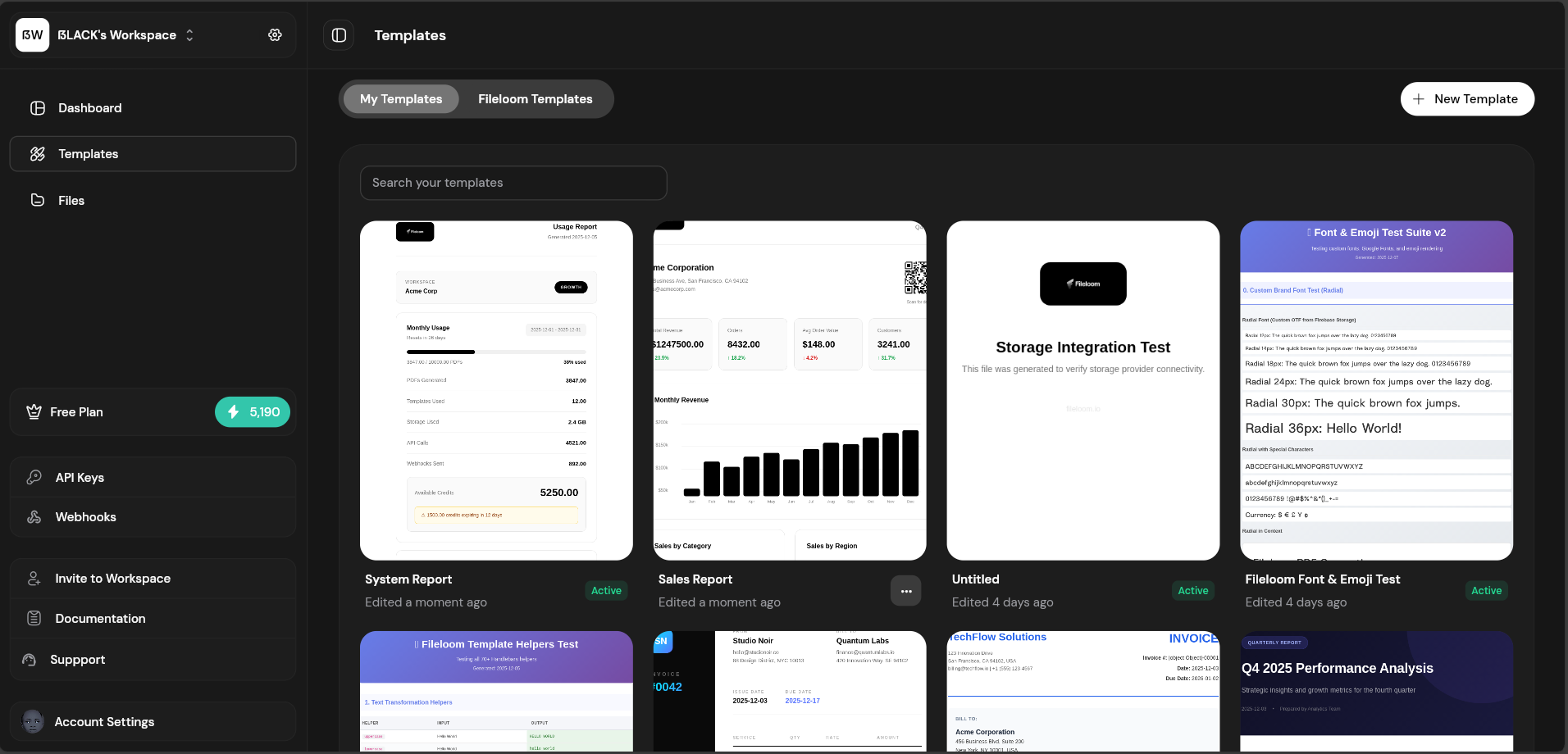
The Templates section lets you create reusable PDF templates with HTML, CSS, and dynamic Handlebars variables.
Templates

Creating a Template

1

Click Create Template

From the Templates page, click the “Create Template” button.
2

Design in Editor

Use the template editor to write HTML, CSS, and configure settings.
3

Test with Data

Enter sample JSON in the Test Data tab and preview your PDF.
4

Publish

Click “Publish” to make the template available via API.
See Template Editor for detailed editing instructions.

Using Templates via API

Reference a template by its ID in API requests:
curl -X POST https://api.fileloom.io/v1/pdf/generate \
  -H "X-API-Key: fl_your_api_key" \
  -H "Content-Type: application/json" \
  -d '{
    "templateId": "tpl_abc123xyz",
    "templateData": {
      "customerName": "Acme Corp",
      "invoiceNumber": "INV-2024-001"
    }
  }'
Find the template ID in the template editor header or templates list.

Template Actions

ActionDescription
EditOpen in template editor
DuplicateCreate a copy of the template
DeleteRemove template permanently

Starter Templates

Fileloom provides 50+ professionally designed starter templates:
CategoryTemplates Available
InvoicesStandard, Detailed, Freelance, SaaS
ReceiptsRetail, E-commerce, Donation
ReportsAnalytics, Financial, Performance
CertificatesAchievement, Course Completion, Award
TicketsEvent, Concert, Boarding Pass
See Starter Templates for the complete list.