

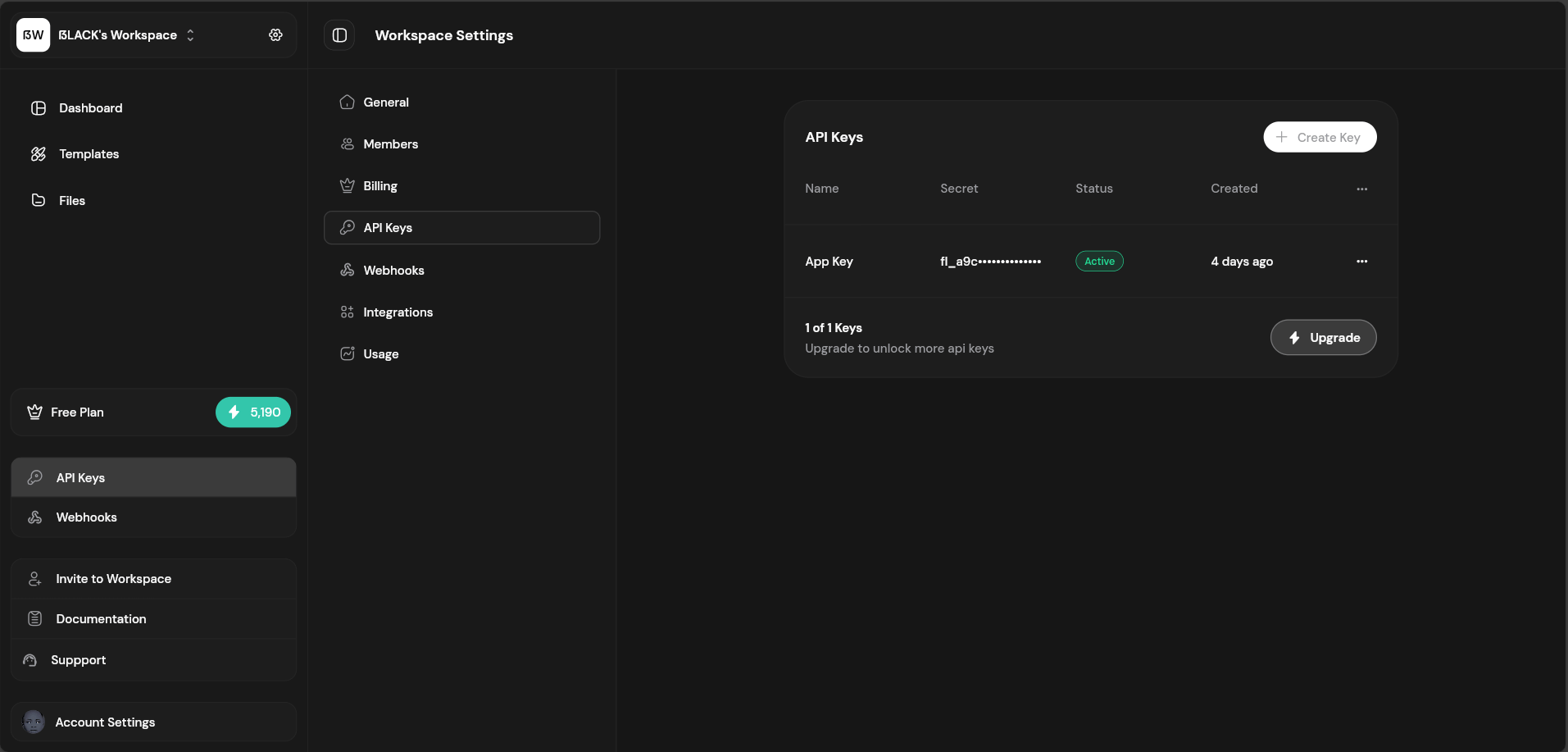
API keys authenticate your requests to the Fileloom API. Manage them in Workspace Settings → API Keys.
API Keys List
| Column | Description |
|---|
| Name | Friendly name for the key |
| Key Prefix | First 8 characters (fl_xxxxxxxx) |
| Created | When the key was created |
| Last Used | Most recent API call |
| Status | Active or Revoked |
Creating an API Key
Click Create Key
From the API Keys page, click “Create API Key”.
Enter Name
Give the key a descriptive name (e.g., “Production Server”, “Development”).
Copy Key
Copy the full key immediately — it won’t be shown again!
The full API key is only shown once when created. Store it securely — we cannot recover it.
Key Permissions
| Permission | Description |
|---|
| pdf.generate | Generate PDFs from HTML or templates |
Using API Keys
Include your API key in the X-API-Key header:
curl -X POST https://api.fileloom.io/v1/pdf/generate \
-H "X-API-Key: fl_your_api_key_here" \
-H "Content-Type: application/json" \
-d '{"htmlContent": "<h1>Hello World</h1>"}'
Or use the Authorization header:
Authorization: Bearer fl_your_api_key_here
Revoking Keys
To revoke an API key:
- Find the key in the list
- Click the menu icon (three dots)
- Select “Revoke Key”
- Confirm revocation
Revoked keys immediately stop working. Any applications using the key will receive authentication errors.
Key Limits
API key limits are based on your plan:
| Plan | Max Keys |
|---|
| Free | 1 |
| Starter | 2 |
| Growth | 5 |
| Scale | 10 |
| Scale Business | 25 |
| Scale Enterprise | Unlimited |
Best Practices
- Use descriptive names — Name keys by environment or purpose
- Minimum permissions — Only grant permissions the key needs
- Rotate regularly — Create new keys and revoke old ones periodically
- Never commit keys — Use environment variables, not hardcoded keys
- Monitor usage — Check for unusual activity regularly