

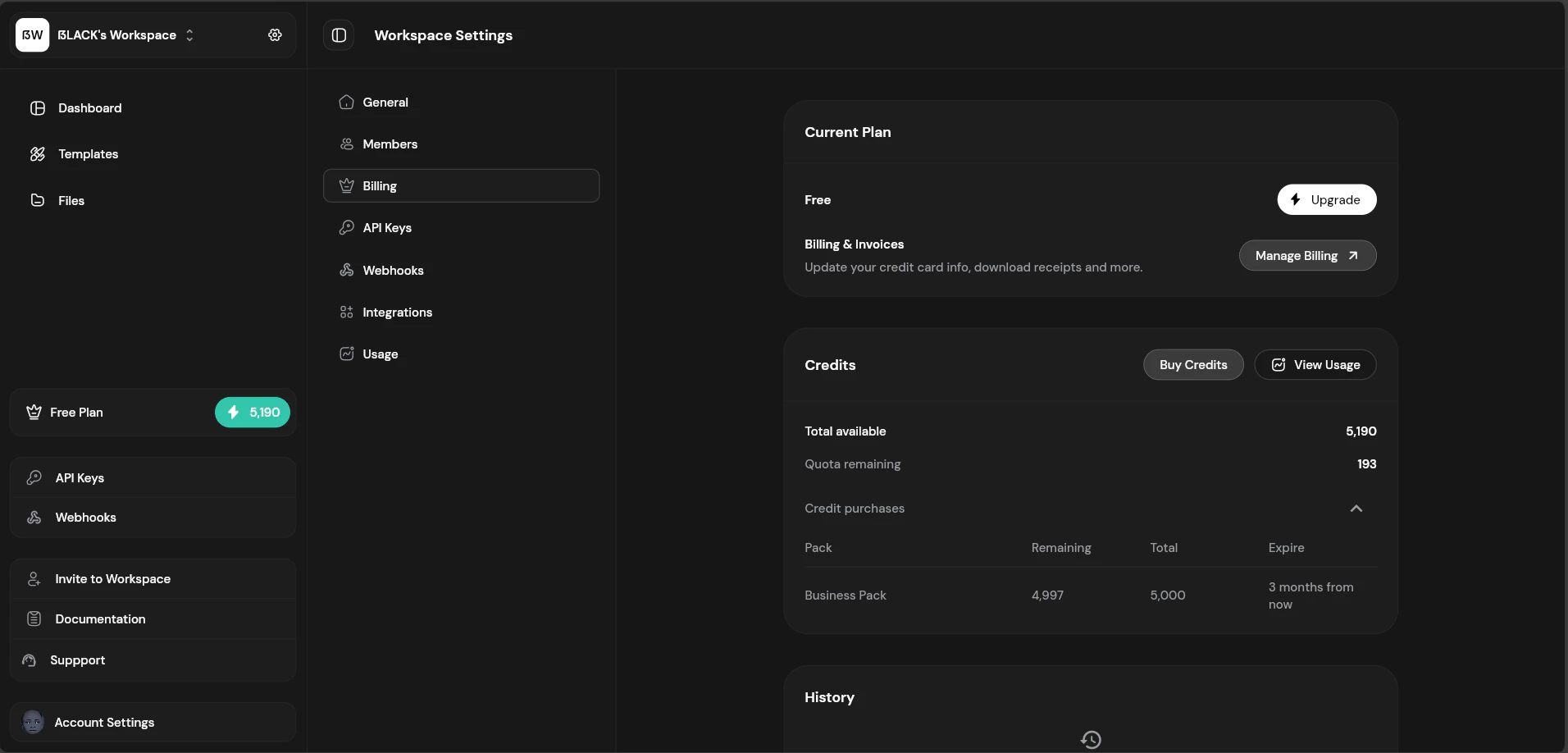
Billing overview showing your current plan and usage
Current Plan
The billing page shows your current subscription:- Plan name — Free, Starter, Growth, Scale, etc.
- Billing period — Monthly or Annual
- Next billing date — When your subscription renews
- Monthly quota — PDFs included in your plan
Changing Plans
Upgrading
1
Click Upgrade
From the billing page, click “Upgrade Plan”.
2
Select Plan
Choose your new plan and billing period (monthly/annual).
3
Complete Payment
Enter payment details through our secure checkout.
4
Instant Activation
Your new plan limits are active immediately.
Annual billing saves 20% compared to monthly billing.
Downgrading
Downgrades take effect at the end of your current billing period:- Click “Change Plan”
- Select a lower tier
- Confirm the change
Payment Methods
Fileloom accepts:- Credit/debit cards (Visa, Mastercard, American Express)
Invoices & History
View your billing history:Credit Packs
Purchase additional credits when you need more PDFs:
See Credits for details on purchasing and using credits.
Cancellation
To cancel your subscription:- Go to Workspace Settings → Billing
- Click “Manage Billing”
- Cancel on your billing portal
Failed Payments
If a payment fails:- Update your payment method in the billing portal
- Retry the payment
- Contact support if issues persist