

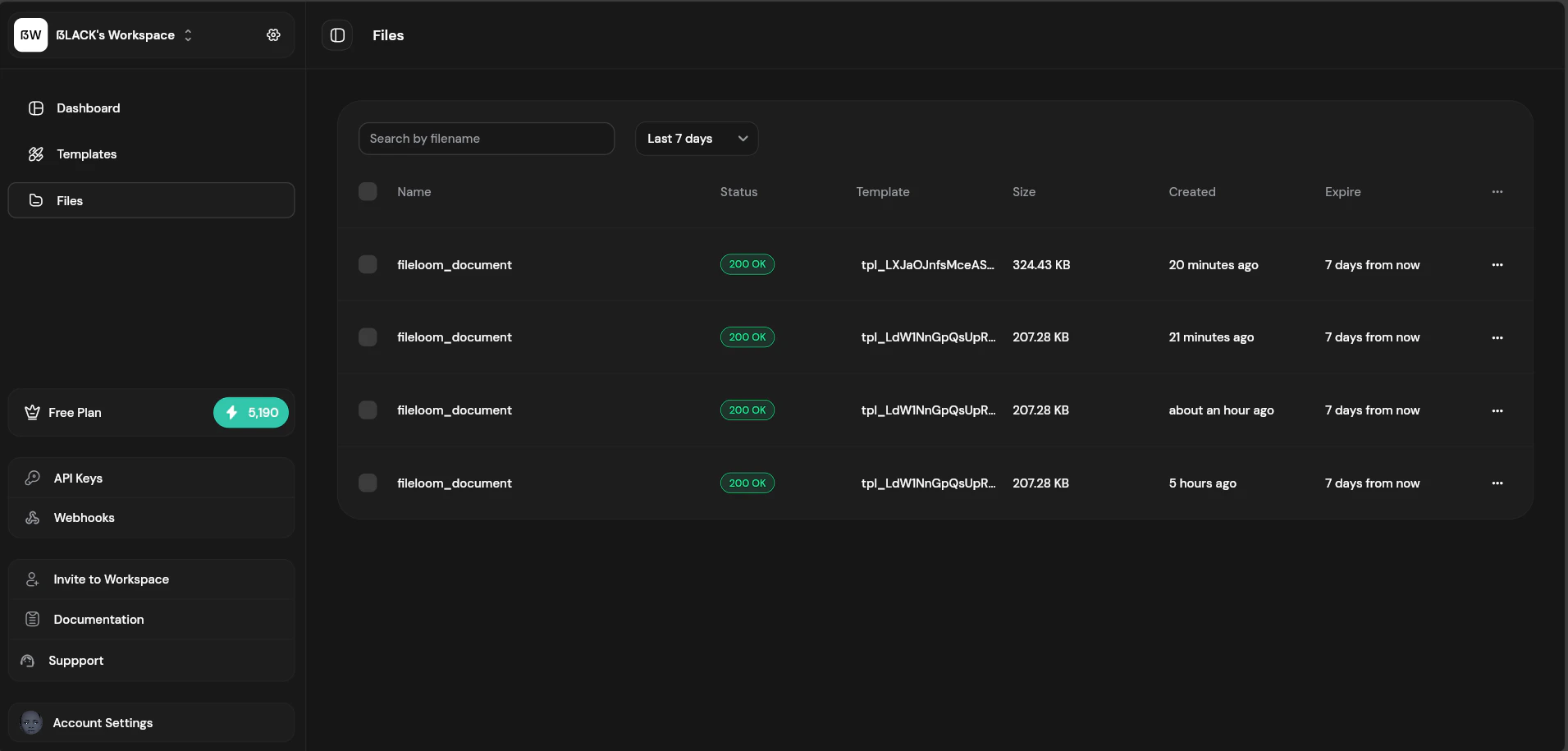
Files list showing generated PDFs
Files List
Filtering Files
Filter files by various criteria:- Date range — Filter by creation date
File Details
Click a file to view its details:Downloading Files
Multiple ways to download:- Quick download — Click the download icon in the files list
- Detail panel — Click “Download” in the file details
- Public URL — Copy and open the permanent URL
- API — Use the URL returned from PDF generation
File Retention
Files are automatically deleted based on your plan:Expired files are permanently deleted and cannot be recovered. Download important files before expiration.
Deleting Files
To delete a file manually:- Find the file in the list
- Click the trash icon or open file details
- Click “Delete”
- Confirm deletion
Bulk Actions
Select multiple files for bulk operations:- Bulk download — Download selected files as ZIP (Available on paid plans only)
- Bulk delete — Delete multiple files at once