# Response Examples Source: https://docs.fileloom.io/api-reference/examples Sample API responses for various scenarios including success, errors, and edge cases. This page provides complete response examples for different API scenarios. ## Successful Generation ### Raw HTML Generation **Request:** ```json theme={null} { "htmlContent": "

Hello World

This is a test PDF.

" } ``` **Response:** ```json theme={null} { "success": true, "requestId": "req_1734012345678_a1b2c3d4e", "data": { "fileId": "file_1734012345678_x9y8z7w6", "url": "https://storage.googleapis.com/fileloom-prod/workspaces/ws_abc123/pdfs/2024/12/document-1734012345678.pdf", "signedUrl": "https://storage.googleapis.com/fileloom-prod/workspaces/ws_abc123/pdfs/2024/12/document-1734012345678.pdf?X-Goog-Algorithm=GOOG4-RSA-SHA256&X-Goog-Credential=...", "filename": "document.pdf", "size": 8234, "expiresAt": "2024-12-16T10:30:00.000Z", "storageProvider": "firebase", "processingTimeMs": 623, "generationMethod": "html", "templateUsed": null }, "usage": { "remaining": 9847, "quotaUsed": 153, "quotaLimit": 10000 } } ``` ### Template Generation **Request:** ```json theme={null} { "templateId": "tpl_invoice_v2", "templateData": { "invoiceNumber": "INV-2024-0042", "customerName": "Acme Corp", "total": 1250.00 } } ``` **Response:** ```json theme={null} { "success": true, "requestId": "req_1734012398765_f5g6h7i8", "data": { "fileId": "file_1734012398765_m3n4o5p6", "url": "https://storage.googleapis.com/fileloom-prod/workspaces/ws_abc123/pdfs/2024/12/Invoice-INV-2024-0042-1734012398765.pdf", "signedUrl": "https://storage.googleapis.com/fileloom-prod/workspaces/ws_abc123/pdfs/2024/12/Invoice-INV-2024-0042-1734012398765.pdf?X-Goog-Algorithm=...", "filename": "Invoice-INV-2024-0042.pdf", "size": 45678, "expiresAt": "2024-12-16T10:33:18.000Z", "storageProvider": "firebase", "processingTimeMs": 1247, "generationMethod": "template", "templateUsed": { "id": "tpl_invoice_v2", "name": "Professional Invoice" } }, "usage": { "remaining": 9846, "quotaUsed": 154, "quotaLimit": 10000 } } ``` ### With External Storage **Response (storage mode: "both"):** ```json theme={null} { "success": true, "requestId": "req_1734012456789_j1k2l3m4", "data": { "fileId": "file_1734012456789_q7r8s9t0", "url": "https://storage.googleapis.com/fileloom-prod/workspaces/ws_abc123/pdfs/2024/12/report-1734012456789.pdf", "signedUrl": "https://storage.googleapis.com/fileloom-prod/...", "filename": "report.pdf", "size": 128456, "expiresAt": "2024-12-16T10:40:56.000Z", "storageProvider": "firebase", "processingTimeMs": 2341, "generationMethod": "template", "templateUsed": { "id": "tpl_report_monthly", "name": "Monthly Report" }, "externalCopies": [ { "provider": "s3", "name": "Production Backup", "url": "https://acme-docs.s3.us-west-2.amazonaws.com/reports/2024/12/report-1734012456789.pdf", "expiresAt": "2024-12-22T10:40:56.000Z" } ] }, "usage": { "remaining": 9845, "quotaUsed": 155, "quotaLimit": 10000 } } ``` ### With Warnings When external storage partially fails: ```json theme={null} { "success": true, "requestId": "req_1734012567890_n5o6p7q8", "data": { "fileId": "file_1734012567890_u1v2w3x4", "url": "https://storage.googleapis.com/fileloom-prod/...", "signedUrl": "https://storage.googleapis.com/fileloom-prod/...", "filename": "document.pdf", "size": 23456, "storageProvider": "firebase", "processingTimeMs": 1567, "generationMethod": "html", "templateUsed": null }, "warnings": [ { "provider": "s3", "name": "Backup Storage", "error": "Access denied: invalid credentials" } ], "usage": { "remaining": 9844, "quotaUsed": 156, "quotaLimit": 10000 } } ``` ## Error Responses ### Validation Error **Request (missing required field):** ```json theme={null} { "templateData": { "name": "Test" } } ``` **Response (400):** ```json theme={null} { "error": { "code": "VALIDATION_ERROR", "message": "Input validation failed", "details": [ "Either htmlContent or templateId is required" ], "requestId": "req_1734012678901_r9s0t1u2", "timestamp": "2024-12-15T10:51:18.901Z" } } ``` ### Invalid API Key **Response (401):** ```json theme={null} { "error": { "code": "INVALID_API_KEY", "message": "Invalid API key", "requestId": "req_1734012789012_v3w4x5y6", "timestamp": "2024-12-15T10:53:09.012Z" } } ``` ### Template Not Found **Request:** ```json theme={null} { "templateId": "tpl_nonexistent", "templateData": {} } ``` **Response (404):** ```json theme={null} { "error": { "code": "TEMPLATE_NOT_FOUND", "message": "Template not found", "requestId": "req_1734012890123_z7a8b9c0", "timestamp": "2024-12-15T10:54:50.123Z" } } ``` ### Template Compilation Error **Request (invalid Handlebars syntax):** ```json theme={null} { "htmlContent": "

{{#if}}

" } ``` **Response (400):** ```json theme={null} { "error": { "code": "TEMPLATE_COMPILATION_ERROR", "message": "Template compilation failed: Parse error on line 1: #if requires exactly one argument", "requestId": "req_1734012901234_d1e2f3g4", "timestamp": "2024-12-15T10:55:01.234Z" } } ``` ### No Credits Available **Response (429):** ```json theme={null} { "error": { "code": "NO_CREDITS_AVAILABLE", "message": "No credits available. Quota: 2000/2000 used. Purchase credits or upgrade plan.", "requestId": "req_1734013012345_h5i6j7k8", "timestamp": "2024-12-15T10:56:52.345Z" } } ``` ### Rate Limit Exceeded **Response (429):** ```json theme={null} { "error": { "code": "RATE_LIMIT_EXCEEDED", "message": "Rate limit exceeded. Please retry after 45 seconds.", "requestId": "req_1734013123456_l9m0n1o2", "timestamp": "2024-12-15T10:58:43.456Z" } } ``` ### Request Timeout **Response (408):** ```json theme={null} { "error": { "code": "REQUEST_TIMEOUT", "message": "PDF generation timed out after 30 seconds", "requestId": "req_1734013234567_p3q4r5s6", "timestamp": "2024-12-15T11:00:34.567Z" } } ``` ### File Too Large **Response (413):** ```json theme={null} { "error": { "code": "FILE_TOO_LARGE", "message": "Generated PDF exceeds size limit of 25MB", "requestId": "req_1734013345678_t7u8v9w0", "timestamp": "2024-12-15T11:02:25.678Z" } } ``` ### PDF Generation Failed **Response (502):** ```json theme={null} { "error": { "code": "PDF_GENERATION_FAILED", "message": "PDF generation failed: Unable to load external resource", "requestId": "req_1734013456789_x1y2z3a4", "timestamp": "2024-12-15T11:04:16.789Z" } } ``` ### Internal Error **Response (500):** ```json theme={null} { "error": { "code": "INTERNAL_ERROR", "message": "An unexpected error occurred. Please try again.", "requestId": "req_1734013567890_b5c6d7e8", "timestamp": "2024-12-15T11:06:07.890Z" } } ``` ## Handling Responses ### JavaScript Example ```javascript theme={null} async function generatePdf(htmlContent, templateData) { try { const response = await fetch('https://api.fileloom.io/v1/pdf/generate', { method: 'POST', headers: { 'X-API-Key': process.env.FILELOOM_API_KEY, 'Content-Type': 'application/json' }, body: JSON.stringify({ htmlContent, templateData }) }); const result = await response.json(); if (!response.ok) { // Handle error response console.error(`Error ${result.error.code}: ${result.error.message}`); throw new Error(result.error.message); } // Handle success console.log(`PDF generated: ${result.data.url}`); console.log(`Credits remaining: ${result.usage.remaining}`); return result.data; } catch (error) { console.error('Failed to generate PDF:', error); throw error; } } ``` ### Python Example ```python theme={null} import requests import os def generate_pdf(html_content, template_data=None): response = requests.post( 'https://api.fileloom.io/v1/pdf/generate', headers={ 'X-API-Key': os.environ['FILELOOM_API_KEY'], 'Content-Type': 'application/json' }, json={ 'htmlContent': html_content, 'templateData': template_data or {} } ) result = response.json() if not response.ok: error = result.get('error', {}) raise Exception(f"{error.get('code')}: {error.get('message')}") print(f"PDF generated: {result['data']['url']}") print(f"Credits remaining: {result['usage']['remaining']}") return result['data'] ``` ## Webhook Payloads When webhooks are configured, you'll receive these payloads: ### pdf.generated ```json theme={null} { "event": "pdf.generated", "timestamp": "2024-12-15T11:10:00.000Z", "data": { "fileId": "file_1734013800000_abc123", "requestId": "req_1734013800000_xyz789", "url": "https://storage.googleapis.com/fileloom-prod/...", "signedUrl": "https://storage.googleapis.com/fileloom-prod/...", "filename": "invoice.pdf", "sizeBytes": 45678, "processingTimeMs": 1234, "generationMethod": "template", "templateId": "tpl_invoice_v2", "templateName": "Professional Invoice", "storageProvider": "firebase", "storageMode": "fileloom", "externalCopies": [] }, "workspace": { "id": "ws_abc123xyz", "name": "Acme Corp" } } ``` ### pdf.failed ```json theme={null} { "event": "pdf.failed", "timestamp": "2024-12-15T11:12:00.000Z", "data": { "requestId": "req_1734013920000_def456", "error": "Template compilation failed: Unexpected token", "errorCode": "TEMPLATE_COMPILATION_ERROR", "templateId": "tpl_broken_template", "templateName": "Broken Template" }, "workspace": { "id": "ws_abc123xyz", "name": "Acme Corp" } } ``` # Generate PDF Source: https://docs.fileloom.io/api-reference/generate-pdf Generate a PDF from HTML content or a saved template. Generate a PDF document from raw HTML or a saved template with dynamic data. ## Endpoint ``` POST https://api.fileloom.io/v1/pdf/generate ``` ## Authentication Include your API key in the request headers: ``` X-API-Key: fl_your_api_key ``` ## Request Body You must provide either `htmlContent` OR `templateId`, but not both. ### Using Raw HTML ```json theme={null} { "htmlContent": "

Hello {{name}}

", "templateData": { "name": "World" }, "filename": "greeting.pdf", "options": { "format": "A4", "orientation": "portrait", "margin": { "top": 10, "right": 10, "bottom": 10, "left": 10 }, "printBackground": true } } ``` ### Using a Template ```json theme={null} { "templateId": "tpl_abc123xyz", "templateData": { "invoiceNumber": "INV-2024-001", "customer": { "name": "Acme Corp", "email": "billing@acme.com" }, "items": [ {"name": "Widget", "price": 29.99, "quantity": 2}, {"name": "Gadget", "price": 49.99, "quantity": 1} ], "total": 109.97 }, "filename": "invoice-INV-2024-001.pdf" } ``` ## Parameters ### Required (one of) Raw HTML content to convert to PDF. Supports Handlebars syntax for dynamic content. ID of a saved template to use. Find this in the template editor or templates list. ### Optional JSON object with data to inject into Handlebars placeholders. Custom filename for the generated PDF (without .pdf extension). Max 255 characters. PDF generation options. When using a template, these override template settings. ### Options Object Paper size. One of: `A0`, `A1`, `A2`, `A3`, `A4`, `A5`, `A6`, `Letter`, `Legal`, `Tabloid`, `Ledger`, `Custom` Page orientation. One of: `portrait`, `landscape` Custom page width in millimeters. Only used when format is `Custom`. Custom page height in millimeters. Only used when format is `Custom`. Page margins in millimeters. ```json theme={null} { "top": 10, "right": 10, "bottom": 10, "left": 10 } ``` Include background colors and images in the PDF. Page header configuration. ```json theme={null} { "enabled": true, "height": 15, "content": "
Header
" } ```
Page footer configuration. ```json theme={null} { "enabled": true, "height": 10, "content": "
Page
" } ```
Dynamic filename template using Handlebars syntax. Example: `Invoice-{{invoiceNumber}}` ## Response ### Success Response (200) ```json theme={null} { "success": true, "requestId": "req_1734012345_abc123", "data": { "fileId": "file_1734012345_xyz789", "url": "https://storage.googleapis.com/fileloom-prod/workspaces/ws_xxx/pdfs/2024/12/document-1734012345.pdf", "signedUrl": "https://storage.googleapis.com/fileloom-prod/workspaces/ws_xxx/pdfs/2024/12/document-1734012345.pdf?X-Goog-Algorithm=...", "filename": "document.pdf", "size": 12847, "expiresAt": "2024-12-16T10:30:00.000Z", "storageProvider": "firebase", "processingTimeMs": 847, "generationMethod": "html", "templateUsed": null }, "usage": { "remaining": 1999, "quotaUsed": 1, "quotaLimit": 2000 } } ``` ### Response Fields | Field | Type | Description | | ----------------------- | ------- | ---------------------------------------------------- | | `success` | boolean | Whether the request succeeded | | `requestId` | string | Unique identifier for this request | | `data.fileId` | string | Unique identifier for the generated file | | `data.url` | string | Permanent public URL (valid until retention expires) | | `data.signedUrl` | string | Temporary signed URL (valid for 24 hours) | | `data.filename` | string | Filename of the generated PDF | | `data.size` | number | File size in bytes | | `data.expiresAt` | string | When the signed URL expires (ISO 8601) | | `data.storageProvider` | string | Storage provider used (`firebase`, `s3`, `supabase`) | | `data.processingTimeMs` | number | Time to generate the PDF in milliseconds | | `data.generationMethod` | string | `html` or `template` | | `data.templateUsed` | object | Template info if using a template (`id`, `name`) | | `usage.remaining` | number | Total credits remaining | | `usage.quotaUsed` | number | Quota used this billing period | | `usage.quotaLimit` | number | Monthly quota limit | ### External Storage Response When using external storage (S3 or Supabase), additional fields are included: ```json theme={null} { "success": true, "data": { "fileId": "file_1734012345_xyz789", "url": "https://your-bucket.s3.amazonaws.com/pdfs/document.pdf?...", "storageProvider": "s3", "externalCopies": [ { "provider": "s3", "name": "Production S3", "url": "https://your-bucket.s3.amazonaws.com/pdfs/document.pdf", "expiresAt": "2024-12-22T10:30:00.000Z" } ] } } ``` ## Error Codes | Code | Status | Description | | ---------------------------- | ------ | --------------------------------------------- | | `VALIDATION_ERROR` | 400 | Invalid request parameters | | `INVALID_API_KEY` | 401 | API key missing or invalid | | `TEMPLATE_NOT_FOUND` | 404 | Template ID doesn't exist or isn't accessible | | `WORKSPACE_NOT_FOUND` | 404 | Workspace associated with API key not found | | `TEMPLATE_COMPILATION_ERROR` | 400 | Handlebars syntax error in template | | `REQUEST_TIMEOUT` | 408 | PDF generation exceeded timeout limit | | `FILE_TOO_LARGE` | 413 | Generated PDF exceeds size limit | | `NO_CREDITS_AVAILABLE` | 429 | No quota or credits remaining | | `RATE_LIMIT_EXCEEDED` | 429 | Too many requests | | `PDF_GENERATION_FAILED` | 502 | Internal error generating PDF | | `INTERNAL_ERROR` | 500 | Unexpected server error | ### Error Response Format ```json theme={null} { "error": { "code": "VALIDATION_ERROR", "message": "Either htmlContent or templateId is required", "details": [ "Either htmlContent or templateId is required" ], "requestId": "req_1734012345_abc123", "timestamp": "2024-12-15T10:30:00.000Z" } } ``` ## Examples ### Minimal Request ```bash theme={null} curl -X POST https://api.fileloom.io/v1/pdf/generate \ -H "X-API-Key: fl_your_api_key" \ -H "Content-Type: application/json" \ -d '{ "htmlContent": "

Hello World

" }' ``` ### With Dynamic Data ```bash theme={null} curl -X POST https://api.fileloom.io/v1/pdf/generate \ -H "X-API-Key: fl_your_api_key" \ -H "Content-Type: application/json" \ -d '{ "htmlContent": "

Invoice #{{number}}

Amount: {{currency amount \"USD\"}}

", "templateData": { "number": "INV-001", "amount": 299.99 } }' ``` ### Full Options ```bash theme={null} curl -X POST https://api.fileloom.io/v1/pdf/generate \ -H "X-API-Key: fl_your_api_key" \ -H "Content-Type: application/json" \ -d '{ "htmlContent": "

Report

Content here

", "filename": "quarterly-report", "options": { "format": "Letter", "orientation": "landscape", "margin": { "top": 20, "right": 15, "bottom": 20, "left": 15 }, "printBackground": true, "header": { "enabled": true, "height": 15, "content": "
Quarterly Report - Q4 2024
" }, "footer": { "enabled": true, "height": 10, "content": "
Page of
" } } }' ``` ### Using a Template ```bash theme={null} curl -X POST https://api.fileloom.io/v1/pdf/generate \ -H "X-API-Key: fl_your_api_key" \ -H "Content-Type: application/json" \ -d '{ "templateId": "tpl_invoice_standard", "templateData": { "invoiceNumber": "INV-2024-0042", "date": "2024-12-15", "dueDate": "2025-01-14", "customer": { "name": "Acme Corporation", "address": "123 Business Ave", "city": "San Francisco", "state": "CA", "zip": "94102" }, "items": [ {"description": "Consulting Services", "hours": 40, "rate": 150}, {"description": "Development", "hours": 80, "rate": 125} ], "subtotal": 16000, "tax": 1440, "total": 17440 } }' ``` # API Overview Source: https://docs.fileloom.io/api-reference/overview Fileloom API basics: base URL, authentication, rate limits, and request format. The Fileloom API lets you generate PDFs programmatically from HTML templates or raw HTML content. ## Base URL All API requests use the following base URL: ``` https://api.fileloom.io/v1 ``` ## Authentication Authenticate requests using your API key in one of two ways: **X-API-Key Header (Recommended):** ```bash theme={null} curl -X POST https://api.fileloom.io/v1/pdf/generate \ -H "X-API-Key: fl_your_api_key" \ -H "Content-Type: application/json" \ -d '{"htmlContent": "

Hello

"}' ``` **Authorization Bearer Token:** ```bash theme={null} curl -X POST https://api.fileloom.io/v1/pdf/generate \ -H "Authorization: Bearer fl_your_api_key" \ -H "Content-Type: application/json" \ -d '{"htmlContent": "

Hello

"}' ``` Keep your API key secure. Never expose it in client-side code, public repositories, or browser requests. ## Available Endpoints | Method | Endpoint | Description | | ------ | --------------- | ------------------------------------ | | `POST` | `/pdf/generate` | Generate a PDF from HTML or template | ## Request Format All requests must: * Use `POST` method * Include `Content-Type: application/json` header * Send a JSON body ```bash theme={null} curl -X POST https://api.fileloom.io/v1/pdf/generate \ -H "X-API-Key: fl_your_api_key" \ -H "Content-Type: application/json" \ -d '{ "htmlContent": "

Hello World

" }' ``` ## Response Format All responses are JSON with this structure: **Success Response:** ```json theme={null} { "success": true, "requestId": "req_1734012345_abc123", "data": { "fileId": "file_1734012345_xyz789", "url": "https://storage.googleapis.com/...", "signedUrl": "https://storage.googleapis.com/...", "filename": "document.pdf", "size": 12847, "processingTimeMs": 847, "generationMethod": "html" }, "usage": { "remaining": 1999, "quotaUsed": 1, "quotaLimit": 2000 } } ``` **Error Response:** ```json theme={null} { "error": { "code": "VALIDATION_ERROR", "message": "Either htmlContent or templateId is required", "requestId": "req_1734012345_abc123", "timestamp": "2024-12-15T10:30:00.000Z" } } ``` ## Rate Limits Requests are rate-limited based on your plan: | Plan | Requests per Minute | | ---------------- | ------------------- | | Free | 60 | | Starter | 120 | | Growth | 200 | | Scale | 400 | | Scale Business | 1,000 | | Scale Enterprise | Unlimited | ### Rate Limit Headers Every response includes rate limit information: ```tsx theme={null} X-RateLimit-Limit: 200 X-RateLimit-Remaining: 198 X-RateLimit-Reset: 1734012400 ``` | Header | Description | | ----------------------- | ------------------------------------ | | `X-RateLimit-Limit` | Maximum requests per minute | | `X-RateLimit-Remaining` | Requests remaining in current window | | `X-RateLimit-Reset` | Unix timestamp when the limit resets | ### Rate Limit Exceeded When you exceed the rate limit, you'll receive a `429 Too Many Requests` response: ```json theme={null} { "error": { "code": "RATE_LIMIT_EXCEEDED", "message": "Rate limit exceeded. Please retry after 45 seconds.", "requestId": "req_1734012345_abc123", "timestamp": "2024-12-15T10:30:00.000Z" } } ``` ## Timeouts PDF generation timeouts vary by plan: | Plan | Timeout | | ---------------- | ----------- | | Free | 15 seconds | | Starter | 30 seconds | | Growth | 45 seconds | | Scale | 120 seconds | | Scale Business | 240 seconds | | Scale Enterprise | 300 seconds | Complex documents with large images or external resources may require higher-tier plans. ## Content Limits | Limit | Free | Starter | Growth | Scale | Scale Business | Scale Enterprise | | ------------- | ----- | ------- | ------ | ----- | -------------- | ---------------- | | Max HTML Size | 2 MB | 5 MB | 10 MB | 50 MB | 100 MB | 250 MB | | Max PDF Size | 10 MB | 25 MB | 50 MB | 50 MB | 100 MB | 250 MB | ## CORS The API supports CORS for browser-based requests. However, we strongly recommend making API calls from your server to protect your API key. ## Next Steps Complete endpoint documentation Sample responses for all scenarios Examples in 12 languages Handle errors gracefully # Credits System Source: https://docs.fileloom.io/billing/credits Purchase credit packs for additional PDFs beyond your monthly quota. ## Overview Credits provide flexible, pay-as-you-go PDF generation beyond your plan's monthly quota. Purchase credit packs when you need extra capacity without upgrading your plan. **Key benefits:** * **No commitment** - Buy only what you need * **90-day validity** - Credits don't expire monthly * **Instant activation** - Use immediately after purchase * **Volume discounts** - Lower per-PDF cost at higher tiers *** ## Credit Packs | Pack | PDFs | Price | Per PDF | Savings | | ---------------- | ------ | ----- | ------- | ------- | | **Starter** | 500 | \$7 | \$0.014 | — | | **Professional** | 2,000 | \$20 | \$0.010 | 29% | | **Business** | 5,000 | \$45 | \$0.009 | 36% | | **Enterprise** | 10,000 | \$80 | \$0.008 | 43% | | **Mega** | 25,000 | \$175 | \$0.007 | 50% | All credit packs are valid for **90 days** from purchase date. *** ## How Credits Work ### Consumption Order (FIFO) Fileloom uses your quota first, then credits: ``` PDF Request ↓ 1. Monthly quota remaining? → Yes: Use quota → No: Continue to step 2 ↓ 2. Credit packs available? → Yes: Use oldest pack first (FIFO) → No: Return error (429) ``` **FIFO (First In, First Out):** When consuming credits, Fileloom automatically uses the pack that expires soonest, ensuring you never lose purchased credits. ### Example Scenario You're on the Growth plan (10,000 PDFs/month) and purchased a Business pack: | Source | Available | Expires | | ------------- | ---------- | ------------ | | Monthly Quota | 10,000 | End of month | | Business Pack | 5,000 | 90 days | | **Total** | **15,000** | — | When you generate PDFs: 1. First 10,000 use your monthly quota 2. Next 5,000 use your credit pack 3. After 15,000, API returns quota exceeded error *** ## Purchasing Credits ### From Dashboard 1. Go to **Settings** → **Billing** 2. Click **Buy Credits** 3. Select a credit pack 4. Complete payment Credits are available immediately after purchase. ### Via API (Coming Soon) Programmatic credit purchases will be available in a future update. *** ## Viewing Credit Balance ### Dashboard Your credit balance appears in multiple locations: * **Top navigation**: Quick view of total available * **Billing page**: Detailed breakdown by source * **Usage page**: Historical consumption chart ### API Response Every PDF generation response includes usage data: ```json theme={null} { "success": true, "data": { ... }, "usage": { "remaining": 12500, "quotaUsed": 7500, "quotaLimit": 10000 } } ``` | Field | Description | | ------------ | -------------------------------------- | | `remaining` | Total PDFs available (quota + credits) | | `quotaUsed` | Monthly quota consumed | | `quotaLimit` | Monthly quota limit from plan | *** ## Credit Expiration ### 90-Day Validity Credit packs expire 90 days from purchase, regardless of: * Billing cycle changes * Plan upgrades or downgrades * Subscription cancellation ### What Happens at Expiration * Remaining PDFs in the pack are forfeited * Pack is marked as `expired` * Lifetime stats updated with expired count * No refunds for expired credits Purchase credits when you have a specific need rather than stockpiling. The 90-day window provides flexibility without long-term commitment. *** ## Credit History View your complete credit history in **Settings** → **Billing** → **Credit History**. *** ## Credits vs Plan Upgrade When should you buy credits vs upgrade your plan? ### Buy Credits When: * **Temporary spike** - One-time project or seasonal demand * **Testing capacity** - Evaluating higher usage before committing * **Buffer needed** - Want safety margin without monthly commitment * **Near cycle end** - Only need extra capacity for a few days ### Upgrade Plan When: * **Consistent growth** - Regularly exceeding quota * **Need features** - Want capabilities only in higher tiers * **Cost efficiency** - Monthly average exceeds credit pack value * **Team scaling** - Need more members or API keys ### Cost Comparison Example If you consistently need 15,000 PDFs/month: | Option | Monthly Cost | | ---------------------------------- | ------------ | | Growth ($49) + Business Pack ($45) | \$94 | | Scale Plan (\$199) | \$199 | In this case, credits are more economical. But Scale includes 50,000 PDFs, priority support, and 99.5% SLA. *** ## FAQ Yes! Unlike monthly quota, credit packs are valid for 90 days from purchase date, independent of your billing cycle. Credit pack purchases are non-refundable. We recommend purchasing based on actual need rather than anticipated usage. Your credits remain valid for their full 90-day period. You can continue using them on the Free plan (with Free plan limits on other features). No, credits are tied to the workspace where they were purchased and cannot be transferred. No limit on manual purchases. Yes, PDFs generated from credits appear in your analytics with a `fromCredits` flag for separate tracking. No, Fileloom always uses your monthly quota first to ensure you get full value from your subscription. # Plans & Pricing Source: https://docs.fileloom.io/billing/plans Compare Fileloom plans and find the right fit for your PDF generation needs. ## Plan Overview Fileloom offers six plans designed to scale with your business, from hobby projects to enterprise applications. | Plan | Monthly Price | PDFs/Month | Best For | | -------------------- | ------------- | ---------- | -------------------- | | **Free** | \$0 | 200 | Testing & evaluation | | **Starter** | \$9 | 2,000 | Side projects, MVPs | | **Growth** | \$49 | 10,000 | Growing applications | | **Scale** | \$199 | 50,000 | Production workloads | | **Scale Business** | \$699 | 500,000 | High-volume apps | | **Scale Enterprise** | \$1,299 | 1,000,000 | Enterprise systems | Annual billing saves 20% on all paid plans. *** ## Plan Comparison ### Free Plan - \$0/month Perfect for testing Fileloom before committing. | Feature | Limit | | --------------- | ---------- | | PDFs per month | 200 | | Templates | 5 | | Team members | 2 | | API keys | 1 | | File retention | 7 days | | Max HTML size | 2 MB | | Max output size | 10 MB | | Timeout | 15 seconds | | Rate limit | 60/min | **Included features:** * Basic PDF generation * Template editor access * Community support * Custom headers/footers * Webhooks * External storage **Not included:** * Priority support *** ### Starter Plan - \$9/month For side projects and MVPs that need reliable PDF generation. | Feature | Limit | | --------------- | ---------- | | PDFs per month | 2,000 | | Templates | 50 | | Team members | 3 | | API keys | 2 | | File retention | 30 days | | Max HTML size | 5 MB | | Max output size | 25 MB | | Timeout | 30 seconds | | Rate limit | 120/min | **Included features:** * Everything in Free * Webhooks * External storage (S3, Supabase) * Email support *** ### Growth Plan - \$49/month For growing applications with increasing PDF demands. | Feature | Limit | | --------------- | ---------- | | PDFs per month | 10,000 | | Templates | Unlimited | | Team members | 5 | | API keys | 5 | | File retention | 90 days | | Max HTML size | 10 MB | | Max output size | 50 MB | | Timeout | 45 seconds | | Rate limit | 200/min | **Included features:** * Everything in Starter * Custom headers & footers * Template version history * Priority email support *** ### Scale Plan - \$199/month For production workloads requiring performance and reliability. | Feature | Limit | | --------------- | ----------- | | PDFs per month | 50,000 | | Templates | Unlimited | | Team members | 10 | | API keys | 10 | | File retention | 180 days | | Max HTML size | 50 MB | | Max output size | 50 MB | | Timeout | 120 seconds | | Rate limit | 400/min | **Included features:** * Everything in Growth * 99.5% uptime SLA * Advanced analytics * Priority support *** ### Scale Business - \$699/month For high-volume applications with enterprise requirements. | Feature | Limit | | --------------- | ----------- | | PDFs per month | 500,000 | | Templates | Unlimited | | Team members | 25 | | API keys | 25 | | File retention | 365 days | | Max HTML size | 100 MB | | Max output size | 100 MB | | Timeout | 240 seconds | | Rate limit | 1,000/min | **Included features:** * Everything in Scale * 99.9% uptime SLA * Dedicated support * Custom integrations assistance *** ### Scale Enterprise - \$1,299/month For enterprise systems with mission-critical PDF generation. | Feature | Limit | | --------------- | ----------- | | PDFs per month | 1,000,000 | | Templates | Unlimited | | Team members | Unlimited | | API keys | Unlimited | | File retention | 365 days | | Max HTML size | 250 MB | | Max output size | 250 MB | | Timeout | 300 seconds | | Rate limit | Unlimited | **Included features:** * Everything in Scale Business * 99.99% uptime SLA * SSO/SAML authentication * Dedicated account manager * Custom contract terms * Invoice billing *** ## Feature Comparison Matrix | Feature | Free | Starter | Growth | Scale | Business | Enterprise | | ---------------------- | ---- | ------- | ------ | ----- | -------- | ---------- | | PDF Generation | ✓ | ✓ | ✓ | ✓ | ✓ | ✓ | | Template Editor | ✓ | ✓ | ✓ | ✓ | ✓ | ✓ | | Handlebars Helpers | ✓ | ✓ | ✓ | ✓ | ✓ | ✓ | | Webhooks | — | ✓ | ✓ | ✓ | ✓ | ✓ | | External Storage | — | ✓ | ✓ | ✓ | ✓ | ✓ | | Custom Headers/Footers | — | — | ✓ | ✓ | ✓ | ✓ | | Version History | — | — | ✓ | ✓ | ✓ | ✓ | | Advanced Analytics | — | — | — | ✓ | ✓ | ✓ | | Uptime SLA | — | — | — | 99.5% | 99.9% | 99.99% | | Priority Support | — | — | — | ✓ | ✓ | ✓ | | Dedicated Support | — | — | — | — | ✓ | ✓ | | SSO/SAML | — | — | — | — | — | ✓ | *** ## Upgrading Your Plan ### From the Dashboard 1. Go to **Settings** → **Billing** 2. Click **Change Plan** 3. Select your new plan 4. Confirm the upgrade Changes take effect immediately. You'll be charged a prorated amount for the remainder of your billing cycle. ### What Happens When You Upgrade * **Immediate access** to new limits and features * **Prorated billing** for the current period * **No data loss** - all templates and files preserved * **API keys continue working** without changes *** ## Downgrading Your Plan When downgrading: * Change takes effect at the **end of your billing period** * Ensure you're within new plan limits before the change * Excess templates will become read-only (not deleted) * Files beyond retention period will be queued for deletion If you exceed the new plan's limits, some features may be restricted until you reduce usage. *** ## Annual Billing Save 20% with annual billing on any paid plan. | Plan | Monthly | Annual (per month) | Annual Savings | | ---------------- | ------- | ------------------ | --------------- | | Starter | \$9 | \$7.20 | \$21.60/year | | Growth | \$49 | \$39.20 | \$117.60/year | | Scale | \$199 | \$159.20 | \$477.60/year | | Scale Business | \$699 | \$559.20 | \$1,677.60/year | | Scale Enterprise | \$1,299 | \$1,039.20 | \$3,117.60/year | To switch to annual billing: 1. Go to **Settings** → **Billing** 2. Click **Switch to Annual** 3. Pay the prorated difference *** ## Exceeding Your Quota When you reach your monthly PDF limit: 1. **API returns error** - `429 NO_CREDITS_AVAILABLE` 2. **Dashboard shows warning** - quota exceeded notification 3. **Options to continue:** * Purchase credit packs (instant) * Upgrade your plan * Wait for monthly reset Fileloom does not support automatic overages. This protects you from unexpected bills. *** ## FAQ Yes! The Free plan includes 200 PDFs/month with no credit card required. Test all core features before upgrading. We accept all major credit cards (Visa, Mastercard, American Express) and PayPal through our payment processor Polar. Yes, you can cancel your subscription anytime. You'll retain access until the end of your billing period. Monthly quota PDFs do not roll over. However, purchased credit packs are valid for 90 days regardless of billing cycle. Your templates and settings are preserved for 30 days after cancellation. Generated PDFs follow your plan's retention policy. Yes! Contact [hello@fileloom.io](mailto:hello@fileloom.io) for custom volume pricing, SLAs, and contract terms. # cURL Examples Source: https://docs.fileloom.io/code-examples/curl Generate PDFs using cURL from the command line. ## Basic Generation ```bash theme={null} curl -X POST https://api.fileloom.io/v1/pdf/generate \ -H "X-API-Key: fl_your_api_key" \ -H "Content-Type: application/json" \ -d '{"htmlContent": "

Hello World

"}' ``` ## With Dynamic Data ```bash theme={null} curl -X POST https://api.fileloom.io/v1/pdf/generate \ -H "X-API-Key: fl_your_api_key" \ -H "Content-Type: application/json" \ -d '{ "htmlContent": "

Invoice #{{invoiceNumber}}

", "templateData": {"invoiceNumber": "INV-001"}, "filename": "invoice.pdf" }' ``` ## Using a Template ```bash theme={null} curl -X POST https://api.fileloom.io/v1/pdf/generate \ -H "X-API-Key: fl_your_api_key" \ -H "Content-Type: application/json" \ -d '{ "templateId": "tpl_invoice_v2", "templateData": { "invoiceNumber": "INV-2024-001", "customer": {"name": "Acme Corp"}, "items": [{"description": "Web Dev", "quantity": 10, "price": 150}], "total": 1500 } }' ``` ## With Options ```bash theme={null} curl -X POST https://api.fileloom.io/v1/pdf/generate \ -H "X-API-Key: fl_your_api_key" \ -H "Content-Type: application/json" \ -d '{ "htmlContent": "

Document

", "options": { "format": "Letter", "orientation": "landscape", "margin": {"top": 20, "right": 15, "bottom": 20, "left": 15} } }' ``` ## Download PDF ```bash theme={null} curl -X POST https://api.fileloom.io/v1/pdf/generate \ -H "X-API-Key: fl_your_api_key" \ -H "Content-Type: application/json" \ -d '{"htmlContent": "

Hello

"}' \ | jq -r '.data.url' \ | xargs curl -o document.pdf ``` ## Shell Script ```bash theme={null} #!/bin/bash API_KEY="${FILELOOM_API_KEY}" generate_pdf() { curl -s -X POST "https://api.fileloom.io/v1/pdf/generate" \ -H "X-API-Key: $API_KEY" \ -H "Content-Type: application/json" \ -d "{\"htmlContent\": \"$1\", \"filename\": \"$2\"}" } result=$(generate_pdf "

Report

" "report.pdf") url=$(echo "$result" | jq -r '.data.url') curl -s -o "report.pdf" "$url" ``` # .NET Examples Source: https://docs.fileloom.io/code-examples/dotnet Generate PDFs in C# using HttpClient. ## Client Class ```csharp theme={null} using System.Net.Http.Json; using System.Text.Json; public class FileloomClient : IDisposable { private readonly HttpClient _http; private readonly JsonSerializerOptions _json = new() { PropertyNamingPolicy = JsonNamingPolicy.CamelCase }; public FileloomClient(string apiKey) { _http = new HttpClient { BaseAddress = new Uri("https://api.fileloom.io/v1/") }; _http.DefaultRequestHeaders.Add("X-API-Key", apiKey); } public async Task GeneratePdfAsync(PdfRequest request) { var response = await _http.PostAsJsonAsync("pdf/generate", request, _json); var content = await response.Content.ReadAsStringAsync(); if (!response.IsSuccessStatusCode) { var error = JsonSerializer.Deserialize(content, _json); throw new FileloomException(error?.Error.Message ?? "Unknown", error?.Error.Code ?? "UNKNOWN", (int)response.StatusCode); } return JsonSerializer.Deserialize(content, _json)!; } public void Dispose() => _http.Dispose(); } ``` ## Models ```csharp theme={null} public record PdfRequest( string? HtmlContent = null, string? TemplateId = null, Dictionary? TemplateData = null, string? Filename = null ); public record FileloomResponse(bool Success, string RequestId, PdfData Data, UsageInfo Usage); public record PdfData(string FileId, string Url, string SignedUrl, string Filename, long Size); public record UsageInfo(int Remaining, int QuotaUsed, int QuotaLimit); public record ErrorResponse(ErrorDetail Error); public record ErrorDetail(string Code, string Message); public class FileloomException : Exception { public string Code { get; } public int StatusCode { get; } public FileloomException(string msg, string code, int status) : base(msg) { Code = code; StatusCode = status; } } ``` ## Usage ```csharp theme={null} using var client = new FileloomClient(Environment.GetEnvironmentVariable("FILELOOM_API_KEY")!); // From HTML var result = await client.GeneratePdfAsync(new PdfRequest( HtmlContent: "

Hello

", Filename: "hello.pdf" )); Console.WriteLine($"URL: {result.Data.Url}"); // From template var invoiceResult = await client.GeneratePdfAsync(new PdfRequest( TemplateId: "tpl_invoice_v2", TemplateData: new Dictionary { ["invoiceNumber"] = "INV-001", ["customer"] = new { name = "Acme Corp" }, ["items"] = new[] { new { description = "Web Dev", quantity = 10, price = 150 } }, ["total"] = 1500 }, Filename: "invoice.pdf" )); ``` ## ASP.NET Core ```csharp theme={null} // Program.cs builder.Services.AddSingleton(new FileloomClient(builder.Configuration["Fileloom:ApiKey"]!)); // Controller [ApiController] [Route("api/[controller]")] public class InvoicesController : ControllerBase { private readonly FileloomClient _fileloom; public InvoicesController(FileloomClient fileloom) => _fileloom = fileloom; [HttpPost("{id}/pdf")] public async Task GeneratePdf(int id) { var invoice = await GetInvoiceAsync(id); var result = await _fileloom.GeneratePdfAsync(new PdfRequest( TemplateId: "tpl_invoice_v2", TemplateData: invoice.ToDictionary(), Filename: $"invoice-{invoice.Number}.pdf" )); return Ok(new { pdfUrl = result.Data.Url }); } } ``` # Flutter Examples Source: https://docs.fileloom.io/code-examples/flutter Generate PDFs in Flutter/Dart applications. ## Dependencies ```yaml theme={null} dependencies: http: ^1.1.0 path_provider: ^2.1.0 open_file: ^3.3.0 ``` ## Client ```dart theme={null} import 'dart:convert'; import 'dart:io'; import 'package:http/http.dart' as http; class FileloomClient { final String apiKey; final String baseUrl; FileloomClient({required this.apiKey, this.baseUrl = 'https://api.fileloom.io/v1'}); Future generatePdf({ String? html, String? templateId, Map? templateData, String? filename, }) async { final payload = {}; if (templateId != null) payload['templateId'] = templateId; else if (html != null) payload['htmlContent'] = html; if (templateData != null) payload['templateData'] = templateData; if (filename != null) payload['filename'] = filename; final response = await http.post( Uri.parse('$baseUrl/pdf/generate'), headers: {'X-API-Key': apiKey, 'Content-Type': 'application/json'}, body: jsonEncode(payload), ).timeout(const Duration(seconds: 60)); final data = jsonDecode(response.body); if (response.statusCode != 200) { throw FileloomException( message: data['error']?['message'] ?? 'Unknown error', code: data['error']?['code'] ?? 'UNKNOWN', ); } return PdfResult.fromJson(data); } Future downloadPdf(String url, String filePath) async { final response = await http.get(Uri.parse(url)); final file = File(filePath); await file.writeAsBytes(response.bodyBytes); return file; } } class PdfResult { final String fileId, url, filename; final int size, remainingCredits; PdfResult({required this.fileId, required this.url, required this.filename, required this.size, required this.remainingCredits}); factory PdfResult.fromJson(Map json) => PdfResult( fileId: json['data']['fileId'], url: json['data']['url'], filename: json['data']['filename'], size: json['data']['size'], remainingCredits: json['usage']['remaining'], ); } class FileloomException implements Exception { final String message, code; FileloomException({required this.message, required this.code}); } ``` ## Usage ```dart theme={null} final client = FileloomClient( apiKey: const String.fromEnvironment('FILELOOM_API_KEY'), ); // Generate from HTML final result = await client.generatePdf( html: '

Hello World

', filename: 'hello.pdf', ); print('URL: ${result.url}'); // Generate from template final invoice = await client.generatePdf( templateId: 'tpl_invoice_v2', templateData: { 'invoiceNumber': 'INV-001', 'customer': {'name': 'Acme Corp'}, 'items': [{'description': 'Web Dev', 'quantity': 10, 'price': 150}], 'total': 1500, }, filename: 'invoice.pdf', ); ``` ## Download and Open ```dart theme={null} import 'package:path_provider/path_provider.dart'; import 'package:open_file/open_file.dart'; Future generateAndOpen() async { final result = await client.generatePdf(html: '

Report

'); final dir = await getTemporaryDirectory(); await client.downloadPdf(result.url, '${dir.path}/report.pdf'); await OpenFile.open('${dir.path}/report.pdf'); } ``` ## Widget ```dart theme={null} class PdfButton extends StatefulWidget { final String templateId; final Map data; const PdfButton({required this.templateId, required this.data}); @override State createState() => _PdfButtonState(); } class _PdfButtonState extends State { bool _loading = false; Future _generate() async { setState(() => _loading = true); try { final result = await client.generatePdf( templateId: widget.templateId, templateData: widget.data, ); final dir = await getTemporaryDirectory(); await client.downloadPdf(result.url, '${dir.path}/doc.pdf'); await OpenFile.open('${dir.path}/doc.pdf'); } finally { setState(() => _loading = false); } } @override Widget build(BuildContext context) => ElevatedButton( onPressed: _loading ? null : _generate, child: Text(_loading ? 'Generating...' : 'Download PDF'), ); } ``` # Go Examples Source: https://docs.fileloom.io/code-examples/go Generate PDFs in Go using net/http. ## Types and Client ```go theme={null} package fileloom import ( "bytes" "encoding/json" "fmt" "io" "net/http" "time" ) type Client struct { APIKey string BaseURL string HTTP *http.Client } type PdfRequest struct { HTMLContent string // json: htmlContent,omitempty TemplateID string // json: templateId,omitempty TemplateData map[string]interface{} // json: templateData,omitempty Filename string // json: filename,omitempty } type Response struct { Success bool Data PdfData Usage Usage } type PdfData struct { FileID string URL string Size int64 } type Usage struct { Remaining int } type Error struct { Code string Message string Status int } func (e *Error) Error() string { return fmt.Sprintf("[%s] %s", e.Code, e.Message) } func NewClient(apiKey string) *Client { return &Client{ APIKey: apiKey, BaseURL: "https://api.fileloom.io/v1", HTTP: &http.Client{Timeout: 60 * time.Second}, } } func (c *Client) GeneratePdf(req *PdfRequest) (*Response, error) { body, _ := json.Marshal(req) httpReq, _ := http.NewRequest("POST", c.BaseURL+"/pdf/generate", bytes.NewReader(body)) httpReq.Header.Set("X-API-Key", c.APIKey) httpReq.Header.Set("Content-Type", "application/json") resp, err := c.HTTP.Do(httpReq) if err != nil { return nil, err } defer resp.Body.Close() respBody, _ := io.ReadAll(resp.Body) if resp.StatusCode != 200 { var errResp struct { Error struct { Code string Message string } } json.Unmarshal(respBody, &errResp) return nil, &Error{ Code: errResp.Error.Code, Message: errResp.Error.Message, Status: resp.StatusCode, } } var result Response json.Unmarshal(respBody, &result) return &result, nil } ``` The struct fields use standard Go naming. The JSON marshaling uses field name mapping. For production code, add proper struct tags for JSON field names. ## Usage ```go theme={null} package main import ( "fmt" "os" ) func main() { client := fileloom.NewClient(os.Getenv("FILELOOM_API_KEY")) // From HTML result, err := client.GeneratePdf(&fileloom.PdfRequest{ HTMLContent: "

Hello

", Filename: "hello.pdf", }) if err != nil { fmt.Println("Error:", err) return } fmt.Println("URL:", result.Data.URL) // From template templateData := map[string]interface{}{ "invoiceNumber": "INV-001", "customer": map[string]interface{}{"name": "Acme Corp"}, "items": []map[string]interface{}{ {"description": "Web Dev", "quantity": 10, "price": 150}, }, "total": 1500, } result, _ = client.GeneratePdf(&fileloom.PdfRequest{ TemplateID: "tpl_invoice_v2", TemplateData: templateData, Filename: "invoice.pdf", }) } ``` ## HTTP Handler ```go theme={null} func generatePdfHandler(w http.ResponseWriter, r *http.Request) { var data map[string]interface{} json.NewDecoder(r.Body).Decode(&data) result, err := client.GeneratePdf(&fileloom.PdfRequest{ TemplateID: "tpl_invoice_v2", TemplateData: data, }) if err != nil { http.Error(w, err.Error(), 500) return } w.Header().Set("Content-Type", "application/json") json.NewEncoder(w).Encode(map[string]string{"pdfUrl": result.Data.URL}) } ``` # Java Examples Source: https://docs.fileloom.io/code-examples/java Generate PDFs in Java using HttpClient. ## Dependencies ```xml theme={null} com.google.code.gson gson 2.10.1 ``` ## Client and Models ```java theme={null} import com.google.gson.Gson; import java.net.URI; import java.net.http.*; import java.time.Duration; import java.util.Map; public class FileloomClient { private final String apiKey; private final HttpClient http; private final Gson gson = new Gson(); public FileloomClient(String apiKey) { this.apiKey = apiKey; this.http = HttpClient.newBuilder().connectTimeout(Duration.ofSeconds(10)).build(); } public FileloomResponse generatePdf(PdfRequest request) throws Exception { HttpRequest httpReq = HttpRequest.newBuilder() .uri(URI.create("https://api.fileloom.io/v1/pdf/generate")) .header("X-API-Key", apiKey) .header("Content-Type", "application/json") .timeout(Duration.ofSeconds(60)) .POST(HttpRequest.BodyPublishers.ofString(gson.toJson(request))) .build(); HttpResponse resp = http.send(httpReq, HttpResponse.BodyHandlers.ofString()); if (resp.statusCode() != 200) { ErrorResponse err = gson.fromJson(resp.body(), ErrorResponse.class); throw new FileloomException(err.error.message, err.error.code, resp.statusCode()); } return gson.fromJson(resp.body(), FileloomResponse.class); } } class PdfRequest { String htmlContent, templateId, filename; Map templateData; } class FileloomResponse { boolean success; PdfData data; Usage usage; } class PdfData { String fileId, url, filename; long size; } class Usage { int remaining, quotaUsed, quotaLimit; } class ErrorResponse { ErrorDetail error; } class ErrorDetail { String code, message; } class FileloomException extends Exception { String code; int statusCode; FileloomException(String msg, String code, int status) { super(msg); this.code = code; this.statusCode = status; } } ``` ## Usage ```java theme={null} FileloomClient client = new FileloomClient(System.getenv("FILELOOM_API_KEY")); // From HTML PdfRequest req = new PdfRequest(); req.htmlContent = "

Hello

"; req.filename = "hello.pdf"; FileloomResponse result = client.generatePdf(req); System.out.println("URL: " + result.data.url); // From template PdfRequest templateReq = new PdfRequest(); templateReq.templateId = "tpl_invoice_v2"; templateReq.templateData = Map.of( "invoiceNumber", "INV-001", "customer", Map.of("name", "Acme Corp"), "items", List.of(Map.of("description", "Web Dev", "quantity", 10, "price", 150)), "total", 1500 ); templateReq.filename = "invoice.pdf"; FileloomResponse invoiceResult = client.generatePdf(templateReq); ``` ## Spring Boot ```java theme={null} @Service public class FileloomService { private final FileloomClient client; public FileloomService(@Value("${fileloom.api-key}") String apiKey) { this.client = new FileloomClient(apiKey); } public String generateInvoicePdf(Invoice invoice) throws Exception { PdfRequest req = new PdfRequest(); req.templateId = "tpl_invoice_v2"; req.templateData = invoice.toMap(); req.filename = "invoice-" + invoice.getNumber() + ".pdf"; return client.generatePdf(req).data.url; } } ``` # JavaScript Examples Source: https://docs.fileloom.io/code-examples/javascript Generate PDFs in Node.js using fetch or axios. ## Using Fetch (Node.js 18+) ```javascript theme={null} const FILELOOM_API_KEY = process.env.FILELOOM_API_KEY; async function generatePdf(html, options = {}) { const response = await fetch('https://api.fileloom.io/v1/pdf/generate', { method: 'POST', headers: { 'X-API-Key': FILELOOM_API_KEY, 'Content-Type': 'application/json' }, body: JSON.stringify({ htmlContent: html, ...options }) }); if (!response.ok) { const error = await response.json(); throw new Error(error.error?.message || 'PDF generation failed'); } return response.json(); } // Usage const result = await generatePdf('

Hello World

'); console.log('PDF URL:', result.data.url); ``` ## With Template ```javascript theme={null} async function generateFromTemplate(templateId, data, filename) { const response = await fetch('https://api.fileloom.io/v1/pdf/generate', { method: 'POST', headers: { 'X-API-Key': process.env.FILELOOM_API_KEY, 'Content-Type': 'application/json' }, body: JSON.stringify({ templateId, templateData: data, filename }) }); if (!response.ok) { const error = await response.json(); throw new Error(error.error?.message || 'Failed'); } return response.json(); } const invoice = await generateFromTemplate('tpl_invoice_v2', { invoiceNumber: 'INV-2024-001', customer: { name: 'Acme Corp' }, items: [{ description: 'Web Dev', quantity: 10, price: 150 }], total: 1500 }, 'invoice.pdf'); ``` ## Download to File ```javascript theme={null} import { writeFile } from 'fs/promises'; async function generateAndDownload(html, outputPath) { const result = await generatePdf(html); const pdfResponse = await fetch(result.data.url); const buffer = await pdfResponse.arrayBuffer(); await writeFile(outputPath, Buffer.from(buffer)); } await generateAndDownload('

Report

', './report.pdf'); ``` ## Using Axios ```javascript theme={null} const axios = require('axios'); const fileloom = axios.create({ baseURL: 'https://api.fileloom.io/v1', headers: { 'X-API-Key': process.env.FILELOOM_API_KEY }, timeout: 60000 }); async function generatePdf(html, options = {}) { const { data } = await fileloom.post('/pdf/generate', { htmlContent: html, ...options }); return data; } ``` ## Express.js Integration ```javascript theme={null} const express = require('express'); const app = express(); app.post('/api/invoices/:id/pdf', async (req, res) => { try { const invoice = await getInvoice(req.params.id); const response = await fetch('https://api.fileloom.io/v1/pdf/generate', { method: 'POST', headers: { 'X-API-Key': process.env.FILELOOM_API_KEY, 'Content-Type': 'application/json' }, body: JSON.stringify({ templateId: 'tpl_invoice_v2', templateData: invoice, filename: `invoice-${invoice.number}.pdf` }) }); const result = await response.json(); res.json({ pdfUrl: result.data.url }); } catch (error) { res.status(500).json({ error: 'Failed to generate PDF' }); } }); ``` # Overview Source: https://docs.fileloom.io/code-examples/overview Learn how to integrate Fileloom PDF generation into your application with examples in 11 programming languages. Fileloom's REST API works with any programming language that can make HTTP requests. This section provides complete, copy-paste examples for popular languages. ## Available Examples Command line Node.js Type-safe requests Dart cURL/Guzzle C# net/http HttpClient Net::HTTP reqwest ## API Basics | Setting | Value | | ------------------ | ---------------------------- | | **Base URL** | `https://api.fileloom.io/v1` | | **Endpoint** | `POST /pdf/generate` | | **Content-Type** | `application/json` | | **Authentication** | `X-API-Key: fl_your_api_key` | ## Request Structure ```json theme={null} { "htmlContent": "...", "templateData": { }, "filename": "document.pdf", "options": { "format": "A4", "margin": { "top": 10, "right": 10, "bottom": 10, "left": 10 } } } ``` Or with a template: ```json theme={null} { "templateId": "tpl_your_template_id", "templateData": { }, "filename": "document.pdf" } ``` ## Response Structure ```json theme={null} { "success": true, "requestId": "req_abc123", "data": { "fileId": "file_xyz789", "url": "https://storage.googleapis.com/.../document.pdf", "signedUrl": "https://storage.googleapis.com/...?token=...", "filename": "document.pdf", "size": 45678, "processingTimeMs": 1234 }, "usage": { "remaining": 9500, "quotaUsed": 500, "quotaLimit": 10000 } } ``` ## Error Handling | Error Code | Description | | ---------- | ------------------------ | | 400 | Invalid request | | 401 | Invalid API key | | 404 | Template not found | | 408 | Request timeout | | 413 | File too large | | 429 | Rate limit or no credits | | 500 | Server error | # PHP Examples Source: https://docs.fileloom.io/code-examples/php Generate PDFs in PHP using cURL or Guzzle. ## Using cURL ```php theme={null} $html]; if ($filename) $payload['filename'] = $filename; $ch = curl_init('https://api.fileloom.io/v1/pdf/generate'); curl_setopt_array($ch, [ CURLOPT_POST => true, CURLOPT_POSTFIELDS => json_encode($payload), CURLOPT_HTTPHEADER => [ 'X-API-Key: ' . $apiKey, 'Content-Type: application/json', ], CURLOPT_RETURNTRANSFER => true, CURLOPT_TIMEOUT => 60, ]); $response = curl_exec($ch); $statusCode = curl_getinfo($ch, CURLINFO_HTTP_CODE); curl_close($ch); $data = json_decode($response, true); if ($statusCode !== 200) { throw new Exception($data['error']['message'] ?? 'Unknown error'); } return $data; } $result = generatePdf('

Hello

', 'hello.pdf'); echo "URL: " . $result['data']['url']; ``` ## With Template ```php theme={null} $templateId, 'templateData' => $data]; if ($filename) $payload['filename'] = $filename; $ch = curl_init('https://api.fileloom.io/v1/pdf/generate'); curl_setopt_array($ch, [ CURLOPT_POST => true, CURLOPT_POSTFIELDS => json_encode($payload), CURLOPT_HTTPHEADER => [ 'X-API-Key: ' . getenv('FILELOOM_API_KEY'), 'Content-Type: application/json', ], CURLOPT_RETURNTRANSFER => true, ]); $response = curl_exec($ch); curl_close($ch); return json_decode($response, true); } $result = generateFromTemplate('tpl_invoice_v2', [ 'invoiceNumber' => 'INV-001', 'customer' => ['name' => 'Acme Corp'], 'items' => [['description' => 'Web Dev', 'quantity' => 10, 'price' => 150]], 'total' => 1500, ], 'invoice.pdf'); ``` ## Using Guzzle ```php theme={null} client = new Client([ 'base_uri' => 'https://api.fileloom.io/v1/', 'headers' => ['X-API-Key' => $apiKey], 'timeout' => 60, ]); } public function generatePdf(?string $html = null, ?string $templateId = null, ?array $templateData = null, ?string $filename = null): array { $payload = []; if ($templateId) $payload['templateId'] = $templateId; elseif ($html) $payload['htmlContent'] = $html; if ($templateData) $payload['templateData'] = $templateData; if ($filename) $payload['filename'] = $filename; $response = $this->client->post('pdf/generate', ['json' => $payload]); return json_decode($response->getBody(), true); } } $client = new FileloomClient(getenv('FILELOOM_API_KEY')); $result = $client->generatePdf( templateId: 'tpl_invoice_v2', templateData: ['invoiceNumber' => 'INV-001'], filename: 'invoice.pdf' ); ``` ## Laravel Integration ```php theme={null} config('services.fileloom.api_key'), ]) ->timeout(60) ->post('https://api.fileloom.io/v1/pdf/generate', $params); if (!$response->successful()) { throw new \Exception($response->json('error.message', 'Failed')); } return $response->json(); } } // Controller public function downloadPdf(Invoice $invoice, FileloomService $fileloom) { $result = $fileloom->generatePdf([ 'templateId' => 'tpl_invoice_v2', 'templateData' => $invoice->toArray(), 'filename' => "invoice-{$invoice->number}.pdf", ]); return response()->json(['pdfUrl' => $result['data']['url']]); } ``` # Python Examples Source: https://docs.fileloom.io/code-examples/python Generate PDFs in Python using requests. ## Installation ```bash theme={null} pip install requests ``` ## Basic Generation ```python theme={null} import requests import os API_KEY = os.environ.get('FILELOOM_API_KEY') API_URL = 'https://api.fileloom.io/v1/pdf/generate' def generate_pdf(html, filename=None, options=None): payload = {'htmlContent': html} if filename: payload['filename'] = filename if options: payload['options'] = options response = requests.post(API_URL, json=payload, headers={'X-API-Key': API_KEY}, timeout=60) response.raise_for_status() return response.json() result = generate_pdf('

Hello

', 'hello.pdf') print(f"URL: {result['data']['url']}") ``` ## With Template ```python theme={null} def generate_from_template(template_id, data, filename=None): payload = {'templateId': template_id, 'templateData': data} if filename: payload['filename'] = filename response = requests.post(API_URL, json=payload, headers={'X-API-Key': API_KEY}, timeout=60) response.raise_for_status() return response.json() result = generate_from_template('tpl_invoice_v2', { 'invoiceNumber': 'INV-001', 'customer': {'name': 'Acme Corp'}, 'items': [{'description': 'Web Dev', 'quantity': 10, 'price': 150}], 'total': 1500 }, 'invoice.pdf') ``` ## Download to File ```python theme={null} def generate_and_download(html, output_path): result = generate_pdf(html) response = requests.get(result['data']['url']) with open(output_path, 'wb') as f: f.write(response.content) generate_and_download('

Report

', './report.pdf') ``` ## Client Class ```python theme={null} from dataclasses import dataclass from typing import Optional, Dict, Any @dataclass class PdfResult: file_id: str url: str filename: str size: int remaining_credits: int class FileloomClient: def __init__(self, api_key: str): self.api_key = api_key self.base_url = 'https://api.fileloom.io/v1' def generate_pdf(self, html: str = None, template_id: str = None, template_data: Dict = None, filename: str = None) -> PdfResult: payload = {} if template_id: payload['templateId'] = template_id elif html: payload['htmlContent'] = html if template_data: payload['templateData'] = template_data if filename: payload['filename'] = filename response = requests.post(f'{self.base_url}/pdf/generate', json=payload, headers={'X-API-Key': self.api_key}, timeout=60) data = response.json() if not response.ok: raise Exception(data.get('error', {}).get('message', 'Unknown error')) return PdfResult( file_id=data['data']['fileId'], url=data['data']['url'], filename=data['data']['filename'], size=data['data']['size'], remaining_credits=data['usage']['remaining'] ) # Usage client = FileloomClient(os.environ['FILELOOM_API_KEY']) result = client.generate_pdf(template_id='tpl_invoice_v2', template_data={'invoiceNumber': 'INV-001'}, filename='invoice.pdf') ``` ## Flask Integration ```python theme={null} from flask import Flask, request, jsonify app = Flask(__name__) client = FileloomClient(os.environ['FILELOOM_API_KEY']) @app.route('/api/invoices//pdf', methods=['POST']) def generate_invoice_pdf(invoice_id): invoice = get_invoice(invoice_id) result = client.generate_pdf( template_id='tpl_invoice_v2', template_data=invoice, filename=f'invoice-{invoice["number"]}.pdf' ) return jsonify({'pdfUrl': result.url}) ``` # Ruby Examples Source: https://docs.fileloom.io/code-examples/ruby Generate PDFs in Ruby using Net::HTTP. ## Client ```ruby theme={null} require 'net/http' require 'json' class FileloomClient def initialize(api_key) @api_key = api_key @base_url = 'https://api.fileloom.io/v1' end def generate_pdf(html: nil, template_id: nil, template_data: nil, filename: nil) payload = {} payload[:htmlContent] = html if html payload[:templateId] = template_id if template_id payload[:templateData] = template_data if template_data payload[:filename] = filename if filename uri = URI("#{@base_url}/pdf/generate") http = Net::HTTP.new(uri.host, uri.port) http.use_ssl = true request = Net::HTTP::Post.new(uri) request['X-API-Key'] = @api_key request['Content-Type'] = 'application/json' request.body = payload.to_json response = http.request(request) data = JSON.parse(response.body) unless response.is_a?(Net::HTTPSuccess) raise FileloomError.new(data.dig('error', 'message') || 'Unknown', data.dig('error', 'code') || 'UNKNOWN', response.code.to_i) end data end def download_pdf(url, path) response = Net::HTTP.get_response(URI(url)) File.binwrite(path, response.body) end end class FileloomError < StandardError attr_reader :code, :status def initialize(msg, code, status) super(msg) @code = code @status = status end end ``` ## Usage ```ruby theme={null} client = FileloomClient.new(ENV['FILELOOM_API_KEY']) # From HTML result = client.generate_pdf(html: '

Hello

', filename: 'hello.pdf') puts "URL: #{result['data']['url']}" # From template result = client.generate_pdf( template_id: 'tpl_invoice_v2', template_data: { invoiceNumber: 'INV-001', customer: { name: 'Acme Corp' }, items: [{ description: 'Web Dev', quantity: 10, price: 150 }], total: 1500 }, filename: 'invoice.pdf' ) # Download client.download_pdf(result['data']['url'], './invoice.pdf') ``` ## Rails Integration ```ruby theme={null} # app/services/fileloom_service.rb class FileloomService def initialize @client = FileloomClient.new(Rails.application.credentials.fileloom_api_key) end def generate_invoice_pdf(invoice) @client.generate_pdf( template_id: 'tpl_invoice_v2', template_data: invoice.as_fileloom_data, filename: "invoice-#{invoice.number}.pdf" ) end end # app/models/invoice.rb class Invoice < ApplicationRecord def as_fileloom_data { invoiceNumber: number, customer: { name: customer.name, email: customer.email }, items: line_items.map { |i| { description: i.description, quantity: i.quantity, price: i.unit_price } }, total: total.to_f } end end # app/controllers/invoices_controller.rb class InvoicesController < ApplicationController def generate_pdf invoice = Invoice.find(params[:id]) result = FileloomService.new.generate_invoice_pdf(invoice) render json: { pdf_url: result['data']['url'] } end end ``` # Rust Examples Source: https://docs.fileloom.io/code-examples/rust Generate PDFs in Rust using reqwest. ## Dependencies Add to `Cargo.toml`: ```toml theme={null} [dependencies] reqwest = { version = "0.11", features = ["json"] } serde = { version = "1.0", features = ["derive"] } serde_json = "1.0" tokio = { version = "1", features = ["full"] } thiserror = "1.0" ``` ## Types ```rust theme={null} use serde::{Deserialize, Serialize}; use std::collections::HashMap; #[derive(Debug, Serialize, Default)] #[serde(rename_all = "camelCase")] pub struct PdfRequest { #[serde(skip_serializing_if = "Option::is_none")] pub html_content: Option, #[serde(skip_serializing_if = "Option::is_none")] pub template_id: Option, #[serde(skip_serializing_if = "Option::is_none")] pub template_data: Option>, #[serde(skip_serializing_if = "Option::is_none")] pub filename: Option, } #[derive(Debug, Deserialize)] #[serde(rename_all = "camelCase")] pub struct FileloomResponse { pub success: bool, pub request_id: String, pub data: PdfData, pub usage: UsageInfo, } #[derive(Debug, Deserialize)] #[serde(rename_all = "camelCase")] pub struct PdfData { pub file_id: String, pub url: String, pub signed_url: String, pub filename: String, pub size: i64, } #[derive(Debug, Deserialize)] #[serde(rename_all = "camelCase")] pub struct UsageInfo { pub remaining: i32, pub quota_used: i32, pub quota_limit: i32, } #[derive(Debug, thiserror::Error)] pub enum FileloomError { #[error("API error [{code}]: {message}")] ApiError { code: String, message: String, status_code: u16 }, #[error("Request failed: {0}")] RequestError(#[from] reqwest::Error), } ``` ## Client ```rust theme={null} use reqwest::Client; use std::time::Duration; pub struct FileloomClient { api_key: String, base_url: String, client: Client, } impl FileloomClient { pub fn new(api_key: impl Into) -> Self { Self { api_key: api_key.into(), base_url: "https://api.fileloom.io/v1".to_string(), client: Client::builder() .timeout(Duration::from_secs(60)) .build() .expect("Failed to create HTTP client"), } } pub async fn generate_pdf(&self, request: PdfRequest) -> Result { let response = self.client .post(format!("{}/pdf/generate", self.base_url)) .header("X-API-Key", &self.api_key) .json(&request) .send() .await?; let status = response.status(); if !status.is_success() { #[derive(Deserialize)] struct ErrorResponse { error: ErrorDetail } #[derive(Deserialize)] struct ErrorDetail { code: String, message: String } let error: ErrorResponse = response.json().await?; return Err(FileloomError::ApiError { code: error.error.code, message: error.error.message, status_code: status.as_u16(), }); } Ok(response.json().await?) } } ``` ## Usage ```rust theme={null} use serde_json::json; #[tokio::main] async fn main() -> Result<(), Box> { let client = FileloomClient::new(std::env::var("FILELOOM_API_KEY")?); // From HTML let result = client.generate_pdf(PdfRequest { html_content: Some("

Hello

".to_string()), filename: Some("hello.pdf".to_string()), ..Default::default() }).await?; println!("URL: {}", result.data.url); // From template let mut data = HashMap::new(); data.insert("invoiceNumber".to_string(), json!("INV-001")); data.insert("customer".to_string(), json!({"name": "Acme Corp"})); data.insert("items".to_string(), json!([{"description": "Web Dev", "quantity": 10, "price": 150}])); data.insert("total".to_string(), json!(1500)); let invoice = client.generate_pdf(PdfRequest { template_id: Some("tpl_invoice_v2".to_string()), template_data: Some(data), filename: Some("invoice.pdf".to_string()), ..Default::default() }).await?; Ok(()) } ``` ## Error Handling ```rust theme={null} match client.generate_pdf(request).await { Ok(result) => println!("Success: {}", result.data.url), Err(FileloomError::ApiError { code, message, .. }) => { match code.as_str() { "TEMPLATE_NOT_FOUND" => println!("Template does not exist"), "NO_CREDITS_AVAILABLE" => println!("Out of credits"), _ => println!("API Error [{}]: {}", code, message), } } Err(FileloomError::RequestError(e)) => println!("Network error: {}", e), } ``` # TypeScript Examples Source: https://docs.fileloom.io/code-examples/typescript Type-safe PDF generation with TypeScript. ## Type Definitions ```typescript theme={null} interface PdfOptions { format?: 'A4' | 'A3' | 'Letter' | 'Legal'; orientation?: 'portrait' | 'landscape'; margin?: { top?: number; right?: number; bottom?: number; left?: number }; printBackground?: boolean; } interface GeneratePdfRequest { htmlContent?: string; templateId?: string; templateData?: Record; filename?: string; options?: PdfOptions; } interface PdfData { fileId: string; url: string; signedUrl: string; filename: string; size: number; processingTimeMs: number; } interface FileloomResponse { success: true; requestId: string; data: PdfData; usage: { remaining: number; quotaUsed: number; quotaLimit: number }; } ``` ## Client Class ```typescript theme={null} class FileloomClient { constructor(private apiKey: string, private baseUrl = 'https://api.fileloom.io/v1') {} async generatePdf(request: GeneratePdfRequest): Promise { const response = await fetch(`${this.baseUrl}/pdf/generate`, { method: 'POST', headers: { 'X-API-Key': this.apiKey, 'Content-Type': 'application/json' }, body: JSON.stringify(request) }); if (!response.ok) { const error = await response.json(); throw new FileloomApiError(error.error.message, error.error.code, response.status); } return response.json(); } } class FileloomApiError extends Error { constructor(message: string, public code: string, public status: number) { super(message); } } ``` ## Usage ```typescript theme={null} const client = new FileloomClient(process.env.FILELOOM_API_KEY!); // HTML generation const result = await client.generatePdf({ htmlContent: '

Hello

', filename: 'hello.pdf' }); // Template with typed data interface InvoiceData { invoiceNumber: string; customer: { name: string; email: string }; items: Array<{ description: string; quantity: number; unitPrice: number }>; total: number; } const invoice: InvoiceData = { invoiceNumber: 'INV-001', customer: { name: 'Acme', email: 'billing@acme.com' }, items: [{ description: 'Web Dev', quantity: 10, unitPrice: 150 }], total: 1500 }; const result = await client.generatePdf({ templateId: 'tpl_invoice_v2', templateData: invoice, filename: 'invoice.pdf' }); ``` ## Error Handling ```typescript theme={null} try { await client.generatePdf({ templateId: 'invalid' }); } catch (error) { if (error instanceof FileloomApiError) { switch (error.code) { case 'TEMPLATE_NOT_FOUND': console.error('Template missing'); break; case 'NO_CREDITS_AVAILABLE': console.error('Out of credits'); break; default: console.error(`Error [${error.code}]: ${error.message}`); } } } ``` # Account Source: https://docs.fileloom.io/dashboard/account Manage your Fileloom user profile, preferences, and security settings. Access account settings by clicking **Account** in the sidebar. Account ## Profile Settings Update your personal information: | Setting | Description | | ---------------- | ------------------------------------------------ | | **Display Name** | Your name shown in the dashboard | | **Email** | Account email (used for login and notifications) | | **Photo** | Profile picture (from Google/GitHub or uploaded) | ### Connected Accounts If you signed up with Google or GitHub, your authentication is managed by that provider. To change your password, use your Google or GitHub account settings. ## Deleting Your Account Account deletion is permanent. All your data, including workspaces you own, will be deleted. To delete your account: 1. Go to **Account** → **Delete Account** 2. Enter your password to confirm 3. Acknowledge the consequences 4. Click "Delete Account" Before deleting: * Transfer ownership of any workspaces you want to preserve * Download any files you need to keep * Export templates you want to save ## Support Need help? Contact us: * **Email:** [support@fileloom.io](mailto:support@fileloom.io) Check the [Support](/resources/support) page for common questions and troubleshooting tips. # API Keys Source: https://docs.fileloom.io/dashboard/api-keys Create and manage API keys for authenticating with the Fileloom API. API keys authenticate your requests to the Fileloom API. Manage them in **Workspace Settings** → **API Keys**. API Keys ## API Keys List | Column | Description | | -------------- | --------------------------------- | | **Name** | Friendly name for the key | | **Key Prefix** | First 8 characters (fl\_xxxxxxxx) | | **Created** | When the key was created | | **Last Used** | Most recent API call | | **Status** | Active or Revoked | ## Creating an API Key From the API Keys page, click "Create API Key". Give the key a descriptive name (e.g., "Production Server", "Development"). Copy the full key immediately — it won't be shown again! The full API key is only shown once when created. Store it securely — we cannot recover it. ## Key Permissions | Permission | Description | | ---------------- | ------------------------------------ | | **pdf.generate** | Generate PDFs from HTML or templates | ## Using API Keys Include your API key in the `X-API-Key` header: ```bash theme={null} curl -X POST https://api.fileloom.io/v1/pdf/generate \ -H "X-API-Key: fl_your_api_key_here" \ -H "Content-Type: application/json" \ -d '{"htmlContent": "
Hello World

"}' ``` Or use the Authorization header: ```bash theme={null} Authorization: Bearer fl_your_api_key_here ``` ## Revoking Keys To revoke an API key: 1. Find the key in the list 2. Click the menu icon (three dots) 3. Select "Revoke Key" 4. Confirm revocation Revoked keys immediately stop working. Any applications using the key will receive authentication errors. ## Key Limits API key limits are based on your plan: | Plan | Max Keys | | ---------------- | --------- | | Free | 1 | | Starter | 2 | | Growth | 5 | | Scale | 10 | | Scale Business | 25 | | Scale Enterprise | Unlimited | ## Best Practices * **Use descriptive names** — Name keys by environment or purpose * **Minimum permissions** — Only grant permissions the key needs * **Rotate regularly** — Create new keys and revoke old ones periodically * **Never commit keys** — Use environment variables, not hardcoded keys * **Monitor usage** — Check for unusual activity regularly # Billing Source: https://docs.fileloom.io/dashboard/billing Manage your Fileloom subscription, view invoices, and purchase credits. Access billing settings from **Workspace Settings** → **Billing**. Billing ## Current Plan The billing page shows your current subscription: * **Plan name** — Free, Starter, Growth, Scale, etc. * **Billing period** — Monthly or Annual * **Next billing date** — When your subscription renews * **Monthly quota** — PDFs included in your plan ## Changing Plans ### Upgrading From the billing page, click "Upgrade Plan". Choose your new plan and billing period (monthly/annual). Enter payment details through our secure checkout. Your new plan limits are active immediately. Annual billing saves 20% compared to monthly billing. ### Downgrading Downgrades take effect at the end of your current billing period: 1. Click "Change Plan" 2. Select a lower tier 3. Confirm the change Your current plan benefits continue until the period ends. ## Payment Methods Fileloom accepts: * Credit/debit cards (Visa, Mastercard, American Express) Manage payment methods in the billing portal. ## Invoices & History View your billing history: | Column | Description | | --------------- | ----------------------------- | | **Date** | Invoice date | | **Description** | Plan or credit pack purchased | | **Amount** | Amount charged | | **Status** | Paid, Pending, or Failed | | **Invoice** | Download PDF invoice | ## Credit Packs Purchase additional credits when you need more PDFs: | Pack | PDFs | Price | Per PDF | | ------------ | ------ | ----- | ------- | | Starter | 500 | \$7 | \$0.014 | | Professional | 2,000 | \$20 | \$0.010 | | Business | 5,000 | \$45 | \$0.009 | | Enterprise | 10,000 | \$80 | \$0.008 | | Mega | 25,000 | \$175 | \$0.007 | See [Credits](/billing/credits) for details on purchasing and using credits. ## Cancellation To cancel your subscription: 1. Go to **Workspace Settings** → **Billing** 2. Click "Manage Billing" 3. Cancel on your billing portal After cancellation, your workspace downgrades to Free at the end of the billing period. Templates and files remain but may be affected by lower limits. ## Failed Payments If a payment fails: 1. Update your payment method in the billing portal 2. Retry the payment 3. Contact support if issues persist After multiple failed payments, your subscription may be paused. # Files Source: https://docs.fileloom.io/dashboard/files View, download, and manage generated PDF files in the Fileloom dashboard. The **Files** section displays all PDFs generated in your workspace. Files ## Files List | Column | Description | | ------------ | ------------------------------ | | **Filename** | PDF filename | | **Template** | Template used (or "Raw HTML") | | **Size** | File size in KB/MB | | **Created** | Generation timestamp | | **Status** | Generated, Expired, or Deleted | | **Actions** | Download, view, delete | ## Filtering Files Filter files by various criteria: * **Date range** — Filter by creation date ## File Details Click a file to view its details: | Field | Description | | -------------- | ----------------------------- | | **File ID** | Unique identifier (file\_xxx) | | **Public URL** | Permanent download link | | **Signed URL** | Temporary secure link | | **Template** | Template used for generation | | **Size** | File size | | **Created** | Timestamp | | **Expires** | When file will be deleted | | **Downloads** | Number of times downloaded | ## Downloading Files Multiple ways to download: 1. **Quick download** — Click the download icon in the files list 2. **Detail panel** — Click "Download" in the file details 3. **Public URL** — Copy and open the permanent URL 4. **API** — Use the URL returned from PDF generation ## File Retention Files are automatically deleted based on your plan: | Plan | Retention | | ---------------- | --------- | | Free | 7 days | | Starter | 30 days | | Growth | 90 days | | Scale | 180 days | | Scale Business | 365 days | | Scale Enterprise | 365 days | Expired files are permanently deleted and cannot be recovered. Download important files before expiration. ## Deleting Files To delete a file manually: 1. Find the file in the list 2. Click the trash icon or open file details 3. Click "Delete" 4. Confirm deletion Deleted files cannot be recovered. External storage copies are not automatically deleted. ## Bulk Actions Select multiple files for bulk operations: * **Bulk download** — Download selected files as ZIP (Available on paid plans only) * **Bulk delete** — Delete multiple files at once # Overview Source: https://docs.fileloom.io/dashboard/overview Navigate the Fileloom dashboard at app.fileloom.io to manage templates, files, API keys, and team members. The Fileloom dashboard is your central hub for managing everything in your workspace. Access it at [app.fileloom.io](https://app.fileloom.io). Dashboard Home ## Signing In Fileloom supports multiple authentication methods: * **Email & Password** — Create an account with your email * **Google** — Sign in with your Google account * **GitHub** — Sign in with your GitHub account * **SSO** — Available on Scale Enterprise plans A default workspace is created automatically when you sign up. You can create additional workspaces later. ## Dashboard Layout The dashboard consists of a sidebar navigation and main content area. ### Sidebar Navigation | Section | Description | | ----------------------- | ------------------------------------------ | | **Workspace Selector** | Switch between workspaces (top of sidebar) | | **Dashboard** | Overview and quick stats | | **Templates** | Create and manage PDF templates | | **Files** | View generated PDFs | | **API Keys** | Manage API authentication keys | | **Webhooks** | Configure event notifications | | **Credits Indicator** | Shows remaining credits | | **Invite to Workspace** | Add team members | | **Documentation** | Link to these docs | | **Support** | Contact support | | **Account** | Profile and settings | ### Workspace Settings Click the gear icon next to your workspace name to access: * **General** — Workspace name, slug, storage settings * **Members** — Team member management * **Billing** — Subscription and payment * **API Keys** — API key management * **Webhooks** — Webhook configuration * **Integration** — External storage setup * **Usage** — Detailed usage statistics ## Usage Overview The dashboard displays your current usage at a glance: * **PDFs Generated** — This month and all-time * **Quota Used** — Progress toward monthly limit * **Credits Remaining** — Available credit pack balance * **Storage Used** — Total storage consumption ## Next Steps Manage workspace settings Create and edit templates Generate API keys Invite collaborators # Team Members Source: https://docs.fileloom.io/dashboard/team-members Invite team members and manage roles in your Fileloom workspace. Collaborate with your team by inviting members to your workspace. Access team management in **Workspace Settings** → **Members**. Team Members ## Members List | Column | Description | | ---------- | ------------------------------ | | **Member** | Name and email | | **Role** | Owner, Editor, or Viewer | | **Joined** | When they joined the workspace | | **Status** | Active or Pending invitation | ## Inviting Members Click "Invite Member" button or use the sidebar shortcut. Enter the email address of the person to invite. Choose their role: Editor or Viewer. Click "Send Invite" to send the invitation email. The invitee receives an email with a link to join your workspace. ## Roles and Permissions | Permission | Owner | Editor | Viewer | | ---------------- | ----- | ------ | ------ | | View templates | ✓ | ✓ | ✓ | | View files | ✓ | ✓ | ✓ | | Create templates | ✓ | ✓ | — | | Edit templates | ✓ | ✓ | — | | Delete templates | ✓ | ✓ | — | | Generate PDFs | ✓ | ✓ | — | | Delete files | ✓ | ✓ | — | | View API keys | ✓ | ✓ | — | | Create API keys | ✓ | — | — | | Manage members | ✓ | — | — | | Manage billing | ✓ | — | — | | Delete workspace | ✓ | — | — | ## Changing Member Roles Owners can change member roles: 1. Find the member in the list 2. Click the role dropdown 3. Select the new role 4. Confirm the change Role changes take effect immediately. The member's access updates on their next page load. ## Removing Members To remove a member from the workspace: 1. Find the member in the list 2. Click the menu icon (three dots) 3. Select "Remove from Workspace" 4. Confirm removal Removed members immediately lose access to the workspace. Any API keys they created remain active. ## Member Limits Team size limits are based on your plan: | Plan | Max Members | | ---------------- | ----------- | | Free | 2 | | Starter | 3 | | Growth | 5 | | Scale | 10 | | Scale Business | 25 | | Scale Enterprise | Unlimited | ## Transferring Ownership To transfer workspace ownership: 1. Go to **Workspace Settings** → **Members** 2. Click on the member to become owner 3. Select "Transfer Ownership" 4. Confirm the transfer You'll become an Editor after transferring ownership. ## Best Practices * **Least privilege** — Assign the minimum role needed for each member's tasks * **Review regularly** — Periodically audit member access * **Remove promptly** — Remove members who no longer need access * **Document ownership** — Ensure multiple people can access critical workspaces # Templates Source: https://docs.fileloom.io/dashboard/templates Create, manage, and organize PDF templates in the Fileloom dashboard. The **Templates** section lets you create reusable PDF templates with HTML, CSS, and dynamic Handlebars variables. Templates ## Creating a Template From the Templates page, click the "Create Template" button. Use the template editor to write HTML, CSS, and configure settings. Enter sample JSON in the Test Data tab and preview your PDF. Click "Publish" to make the template available via API. See [Template Editor](/template-editor/overview) for detailed editing instructions. ## Using Templates via API Reference a template by its ID in API requests: ```bash theme={null} curl -X POST https://api.fileloom.io/v1/pdf/generate \ -H "X-API-Key: fl_your_api_key" \ -H "Content-Type: application/json" \ -d '{ "templateId": "tpl_abc123xyz", "templateData": { "customerName": "Acme Corp", "invoiceNumber": "INV-2024-001" } }' ``` Find the template ID in the template editor header or templates list. ## Template Actions | Action | Description | | ------------- | ----------------------------- | | **Edit** | Open in template editor | | **Duplicate** | Create a copy of the template | | **Delete** | Remove template permanently | ## Starter Templates Fileloom provides 50+ professionally designed starter templates: | Category | Templates Available | | ------------ | ------------------------------------- | | Invoices | Standard, Detailed, Freelance, SaaS | | Receipts | Retail, E-commerce, Donation | | Reports | Analytics, Financial, Performance | | Certificates | Achievement, Course Completion, Award | | Tickets | Event, Concert, Boarding Pass | See [Starter Templates](/templates/starter-templates) for the complete list. # Workspaces Source: https://docs.fileloom.io/dashboard/workspaces Create and manage workspaces to organize your Fileloom projects, teams, and billing. A **workspace** is an isolated environment containing all your Fileloom resources. Each workspace has its own templates, files, API keys, team members, and billing. Workspaces ## Switching Workspaces Use the workspace dropdown at the top of the sidebar to switch between workspaces. The dropdown shows: * Workspace name * Your role (Owner, Editor, Viewer) * Settings icon for quick access ## Creating a Workspace Click the workspace dropdown in the sidebar. Select "Create New Workspace" from the menu. Provide a name for your workspace. A URL-friendly slug is generated automatically. Click "Create" to set up your new workspace. New workspaces start on the Free plan. Upgrade anytime from the Billing section. ## Workspace Settings Access workspace settings by clicking the gear icon next to your workspace name. ### General Settings | Setting | Description | | ---------------- | ------------------------------ | | **Name** | Display name for the workspace | | **Slug** | URL-friendly identifier | | **Storage Mode** | Where to store generated PDFs | ### Storage Modes Configure how Fileloom stores your generated PDFs: | Mode | Behavior | | ------------ | ---------------------------------------- | | **Fileloom** | Store in Fileloom storage only (default) | | **External** | Store in your AWS S3 or Supabase only | | **Both** | Store copies in both locations | See [Integrations](/integrations/overview) for external storage setup. ## Workspace Roles Team members can have different access levels: | Role | Permissions | | ---------- | ----------------------------------------------------- | | **Owner** | Full access, billing management, can delete workspace | | **Editor** | Create/edit templates, manage files, view API keys | | **Viewer** | Read-only access to templates and files | ## Workspace Limits Resources are limited per workspace based on your plan: | Resource | Free | Starter | Growth | Scale | | ------------ | ------ | ------- | --------- | --------- | | Team Members | 2 | 3 | 5 | 10 | | Templates | 5 | 50 | Unlimited | Unlimited | | API Keys | 1 | 2 | 5 | 10 | | Retention | 7 days | 30 days | 90 days | 180 days | ## Deleting a Workspace Deleting a workspace permanently removes all templates, files, and API keys. This action cannot be undone. Only workspace owners can delete a workspace: 1. Go to **Workspace Settings** → **General** 2. Scroll to the danger zone 3. Click **Delete Workspace** 4. Confirm by typing the workspace name ## Best Practices * **Separate environments** — Create workspaces for development, staging, and production * **Client isolation** — Use separate workspaces for different clients or projects * **Team organization** — Group related projects in a single workspace for shared access # Core Concepts Source: https://docs.fileloom.io/getting-started/concepts Understand the key concepts behind Fileloom: workspaces, templates, credits, and more. ## Workspaces A **workspace** is your isolated environment in Fileloom. Everything belongs to a workspace: templates, files, API keys, team members, and billing. When you sign up, a default workspace is created automatically. You can create additional workspaces to separate projects or clients. **Key points:** * Each workspace has its own API keys, templates, and usage quota * Team members can be invited with different roles (owner, editor, viewer) * Billing and subscription are per-workspace * Switch between workspaces using the dropdown in the dashboard sidebar ## Templates **Templates** are reusable HTML documents with Handlebars placeholders for dynamic content. ```html theme={null}
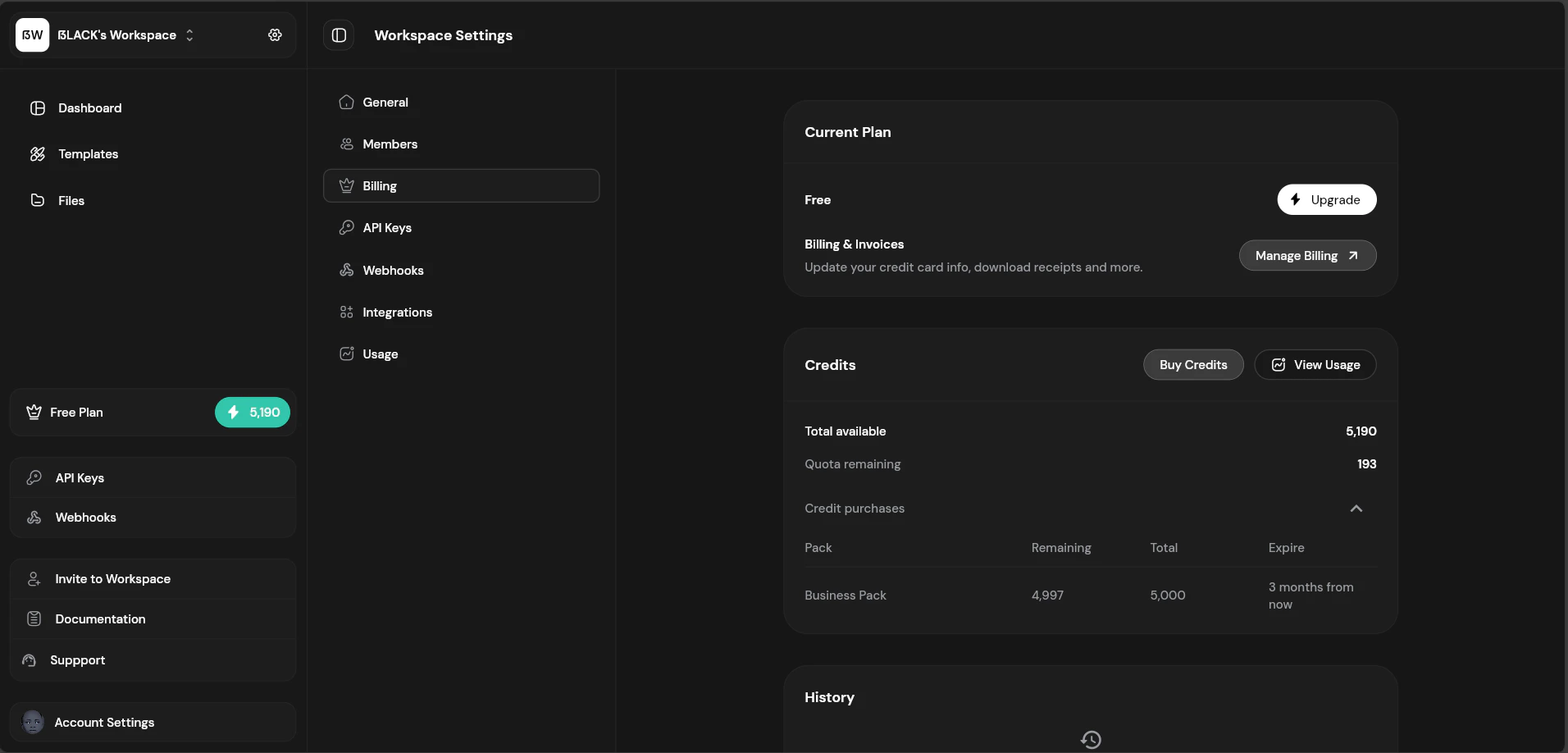
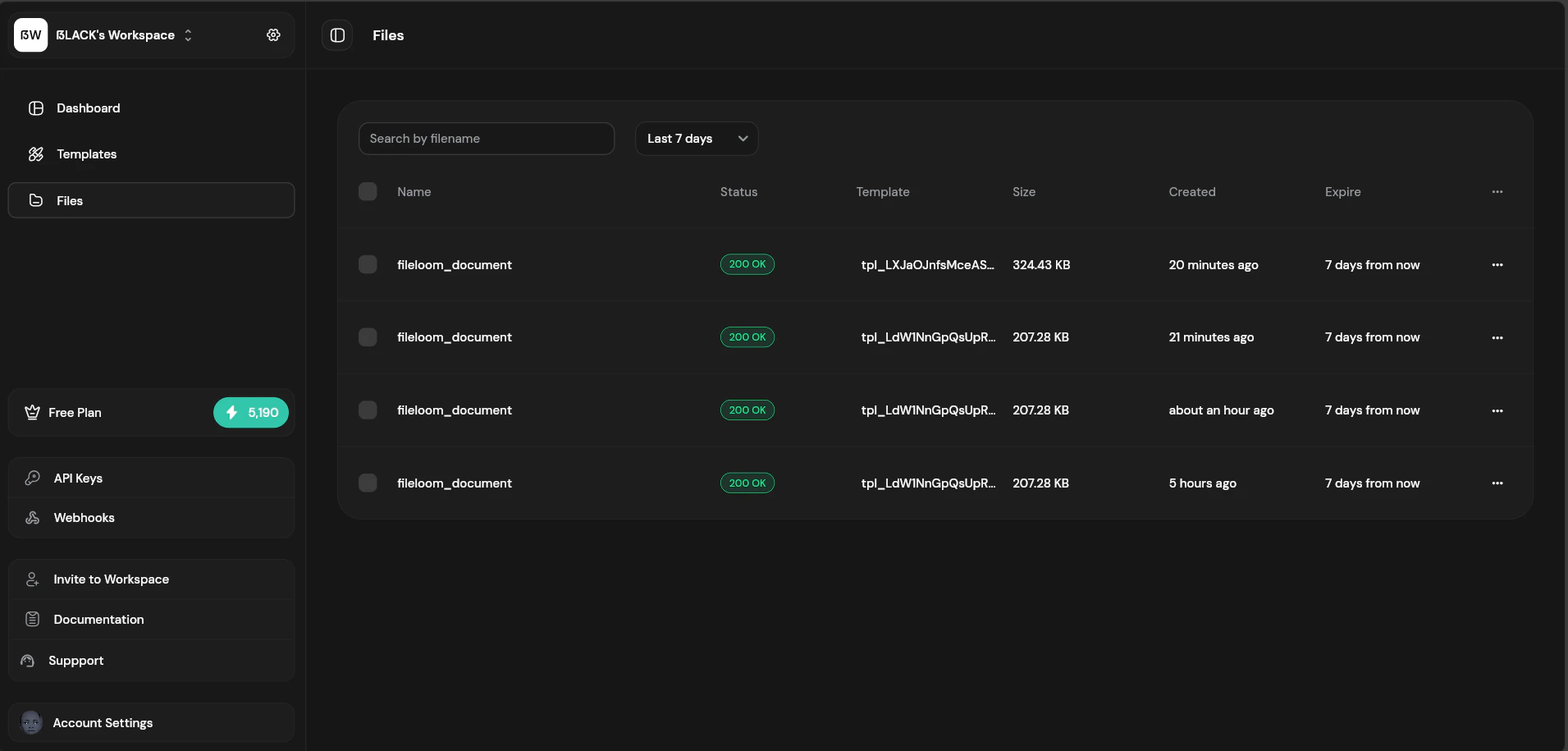
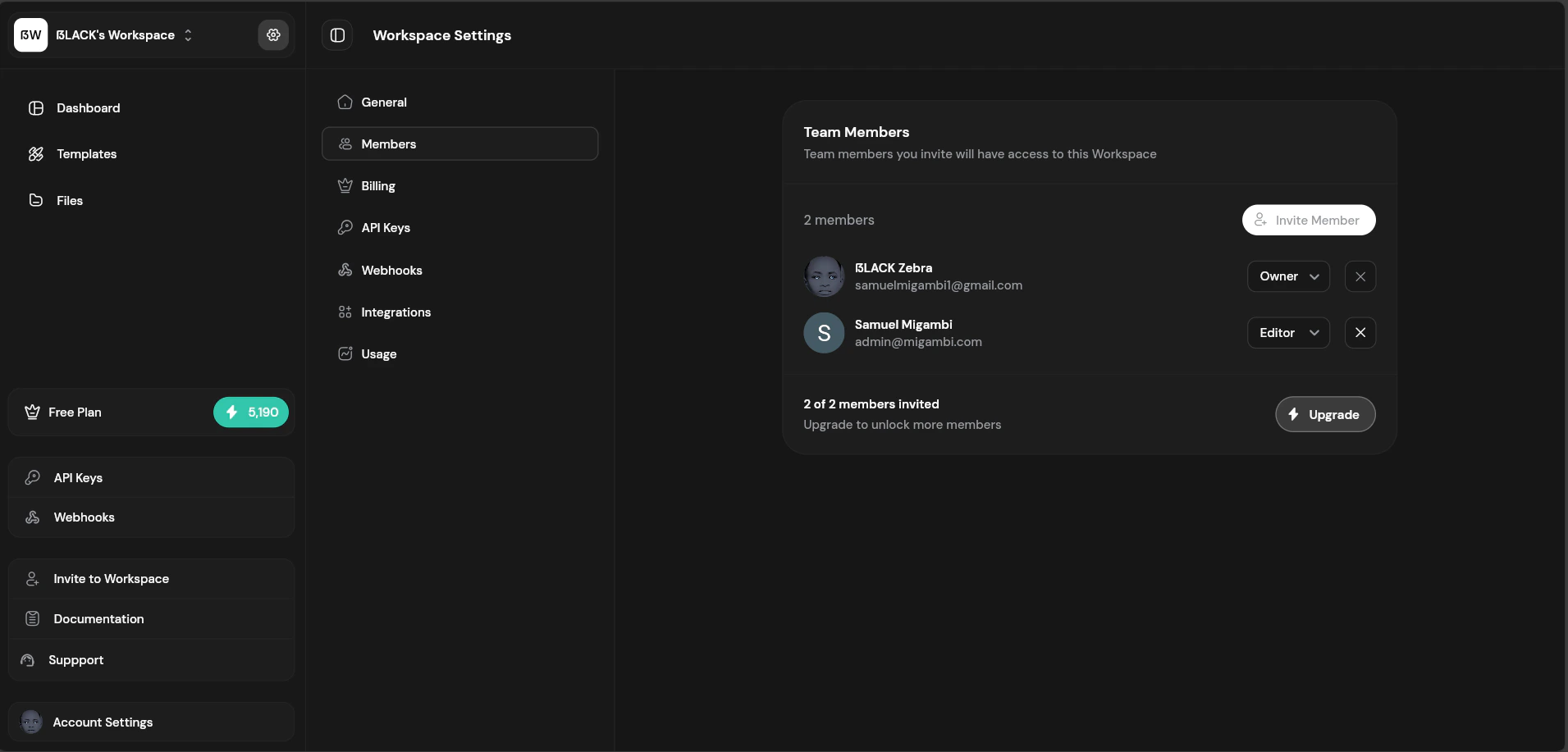
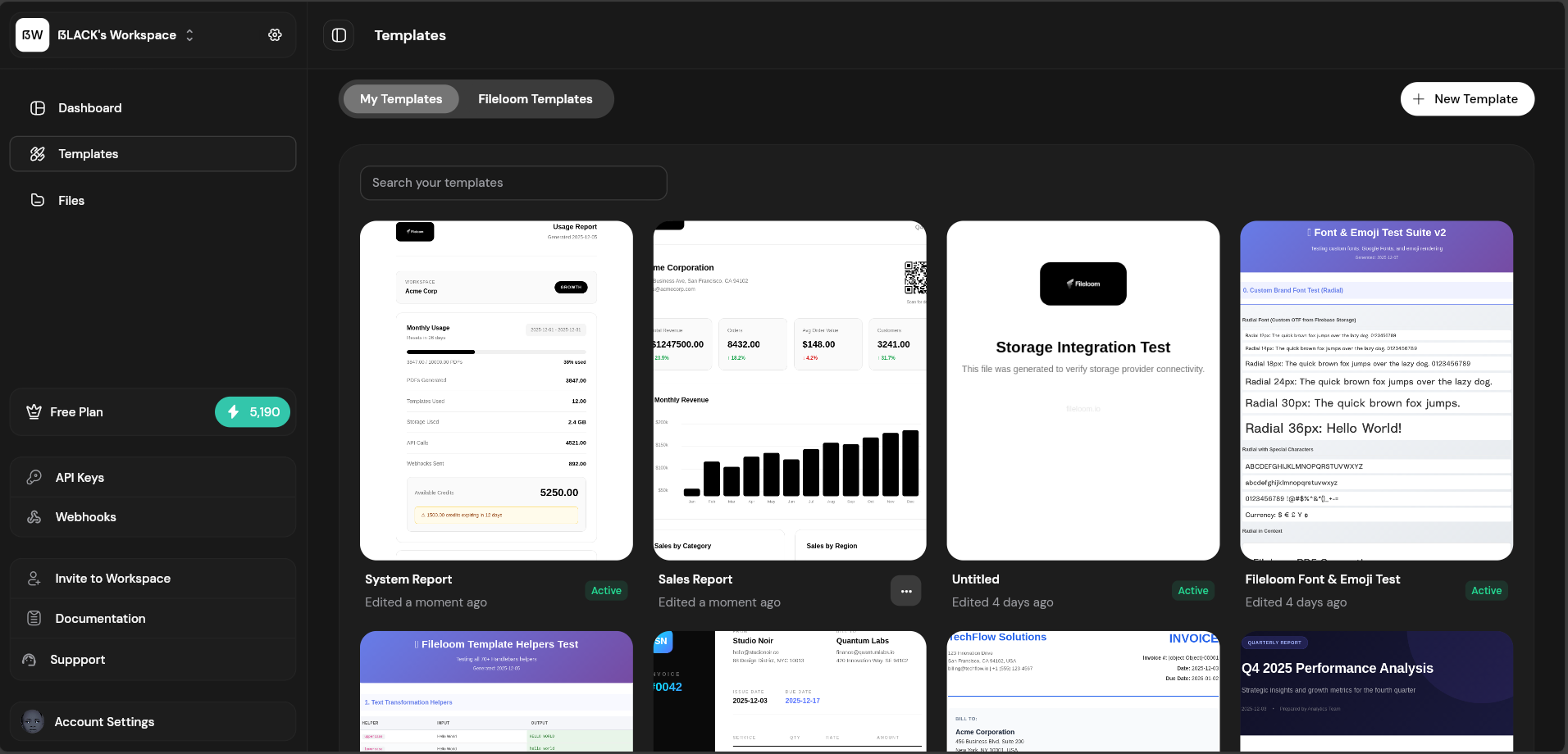
Invoice #{{invoiceNumber}}

Customer: {{customer.name}}

Total: {{currency total "USD"}}

``` **Template components:** | Component | Description | | --------- | ------------------------------------------------- | | HTML | The document structure and content | | CSS | Styling (inline or in a separate tab) | | Test Data | Sample JSON for preview | | Settings | Paper size, margins, orientation, headers/footers | **Template lifecycle:** 1. **Draft** — Work in progress, auto-saved 2. **Published** — Available for API use, version tracked 3. **Versions** — Each publish creates a new version you can reference or rollback ## Handlebars Templating Fileloom uses [Handlebars](https://handlebarsjs.com/) for dynamic content. Basic syntax: ```handlebars theme={null} {{! Variable output }} {{variableName}} {{! Nested objects }} {{customer.address.city}} {{! Helpers with arguments }} {{currency amount "EUR"}} {{formatDate date "MMMM D, YYYY"}} {{! Conditionals }} {{#if isPaid}} {{else}} UNPAID {{/if}} {{! Loops }} {{#each items}} {{this.name}} {{currency this.price "USD"}} {{/each}} ``` Fileloom provides **70+ built-in helpers** for formatting, math, dates, and business logic. See the [Helpers Reference](/helpers/overview). ## API Keys **API keys** authenticate your requests to the Fileloom API. **Format:** `fl_xxxxxxxxxxxx` **Best practices:** * Create separate keys for different environments (development, staging, production) * Rotate keys periodically * Never expose keys in client-side code * Use environment variables to store keys **Authentication methods:** ```bash theme={null} # Header (recommended) X-API-Key: fl_your_api_key # Bearer token Authorization: Bearer fl_your_api_key ``` ## Credits & Quota Fileloom uses a **credit system** for PDF generation: **Monthly Quota:** * Each plan includes a monthly PDF allowance * Quota resets on your billing date * Unused quota does not roll over **Credit Packs:** * Purchase additional credits when you need more * Credits are consumed after monthly quota is exhausted * Credits expire 90 days after purchase * Consumed in FIFO order (oldest first) **Consumption order:** 1. Monthly quota (from your plan) 2. Purchased credit packs (oldest expiring first) 3. Hard block when no credits remain ## Files Every generated PDF is stored as a **file** in your workspace. **File properties:** | Property | Description | | ----------- | -------------------------------------------------- | | `fileId` | Unique identifier (e.g., `file_1234567890_abc123`) | | `url` | Permanent public URL | | `signedUrl` | Temporary secure URL (24 hours) | | `filename` | Original or generated filename | | `size` | File size in bytes | | `status` | `generated`, `expired`, or `deleted` | **Retention:** * Files are retained based on your plan (7 days to 365 days) * After retention period, files are automatically deleted * You can manually delete files at any time ## Storage Options By default, Fileloom stores your PDFs in Firebase Storage. You can also configure external storage: **Storage modes:** | Mode | Behavior | | ---------- | ----------------------------------- | | `fileloom` | Store in Fileloom only (default) | | `external` | Store in your S3/Supabase only | | `both` | Store in both Fileloom and external | See [Integrations](/integrations/overview) to set up AWS S3 or Supabase storage. ## Webhooks **Webhooks** notify your server when events occur in Fileloom. **Available events:** | Event | Trigger | | --------------- | ------------------------ | | `pdf.generated` | PDF successfully created | | `pdf.failed` | PDF generation failed | Webhook payloads include file details, processing time, and error information (for failures). See [Webhooks](/webhooks/overview) for setup instructions. ## Rate Limits API requests are rate-limited based on your plan: | Plan | Requests per Minute | | ---------------- | ------------------- | | Free | 60 | | Starter | 120 | | Growth | 200 | | Scale | 400 | | Scale Business | 1,000 | | Scale Enterprise | Unlimited | Rate limit headers are included in every response: ```tsx theme={null} X-RateLimit-Limit: 200 X-RateLimit-Remaining: 198 X-RateLimit-Reset: 1734012400 ``` ## Plan Limits Summary Each plan has limits on resources beyond PDF generation: | Resource | Free | Starter | Growth | Scale | | ------------- | ------ | ------- | --------- | --------- | | PDFs/month | 200 | 2,000 | 10,000 | 50,000 | | Templates | 5 | 50 | Unlimited | Unlimited | | Team Members | 2 | 3 | 5 | 10 | | API Keys | 1 | 2 | 5 | 10 | | Retention | 7 days | 30 days | 90 days | 180 days | | Max HTML Size | 2 MB | 5 MB | 10 MB | 50 MB | | Max PDF Size | 10 MB | 25 MB | 50 MB | 50 MB | | Timeout | 15s | 30s | 45s | 120s | See [Plans & Pricing](/billing/plans) for full details. ## Next Steps Complete API documentation 70+ built-in formatting helpers Navigate the Fileloom dashboard Tips for production templates # Quickstart Source: https://docs.fileloom.io/getting-started/quickstart Generate your first PDF with Fileloom in under 5 minutes. ## Prerequisites Before you begin, you'll need: * A Fileloom account — [Sign up free](https://app.fileloom.io/signup) * An API key from your dashboard ## Step 1: Get Your API Key Go to [app.fileloom.io](https://app.fileloom.io) and sign in with Email, Google, or GitHub. Click **API Keys** in the sidebar. Click **Create API Key**, give it a name, and copy the key immediately — it won't be shown again. Store your API key securely. It provides full access to your workspace and cannot be retrieved after creation. ## Step 2: Generate Your First PDF ```bash cURL theme={null} curl -X POST https://api.fileloom.io/v1/pdf/generate \ -H "X-API-Key: fl_your_api_key" \ -H "Content-Type: application/json" \ -d '{ "htmlContent": "

My First PDF

Generated with Fileloom!

" }' ``` ```javascript JavaScript theme={null} const response = await fetch('https://api.fileloom.io/v1/pdf/generate', { method: 'POST', headers: { 'X-API-Key': 'fl_your_api_key', 'Content-Type': 'application/json' }, body: JSON.stringify({ htmlContent: '

My First PDF

Generated with Fileloom!

' }) }); const result = await response.json(); console.log(result.data.url); // URL to your PDF ``` ```python Python theme={null} import requests response = requests.post( 'https://api.fileloom.io/v1/pdf/generate', headers={ 'X-API-Key': 'fl_your_api_key', 'Content-Type': 'application/json' }, json={ 'htmlContent': '

My First PDF

Generated with Fileloom!

' } ) result = response.json() print(result['data']['url']) # URL to your PDF ``` ```typescript TypeScript theme={null} interface FileloomResponse { success: boolean; data: { fileId: string; url: string; filename: string; size: number; processingTimeMs: number; }; } const response = await fetch('https://api.fileloom.io/v1/pdf/generate', { method: 'POST', headers: { 'X-API-Key': 'fl_your_api_key', 'Content-Type': 'application/json' }, body: JSON.stringify({ htmlContent: '

My First PDF

Generated with Fileloom!

' }) }); const result: FileloomResponse = await response.json(); console.log(result.data.url); ``` ```php PHP theme={null} $ch = curl_init('https://api.fileloom.io/v1/pdf/generate'); curl_setopt_array($ch, [ CURLOPT_POST => true, CURLOPT_RETURNTRANSFER => true, CURLOPT_HTTPHEADER => [ 'X-API-Key: fl_your_api_key', 'Content-Type: application/json' ], CURLOPT_POSTFIELDS => json_encode([ 'htmlContent' => '

My First PDF

Generated with Fileloom!

' ]) ]); $response = curl_exec($ch); $result = json_decode($response, true); echo $result['data']['url']; // URL to your PDF ``` ```go Go theme={null} package main import ( "bytes" "encoding/json" "fmt" "net/http" ) func main() { payload := map[string]string{ "htmlContent": "

My First PDF

Generated with Fileloom!

", } body, _ := json.Marshal(payload) req, _ := http.NewRequest("POST", "https://api.fileloom.io/v1/pdf/generate", bytes.NewBuffer(body)) req.Header.Set("X-API-Key", "fl_your_api_key") req.Header.Set("Content-Type", "application/json") client := &http.Client{} resp, _ := client.Do(req) defer resp.Body.Close() var result map[string]interface{} json.NewDecoder(resp.Body).Decode(&result) data := result["data"].(map[string]interface{}) fmt.Println(data["url"]) } ```
## Step 3: View Your PDF The response includes a `url` field with a direct link to your generated PDF: ```json Response theme={null} { "success": true, "requestId": "req_1734012345_abc123", "data": { "fileId": "file_1734012345_xyz789", "url": "https://storage.googleapis.com/fileloom-prod/workspaces/ws_.../document.pdf", "signedUrl": "https://storage.googleapis.com/fileloom-prod/...", "filename": "document.pdf", "size": 8234, "processingTimeMs": 623, "generationMethod": "html" }, "usage": { "remaining": 1999, "quotaUsed": 1, "quotaLimit": 2000 } } ``` * **url** — Permanent public URL (valid until retention period expires) * **signedUrl** — Temporary secure URL (valid for 24 hours) ## Step 4: Add Dynamic Data Use Handlebars syntax to inject dynamic content: ```bash cURL theme={null} curl -X POST https://api.fileloom.io/v1/pdf/generate \ -H "X-API-Key: fl_your_api_key" \ -H "Content-Type: application/json" \ -d '{ "htmlContent": "

Invoice #{{invoiceNumber}}

Amount: {{currency amount \"USD\"}}

Due: {{formatDate dueDate \"MMMM D, YYYY\"}}

", "templateData": { "invoiceNumber": "INV-2024-001", "amount": 299.99, "dueDate": "2024-12-31" } }' ``` ```javascript JavaScript theme={null} const response = await fetch('https://api.fileloom.io/v1/pdf/generate', { method: 'POST', headers: { 'X-API-Key': 'fl_your_api_key', 'Content-Type': 'application/json' }, body: JSON.stringify({ htmlContent: '

Invoice #{{invoiceNumber}}

Amount: {{currency amount "USD"}}

Due: {{formatDate dueDate "MMMM D, YYYY"}}

', templateData: { invoiceNumber: 'INV-2024-001', amount: 299.99, dueDate: '2024-12-31' } }) }); const result = await response.json(); console.log(result.data.url); ``` ```python Python theme={null} import requests response = requests.post( 'https://api.fileloom.io/v1/pdf/generate', headers={ 'X-API-Key': 'fl_your_api_key', 'Content-Type': 'application/json' }, json={ 'htmlContent': '

Invoice #{{invoiceNumber}}

Amount: {{currency amount "USD"}}

Due: {{formatDate dueDate "MMMM D, YYYY"}}

', 'templateData': { 'invoiceNumber': 'INV-2024-001', 'amount': 299.99, 'dueDate': '2024-12-31' } } ) result = response.json() print(result['data']['url']) ```
This generates a PDF with: * Invoice #INV-2024-001 * Amount: \$299.99 * Due: December 31, 2024 ## Step 5: Create a Reusable Template For repeated use, create a template in the dashboard: Go to **Templates** → **Create Template** in the dashboard. Write HTML in the editor, add CSS styling, and use `{{variables}}` for dynamic content. Enter test JSON in the **Test Data** tab and preview your PDF in real-time. Click **Publish** to make the template available via API. Reference your template by ID instead of sending raw HTML: ```bash cURL theme={null} curl -X POST https://api.fileloom.io/v1/pdf/generate \ -H "X-API-Key: fl_your_api_key" \ -H "Content-Type: application/json" \ -d '{ "templateId": "tpl_your_template_id", "templateData": { "invoiceNumber": "INV-2024-002", "amount": 599.99, "dueDate": "2025-01-15" } }' ``` ```javascript JavaScript theme={null} const response = await fetch('https://api.fileloom.io/v1/pdf/generate', { method: 'POST', headers: { 'X-API-Key': 'fl_your_api_key', 'Content-Type': 'application/json' }, body: JSON.stringify({ templateId: 'tpl_your_template_id', templateData: { invoiceNumber: 'INV-2024-002', amount: 599.99, dueDate: '2025-01-15' } }) }); const result = await response.json(); console.log(result.data.url); ``` ```python Python theme={null} import requests response = requests.post( 'https://api.fileloom.io/v1/pdf/generate', headers={ 'X-API-Key': 'fl_your_api_key', 'Content-Type': 'application/json' }, json={ 'templateId': 'tpl_your_template_id', 'templateData': { 'invoiceNumber': 'INV-2024-002', 'amount': 599.99, 'dueDate': '2025-01-15' } } ) result = response.json() print(result['data']['url']) ``` ## What's Next? Learn about workspaces, templates, and credits Explore 70+ built-in formatting helpers Full endpoint documentation with all options Examples in 12 programming languages # Array Helpers Source: https://docs.fileloom.io/helpers/arrays Work with arrays using first, last, at, join, length, contains, sum, average, max, and min. Array helpers provide operations for working with lists and collections. ## first Returns the first element of an array. ```handlebars theme={null} {{first items}} ``` **Example:** ```handlebars theme={null} {{! items = ["Apple", "Banana", "Cherry"] }} {{first items}} ``` **Output:** `Apple` ```handlebars theme={null}

Featured: {{first featuredProducts}}

``` ## last Returns the last element of an array. ```handlebars theme={null} {{last items}} ``` **Example:** ```handlebars theme={null} {{! items = ["Apple", "Banana", "Cherry"] }} {{last items}} ``` **Output:** `Cherry` ```handlebars theme={null}

Most recent order: #{{last orderNumbers}}

``` ## at Returns the element at a specific index (zero-based). ```handlebars theme={null} {{at items 1}} ``` | Argument | Type | Default | Description | | -------- | ------ | -------- | ----------------- | | `array` | array | required | Source array | | `index` | number | 0 | Index to retrieve | **Example:** ```handlebars theme={null} {{! items = ["Apple", "Banana", "Cherry"] }} {{at items 1}} ``` **Output:** `Banana` ## join Joins array elements into a string with a separator. ```handlebars theme={null} {{join items ", "}} ``` | Argument | Type | Default | Description | | ----------- | ------ | -------- | -------------------------- | | `array` | array | required | Array to join | | `separator` | string | ", " | Separator between elements | **Examples:** ```handlebars theme={null} {{! tags = ["javascript", "nodejs", "api"] }} {{join tags ", "}} ``` **Output:** `javascript, nodejs, api` ```handlebars theme={null} {{join tags " | "}} ``` **Output:** `javascript | nodejs | api` ```handlebars theme={null}

Categories: {{join categories ", "}}

Phone: {{join phoneParts "-"}}

``` ## length Returns the length of an array, string, or object. ```handlebars theme={null} {{length items}} ``` **Examples:** ```handlebars theme={null} {{! items = ["A", "B", "C"] }} {{length items}} ``` **Output:** `3` ```handlebars theme={null}

{{length items}} items in cart

{{length description}} characters

``` ## contains Returns `true` if the array contains a value. ```handlebars theme={null} {{contains array value}} ``` **Example:** ```handlebars theme={null} {{! roles = ["admin", "editor"] }} {{#if (contains roles "admin")}} Admin {{/if}} ``` ## sum Calculates the sum of array values or a specific property. ```handlebars theme={null} {{sum numbers}} {{sum items "price"}} ``` | Argument | Type | Default | Description | | ---------- | ------ | -------- | ---------------------------------------- | | `array` | array | required | Array to sum | | `property` | string | null | Property name to sum (for object arrays) | **Examples:** ```handlebars theme={null} {{! numbers = [10, 20, 30] }} {{sum numbers}} ``` **Output:** `60` ```handlebars theme={null} {{! items = [{price: 10}, {price: 20}, {price: 30}] }} {{sum items "price"}} ``` **Output:** `60` ```handlebars theme={null}

Total: {{currency (sum items "price") "USD"}}

Total Quantity: {{sum items "quantity"}}

``` ## average Calculates the average of array values or a specific property. ```handlebars theme={null} {{average numbers}} {{average items "rating"}} ``` | Argument | Type | Default | Description | | ---------- | ------ | -------- | --------------------------------- | | `array` | array | required | Array to average | | `property` | string | null | Property name (for object arrays) | **Examples:** ```handlebars theme={null} {{! scores = [85, 90, 78, 92] }} {{average scores}} ``` **Output:** `86.25` ```handlebars theme={null}

Average Rating: {{round (average reviews "rating") 1}} / 5

``` ## max Returns the maximum value in an array. ```handlebars theme={null} {{max numbers}} {{max items "price"}} ``` | Argument | Type | Default | Description | | ---------- | ------ | -------- | --------------------------------- | | `array` | array | required | Array to search | | `property` | string | null | Property name (for object arrays) | **Examples:** ```handlebars theme={null} {{! prices = [29.99, 49.99, 19.99] }} {{max prices}} ``` **Output:** `49.99` ```handlebars theme={null}

Highest Price: {{currency (max products "price") "USD"}}

``` ## min Returns the minimum value in an array. ```handlebars theme={null} {{min numbers}} {{min items "price"}} ``` | Argument | Type | Default | Description | | ---------- | ------ | -------- | --------------------------------- | | `array` | array | required | Array to search | | `property` | string | null | Property name (for object arrays) | **Examples:** ```handlebars theme={null} {{! prices = [29.99, 49.99, 19.99] }} {{min prices}} ``` **Output:** `19.99` ```handlebars theme={null}

Starting at {{currency (min products "price") "USD"}}

``` ## Practical Examples ### Order Summary ```handlebars theme={null}

Order Summary

Items: {{length items}}

Total Quantity: {{sum items "quantity"}}

Subtotal: {{currency (sum items "total") "USD"}}

``` ### Tag List ```handlebars theme={null}
{{#if (isNotEmpty tags)}}

Tags: {{join tags ", "}}

{{else}}

No tags

{{/if}}
``` ### Price Range ```handlebars theme={null}

{{currency (min variants "price") "USD"}} - {{currency (max variants "price") "USD"}}

``` ### Statistics ```handlebars theme={null}

Total Sales: {{currency (sum orders "total") "USD"}}

Average Order: {{currency (average orders "total") "USD"}}

Largest Order: {{currency (max orders "total") "USD"}}

Smallest Order: {{currency (min orders "total") "USD"}}

``` ### Invoice Totals ```handlebars theme={null} {{#each lineItems}} {{/each}}
{{this.description}} {{this.quantity}} {{currency this.unitPrice "USD"}} {{currency (multiply this.quantity this.unitPrice) "USD"}}
Total Items {{sum lineItems "quantity"}}
Subtotal {{currency (sum lineItems "total") "USD"}}
``` ### Author List ```handlebars theme={null}

{{#if (eq (length authors) 1)}} Author: {{first authors}} {{else if (eq (length authors) 2)}} Authors: {{at authors 0}} and {{at authors 1}} {{else}} Authors: {{at authors 0}}, {{at authors 1}}, and {{subtract (length authors) 2}} others {{/if}}

``` # Business Helpers Source: https://docs.fileloom.io/helpers/business Simplify business calculations with tax, discount, invoice number, and due date helpers. Business helpers provide common calculations for invoices, receipts, and financial documents. ## calculateTax Calculates tax amount based on a tax rate percentage. ```handlebars theme={null} {{calculateTax amount taxRate}} ``` | Argument | Type | Description | | --------- | ------ | ------------------------------------------- | | `amount` | number | Base amount | | `taxRate` | number | Tax rate as percentage (e.g., 8.5 for 8.5%) | **Examples:** ```handlebars theme={null} {{calculateTax 100 8.5}} ``` **Output:** `8.50` ```handlebars theme={null}

Subtotal: {{currency subtotal "USD"}}

Tax ({{taxRate}}%): {{currency (calculateTax subtotal taxRate) "USD"}}

``` ## calculateDiscount Calculates discount amount based on a discount percentage. ```handlebars theme={null} {{calculateDiscount amount discountPercent}} ``` | Argument | Type | Description | | ----------------- | ------ | ----------------------------------------- | | `amount` | number | Original amount | | `discountPercent` | number | Discount as percentage (e.g., 20 for 20%) | **Examples:** ```handlebars theme={null} {{calculateDiscount 100 20}} ``` **Output:** `20.00` ```handlebars theme={null}

Original: {{currency originalPrice "USD"}}

Discount ({{discountPercent}}%): -{{currency (calculateDiscount originalPrice discountPercent) "USD"}}

Final: {{currency (subtract originalPrice (calculateDiscount originalPrice discountPercent)) "USD"}}

``` ## netAmount Calculates net amount after tax and discount. ```handlebars theme={null} {{netAmount amount taxRate discountPercent}} ``` | Argument | Type | Default | Description | | ----------------- | ------ | -------- | ------------------- | | `amount` | number | required | Original amount | | `taxRate` | number | 0 | Tax rate percentage | | `discountPercent` | number | 0 | Discount percentage | **Calculation:** `(amount - discount) + tax on discounted amount` **Examples:** ```handlebars theme={null} {{netAmount 100 10 20}} ``` Calculation: * Original: \$100 * Discount (20%): -\$20 * Subtotal: \$80 * Tax (10% of $80): +$8 * **Net: \$88.00** ```handlebars theme={null}

Grand Total: {{currency (netAmount subtotal taxRate discountPercent) "USD"}}

``` ## invoiceNumber Generates a formatted invoice number. ```handlebars theme={null} {{invoiceNumber}} {{invoiceNumber "INV" 42 6}} ``` | Argument | Type | Default | Description | | ----------- | ------ | ------- | ------------------------- | | `prefix` | string | "INV" | Prefix for the invoice | | `number` | number | 1 | Sequential number | | `padLength` | number | 6 | Padding length for number | **Format:** `PREFIX-YYYYMM-NUMBER` **Examples:** ```handlebars theme={null} {{invoiceNumber}} ``` **Output:** `INV-202412-000001` ```handlebars theme={null} {{invoiceNumber "INV" 42 6}} ``` **Output:** `INV-202412-000042` ```handlebars theme={null} {{invoiceNumber "REC" 1234 8}} ``` **Output:** `REC-202412-00001234` ```handlebars theme={null} {{invoiceNumber "PO" orderNumber 5}} ``` ## dueDate Calculates a due date by adding days to an invoice date. ```handlebars theme={null} {{dueDate invoiceDate 30}} ``` | Argument | Type | Default | Description | | ------------- | ----------- | ------- | -------------- | | `invoiceDate` | string/Date | now | Starting date | | `terms` | number | 30 | Days until due | **Examples:** ```handlebars theme={null} {{dueDate "2024-12-15" 30}} ``` **Output:** `2025-01-14` ```handlebars theme={null}

Invoice Date: {{formatDate invoiceDate "MMM D, YYYY"}}

Payment Terms: Net {{paymentTerms}}

Due Date: {{formatDate (dueDate invoiceDate paymentTerms) "MMM D, YYYY"}}

``` ## Practical Examples ### Complete Invoice Calculations ```handlebars theme={null}
{{#each items}} {{/each}}
Description Qty Unit Price Amount
{{this.description}} {{this.quantity}} {{currency this.unitPrice "USD"}} {{currency (multiply this.quantity this.unitPrice) "USD"}}
Subtotal: {{currency subtotal "USD"}}
{{#if discountPercent}}
Discount ({{discountPercent}}%): -{{currency (calculateDiscount subtotal discountPercent) "USD"}}
{{/if}}
Tax ({{taxRate}}%): {{currency (calculateTax (subtract subtotal (calculateDiscount subtotal discountPercent)) taxRate) "USD"}}
Total: {{currency (netAmount subtotal taxRate discountPercent) "USD"}}
``` ### Invoice Header with Auto-Generated Number ```handlebars theme={null}

{{company.name}}

{{company.address}}

INVOICE

Invoice #: {{invoiceNumber "INV" invoiceSequence 6}}
Date: {{formatDate invoiceDate "MMMM D, YYYY"}}
Due Date: {{formatDate (dueDate invoiceDate paymentTerms) "MMMM D, YYYY"}}
``` ### Payment Terms Section ```handlebars theme={null}

Payment Terms

Payment is due within {{paymentTerms}} days of invoice date.

Invoice Date: {{formatDate invoiceDate "MMM D, YYYY"}}
Due Date: {{formatDate (dueDate invoiceDate paymentTerms) "MMM D, YYYY"}}

{{#if (gt (daysBetween (dueDate invoiceDate paymentTerms)) 0)}}

This invoice is {{daysBetween (dueDate invoiceDate paymentTerms)}} days overdue.

{{/if}}
``` ### Receipt with Discount ```handlebars theme={null}

Receipt

Receipt #: {{invoiceNumber "REC" receiptNumber 8}}

Date: {{formatDate transactionDate "MMM D, YYYY"}}


{{#each items}}
{{this.name}} {{currency this.price "USD"}}
{{/each}}
Subtotal {{currency subtotal "USD"}}
{{#if promoCode}}
Promo ({{promoCode}} - {{discountPercent}}%) -{{currency (calculateDiscount subtotal discountPercent) "USD"}}
{{/if}}
Tax {{currency tax "USD"}}
Total {{currency total "USD"}}
``` # Comparison Helpers Source: https://docs.fileloom.io/helpers/comparison Compare values with greater than, less than, equal, and not equal helpers. Comparison helpers return boolean values for use in conditionals. ## gt (Greater Than) Returns `true` if the first value is greater than the second. ```handlebars theme={null} {{gt 10 5}} ``` **Output:** `true` ```handlebars theme={null} {{#if (gt total 1000)}}

Large order discount applied!

{{/if}} ``` ## lt (Less Than) Returns `true` if the first value is less than the second. ```handlebars theme={null} {{lt 5 10}} ``` **Output:** `true` ```handlebars theme={null} {{#if (lt stock 10)}} Low Stock {{/if}} ``` ## gte (Greater Than or Equal) Returns `true` if the first value is greater than or equal to the second. ```handlebars theme={null} {{gte 10 10}} ``` **Output:** `true` ```handlebars theme={null} {{#if (gte quantity minimumOrder)}} {{else}}

Minimum order: {{minimumOrder}} units

{{/if}} ``` ## lte (Less Than or Equal) Returns `true` if the first value is less than or equal to the second. ```handlebars theme={null} {{lte 5 10}} ``` **Output:** `true` ```handlebars theme={null} {{#if (lte balance 0)}} Payment Required {{/if}} ``` ## eq (Equal) Returns `true` if both values are equal (loose equality). ```handlebars theme={null} {{eq status "active"}} ``` **Output:** `true` (if status is "active") ```handlebars theme={null} {{#if (eq status "active")}} Active {{else if (eq status "pending")}} Pending {{else if (eq status "inactive")}} Inactive {{/if}} ``` ## neq (Not Equal) Returns `true` if values are not equal. ```handlebars theme={null} {{neq status "deleted"}} ``` **Output:** `true` (if status is not "deleted") ```handlebars theme={null} {{#if (neq status "cancelled")}} {{/if}} ``` ## Combining Comparisons Use with logical helpers for complex conditions: ```handlebars theme={null} {{! Between range: 10 <= value <= 100 }} {{#if (and (gte value 10) (lte value 100))}}

Value is in range

{{/if}} {{! Either condition }} {{#if (or (eq status "active") (eq status "pending"))}}

Order is being processed

{{/if}} {{! Complex condition }} {{#if (and (gt quantity 0) (eq inStock true) (neq status "discontinued"))}} {{/if}} ``` ## Practical Examples ### Pricing Tiers ```handlebars theme={null} {{#if (gte quantity 100)}}

Bulk pricing: {{currency bulkPrice "USD"}}/unit

{{else if (gte quantity 50)}}

Volume pricing: {{currency volumePrice "USD"}}/unit

{{else}}

Standard pricing: {{currency standardPrice "USD"}}/unit

{{/if}} ``` ### Stock Status ```handlebars theme={null} {{#if (eq stock 0)}} Out of Stock {{else if (lt stock 10)}} Only {{stock}} left! {{else}} In Stock {{/if}} ``` ### Order Status Badge ```handlebars theme={null} {{titleCase status}} ``` ### Discount Eligibility ```handlebars theme={null} {{#if (and (gte subtotal 100) (lt discountApplied 1))}}

You qualify for free shipping!

{{/if}} ``` ### Overdue Highlighting ```handlebars theme={null} {{invoiceNumber}} {{formatDate dueDate "MMM D, YYYY"}} {{currency amount "USD"}} ``` ### Rating Display ```handlebars theme={null} {{#if (gte rating 4.5)}} ★★★★★ {{else if (gte rating 3.5)}} ★★★★☆ {{else if (gte rating 2.5)}} ★★★☆☆ {{else}} ★★☆☆☆ {{/if}} ``` # Date & Time Helpers Source: https://docs.fileloom.io/helpers/dates Format and manipulate dates with formatDate, formatTime, now, addDays, daysBetween, and more. Date and time helpers format and manipulate date values. ## formatDate Formats a date according to a pattern. ```handlebars theme={null} {{formatDate date "YYYY-MM-DD"}} {{formatDate date "MMMM D, YYYY"}} ``` | Argument | Type | Default | Description | | -------- | ----------- | ------------ | -------------- | | `date` | string/Date | required | Date to format | | `format` | string | "YYYY-MM-DD" | Format pattern | ### Format Tokens | Token | Output | Example | | ------ | ---------------- | -------- | | `YYYY` | 4-digit year | 2024 | | `YY` | 2-digit year | 24 | | `MMMM` | Full month name | December | | `MMM` | Short month name | Dec | | `MM` | 2-digit month | 12 | | `M` | Month number | 12 | | `DD` | 2-digit day | 05 | | `D` | Day number | 5 | ### Examples ```handlebars theme={null} {{formatDate "2024-12-15" "YYYY-MM-DD"}} ``` **Output:** `2024-12-15` ```handlebars theme={null} {{formatDate "2024-12-15" "MMMM D, YYYY"}} ``` **Output:** `December 15, 2024` ```handlebars theme={null} {{formatDate "2024-12-15" "MMM D, YYYY"}} ``` **Output:** `Dec 15, 2024` ```handlebars theme={null} {{formatDate "2024-12-15" "MM/DD/YYYY"}} ``` **Output:** `12/15/2024` ```handlebars theme={null} {{formatDate "2024-12-15" "D MMMM YYYY"}} ``` **Output:** `15 December 2024` ## formatTime Formats the time portion of a date. ```handlebars theme={null} {{formatTime datetime "24"}} {{formatTime datetime "12"}} ``` | Argument | Type | Default | Description | | -------- | ----------- | -------- | ------------------------ | | `date` | string/Date | required | Date/time to format | | `format` | string | "24" | "12" or "24" hour format | **Examples:** ```handlebars theme={null} {{formatTime "2024-12-15T14:30:00" "24"}} ``` **Output:** `14:30` ```handlebars theme={null} {{formatTime "2024-12-15T14:30:00" "12"}} ``` **Output:** `2:30 PM` ## formatDateTime Combines date and time formatting. ```handlebars theme={null} {{formatDateTime datetime "MMMM D, YYYY" "12"}} ``` | Argument | Type | Default | Description | | ------------ | ----------- | ------------ | ------------------------ | | `date` | string/Date | required | Date/time to format | | `dateFormat` | string | "YYYY-MM-DD" | Date format pattern | | `timeFormat` | string | "24" | "12" or "24" hour format | **Examples:** ```handlebars theme={null} {{formatDateTime "2024-12-15T14:30:00" "MMM D, YYYY" "12"}} ``` **Output:** `Dec 15, 2024 2:30 PM` ## now Returns the current date/time formatted. ```handlebars theme={null} {{now}} {{now "MMMM D, YYYY"}} ``` | Argument | Type | Default | Description | | -------- | ------ | ------------ | -------------- | | `format` | string | "YYYY-MM-DD" | Format pattern | **Examples:** ```handlebars theme={null} {{now}} ``` **Output:** `2024-12-15` ```handlebars theme={null} {{now "MMMM D, YYYY"}} ``` **Output:** `December 15, 2024` ```handlebars theme={null} Generated on: {{now "MMM D, YYYY"}} ``` ## addDays Adds days to a date. ```handlebars theme={null} {{addDays date 30}} {{addDays date -7}} ``` | Argument | Type | Default | Description | | -------- | ----------- | -------- | ---------------------------------- | | `date` | string/Date | required | Starting date | | `days` | number | 0 | Days to add (negative to subtract) | **Examples:** ```handlebars theme={null} {{addDays "2024-12-15" 30}} ``` **Output:** `2025-01-14` ```handlebars theme={null} {{addDays "2024-12-15" -7}} ``` **Output:** `2024-12-08` **Use case - Due dates:** ```handlebars theme={null}

Invoice Date: {{formatDate invoiceDate "MMM D, YYYY"}}

Due Date: {{formatDate (addDays invoiceDate 30) "MMM D, YYYY"}}

``` ## daysBetween Calculates the number of days between two dates. ```handlebars theme={null} {{daysBetween startDate endDate}} {{daysBetween startDate}} ``` | Argument | Type | Default | Description | | -------- | ----------- | -------- | ----------- | | `date1` | string/Date | required | First date | | `date2` | string/Date | now | Second date | **Examples:** ```handlebars theme={null} {{daysBetween "2024-12-01" "2024-12-15"}} ``` **Output:** `14` ```handlebars theme={null} {{! Days until due date }} {{daysBetween (now) dueDate}} days remaining ``` ## monthName Returns the full name of the month. ```handlebars theme={null} {{monthName date}} ``` **Examples:** ```handlebars theme={null} {{monthName "2024-12-15"}} ``` **Output:** `December` ## dayName Returns the name of the day of the week. ```handlebars theme={null} {{dayName date}} ``` **Examples:** ```handlebars theme={null} {{dayName "2024-12-15"}} ``` **Output:** `Sunday` ## Practical Examples ### Invoice Header ```handlebars theme={null}

Invoice #{{invoiceNumber}}

Invoice Date: {{formatDate invoiceDate "MMMM D, YYYY"}}

Due Date: {{formatDate dueDate "MMMM D, YYYY"}}

``` ### Payment Terms ```handlebars theme={null}

Payment due within 30 days

Invoice Date: {{formatDate invoiceDate "MMM D, YYYY"}}

Due Date: {{formatDate (addDays invoiceDate 30) "MMM D, YYYY"}}

``` ### Document Footer ```handlebars theme={null}

Generated on {{now "MMMM D, YYYY"}} at {{formatTime (now) "12"}}

``` ### Event Details ```handlebars theme={null}

{{eventName}}

{{dayName eventDate}}, {{formatDate eventDate "MMMM D, YYYY"}}

{{formatTime startTime "12"}} - {{formatTime endTime "12"}}

``` ### Overdue Notice ```handlebars theme={null} {{#if (gt (daysBetween dueDate) 0)}}

This invoice is {{daysBetween dueDate}} days overdue.

{{/if}} ``` ### Report Period ```handlebars theme={null}

Monthly Report

{{monthName periodStart}} {{formatDate periodStart "YYYY"}}

{{formatDate periodStart "MMM D"}} - {{formatDate periodEnd "MMM D, YYYY"}}

``` # Logic Helpers Source: https://docs.fileloom.io/helpers/logic Perform boolean operations with and, or, not, isEmpty, isNotEmpty, ternary, and default. Logic helpers perform boolean operations and provide fallback values. ## and Returns `true` if ALL arguments are truthy. ```handlebars theme={null} {{and true true}} ``` **Output:** `true` ```handlebars theme={null} {{and true false}} ``` **Output:** `false` ```handlebars theme={null} {{#if (and isActive isPaid hasStock)}} {{/if}} ``` **Multiple arguments:** ```handlebars theme={null} {{#if (and condition1 condition2 condition3 condition4)}} All conditions met! {{/if}} ``` ## or Returns `true` if ANY argument is truthy. ```handlebars theme={null} {{or false true}} ``` **Output:** `true` ```handlebars theme={null} {{#if (or isAdmin isModerator isOwner)}} {{/if}} ``` ## not Inverts a boolean value. ```handlebars theme={null} {{not true}} ``` **Output:** `false` ```handlebars theme={null} {{#if (not isDeleted)}}
...
{{/if}} {{#if (not (eq status "archived"))}} {{/if}} ``` ## isEmpty Returns `true` if the value is empty (null, undefined, empty string, empty array, or empty object). ```handlebars theme={null} {{isEmpty ""}} ``` **Output:** `true` ```handlebars theme={null} {{isEmpty []}} ``` **Output:** `true` ```handlebars theme={null} {{#if (isEmpty items)}}

No items found.

{{else}} {{#each items}}...{{/each}} {{/if}} {{#if (isEmpty notes)}}

No additional notes

{{else}}

{{notes}}

{{/if}} ``` ## isNotEmpty Returns `true` if the value is NOT empty. ```handlebars theme={null} {{isNotEmpty "hello"}} ``` **Output:** `true` ```handlebars theme={null} {{#if (isNotEmpty customer.phone)}}

Phone: {{customer.phone}}

{{/if}} {{#if (isNotEmpty attachments)}}

Attachments

{{#each attachments}}...{{/each}} {{/if}} ``` ## ternary Returns one value if condition is true, another if false (inline if-else). ```handlebars theme={null} {{ternary condition "yes" "no"}} ``` | Argument | Type | Description | | ----------- | ---- | ---------------------------- | | `condition` | any | Value to test for truthiness | | `ifTrue` | any | Value to return if true | | `ifFalse` | any | Value to return if false | **Examples:** ```handlebars theme={null} {{ternary isPaid "Paid" "Unpaid"}} ``` ```handlebars theme={null} {{ternary isActive "Active" "Inactive"}} ``` ```handlebars theme={null} ``` ## default Returns a default value if the primary value is null, undefined, or empty string. ```handlebars theme={null} {{default value "fallback"}} ``` | Argument | Type | Description | | -------------- | ---- | ---------------------------- | | `value` | any | Primary value to check | | `defaultValue` | any | Fallback if primary is empty | **Examples:** ```handlebars theme={null} {{default customer.nickname customer.name}} ``` ```handlebars theme={null}

Notes: {{default notes "No additional notes"}}

``` ```handlebars theme={null} Avatar ``` ## Combining Logic Helpers ### Complex Conditions ```handlebars theme={null} {{! Show button if active AND (admin OR owner) }} {{#if (and isActive (or isAdmin isOwner))}} {{/if}} {{! Show if not empty and not archived }} {{#if (and (isNotEmpty items) (not isArchived))}}
    {{#each items}}
  • {{this}}
  • {{/each}}
{{/if}} ``` ### Nested Ternary ```handlebars theme={null} {{ternary isPaid "Paid" (ternary isOverdue "Overdue" "Pending")}} ``` ## Practical Examples ### Status with Fallback ```handlebars theme={null} {{default status "Unknown"}} ``` ### Conditional CSS Classes ```handlebars theme={null}
...
``` ### Empty State Handling ```handlebars theme={null} {{#if (isNotEmpty orders)}} ... {{#each orders}} ... {{/each}}
{{else}}

No orders yet.

Start shopping
{{/if}} ``` ### Permission-Based UI ```handlebars theme={null} {{#if (or isAdmin (and isEditor (not isLocked)))}} {{/if}} {{#if (and isOwner (not isArchived))}} {{/if}} ``` ### Optional Sections ```handlebars theme={null} {{#if (isNotEmpty customer.company)}}

{{customer.company}}

{{/if}} {{#if (isNotEmpty billingAddress)}}

Billing Address

{{billingAddress}}
{{/if}} ``` ### Row Striping ```handlebars theme={null} {{#each items}} {{this.name}} {{currency this.price "USD"}} {{/each}} ``` # Math Operation Helpers Source: https://docs.fileloom.io/helpers/math Perform arithmetic operations with add, subtract, multiply, divide, round, and more. Math helpers perform arithmetic operations on numbers. ## add Adds two numbers. ```handlebars theme={null} {{add 10 5}} ``` **Output:** `15` ```handlebars theme={null} {{add price shippingCost}} {{add subtotal tax}} ``` ## subtract Subtracts the second number from the first. ```handlebars theme={null} {{subtract 10 3}} ``` **Output:** `7` ```handlebars theme={null} {{subtract grossAmount discount}} {{subtract total paid}} ``` ## multiply Multiplies two numbers. ```handlebars theme={null} {{multiply 10 5}} ``` **Output:** `50` ```handlebars theme={null} {{multiply quantity unitPrice}} {{multiply hours rate}} ``` ## divide Divides the first number by the second. ```handlebars theme={null} {{divide 20 4}} ``` **Output:** `5` ```handlebars theme={null} {{divide total itemCount}} {{divide annualSalary 12}} ``` Division by zero returns `0` to prevent errors. ## modulo Returns the remainder of division. ```handlebars theme={null} {{modulo 17 5}} ``` **Output:** `2` **Use cases:** * Alternating row colors * Checking even/odd ```handlebars theme={null} {{#each items}} ... {{/each}} ``` ## power Raises a number to a power. ```handlebars theme={null} {{power 2 3}} ``` **Output:** `8` ```handlebars theme={null} {{power base exponent}} {{power 10 2}} ``` ## sqrt Returns the square root of a number. ```handlebars theme={null} {{sqrt 16}} ``` **Output:** `4` ## round Rounds a number to specified decimal places. ```handlebars theme={null} {{round 3.7}} {{round 3.14159 2}} ``` | Argument | Type | Default | Description | | ---------- | ------ | -------- | --------------- | | `number` | number | required | Number to round | | `decimals` | number | 0 | Decimal places | **Examples:** ```handlebars theme={null} {{round 3.7}} {{round 3.14159 2}} {{round 3.14159 4}} ``` ## ceil Rounds up to the nearest integer. ```handlebars theme={null} {{ceil 3.2}} ``` **Output:** `4` **Use cases:** * Page counts * Minimum quantities ```handlebars theme={null} Pages: {{ceil (divide totalItems itemsPerPage)}} ``` ## floor Rounds down to the nearest integer. ```handlebars theme={null} {{floor 3.9}} ``` **Output:** `3` ## abs Returns the absolute value. ```handlebars theme={null} {{abs -42}} ``` **Output:** `42` **Use cases:** * Displaying differences * Ensuring positive values ```handlebars theme={null} Difference: {{abs (subtract actual expected)}} ``` ## random Generates a random number between min and max. ```handlebars theme={null} {{random}} {{random 1 100}} ``` | Argument | Type | Default | Description | | -------- | ------ | ------- | ------------- | | `min` | number | 0 | Minimum value | | `max` | number | 1 | Maximum value | Random values change on each render. Use carefully in templates where consistency matters. ## Combining Math Helpers ### Calculate Line Total ```handlebars theme={null} {{currency (multiply quantity unitPrice) "USD"}} ``` ### Calculate Discount ```handlebars theme={null} {{! 20% discount }} {{currency (subtract price (multiply price 0.2)) "USD"}} ``` ### Calculate Tax ```handlebars theme={null} {{! 8.5% tax }} {{currency (multiply subtotal 0.085) "USD"}} ``` ### Calculate Grand Total ```handlebars theme={null} {{currency (add (add subtotal tax) shipping) "USD"}} ``` ### Average Price ```handlebars theme={null} {{currency (divide totalRevenue orderCount) "USD"}} ``` ## Practical Examples ### Invoice Calculations ```handlebars theme={null} {{#each items}} {{/each}}
{{this.name}} {{this.quantity}} {{currency this.unitPrice "USD"}} {{currency (multiply this.quantity this.unitPrice) "USD"}}

Subtotal: {{currency subtotal "USD"}}

Tax ({{multiply taxRate 100}}%): {{currency (multiply subtotal taxRate) "USD"}}

Shipping: {{currency shipping "USD"}}

Total: {{currency (add (add subtotal (multiply subtotal taxRate)) shipping) "USD"}}

``` ### Progress Percentage ```handlebars theme={null}

{{round (multiply (divide completed total) 100)}}% complete

``` ### Pagination ```handlebars theme={null} Page {{currentPage}} of {{ceil (divide totalItems itemsPerPage)}} ``` # Number Formatting Helpers Source: https://docs.fileloom.io/helpers/numbers Format numbers as currency, percentages, file sizes, and more with formatNumber, currency, percentage, formatBytes, and ordinal. Number formatting helpers display numbers in human-readable formats. ## formatNumber Formats a number with thousands separators and decimal places. ```handlebars theme={null} {{formatNumber 1234567.89}} {{formatNumber 1234567.89 0}} {{formatNumber 1234567.89 2 "," "."}} ``` | Argument | Type | Default | Description | | -------------- | ------ | -------- | ------------------- | | `number` | number | required | Number to format | | `decimals` | number | 2 | Decimal places | | `thousandsSep` | string | "," | Thousands separator | | `decimalSep` | string | "." | Decimal separator | **Examples:** ```handlebars theme={null} {{formatNumber 1234567}} ``` **Output:** `1,234,567.00` ```handlebars theme={null} {{formatNumber 1234567 0}} ``` **Output:** `1,234,567` ```handlebars theme={null} {{! European format }} {{formatNumber 1234567.89 2 "." ","}} ``` **Output:** `1.234.567,89` ## currency Formats a number as currency with proper symbol and locale. ```handlebars theme={null} {{currency 1234.56 "USD"}} {{currency 1234.56 "EUR" "de-DE"}} ``` | Argument | Type | Default | Description | | -------------- | ------ | -------- | ---------------------- | | `amount` | number | required | Amount to format | | `currencyCode` | string | "USD" | ISO 4217 currency code | | `locale` | string | "en-US" | Locale for formatting | **Examples:** ```handlebars theme={null} {{currency 1234.56 "USD"}} ``` **Output:** `$1,234.56` ```handlebars theme={null} {{currency 1234.56 "EUR"}} ``` **Output:** `€1,234.56` ```handlebars theme={null} {{currency 1234.56 "GBP"}} ``` **Output:** `£1,234.56` ```handlebars theme={null} {{currency 1234.56 "JPY"}} ``` **Output:** `¥1,235` (JPY has no decimals) ```handlebars theme={null} {{! German locale }} {{currency 1234.56 "EUR" "de-DE"}} ``` **Output:** `1.234,56 €` ### Supported Currency Codes Common currency codes include: | Code | Currency | Symbol | | ---- | ----------------- | ------ | | USD | US Dollar | \$ | | EUR | Euro | € | | GBP | British Pound | £ | | JPY | Japanese Yen | ¥ | | CNY | Chinese Yuan | ¥ | | INR | Indian Rupee | ₹ | | CAD | Canadian Dollar | C\$ | | AUD | Australian Dollar | A\$ | | BRL | Brazilian Real | R\$ | | KRW | Korean Won | ₩ | ## percentage Calculates and formats a percentage. ```handlebars theme={null} {{percentage 75 100}} {{percentage 3 4 2}} ``` | Argument | Type | Default | Description | | ---------- | ------ | -------- | -------------- | | `value` | number | required | The part | | `total` | number | 1 | The whole | | `decimals` | number | 1 | Decimal places | **Examples:** ```handlebars theme={null} {{percentage 75 100}} ``` **Output:** `75.0%` ```handlebars theme={null} {{percentage 1 3 2}} ``` **Output:** `33.33%` ```handlebars theme={null} {{percentage completed total 0}} ``` ## formatBytes Formats bytes into human-readable file sizes. ```handlebars theme={null} {{formatBytes 1024}} {{formatBytes 1536000 1}} ``` | Argument | Type | Default | Description | | ---------- | ------ | -------- | -------------- | | `bytes` | number | required | Size in bytes | | `decimals` | number | 2 | Decimal places | **Examples:** ```handlebars theme={null} {{formatBytes 0}} ``` **Output:** `0 Bytes` ```handlebars theme={null} {{formatBytes 1024}} ``` **Output:** `1 KB` ```handlebars theme={null} {{formatBytes 1536000}} ``` **Output:** `1.46 MB` ```handlebars theme={null} {{formatBytes 1073741824}} ``` **Output:** `1 GB` | Input | Output | | ------------- | --------- | | 500 | 500 Bytes | | 1024 | 1 KB | | 1048576 | 1 MB | | 1073741824 | 1 GB | | 1099511627776 | 1 TB | ## ordinal Adds ordinal suffix to a number (1st, 2nd, 3rd, etc.). ```handlebars theme={null} {{ordinal 1}} {{ordinal 2}} {{ordinal 3}} {{ordinal 4}} ``` **Output:** `1st`, `2nd`, `3rd`, `4th` **Examples:** ```handlebars theme={null} {{ordinal 21}} {{ordinal 22}} {{ordinal 23}} {{ordinal 24}} {{ordinal 11}} {{ordinal 12}} {{ordinal 13}} ``` **Use cases:** ```handlebars theme={null}

{{ordinal position}} place

{{ordinal day}} of {{monthName date}}

``` ## Practical Examples ### Invoice Line Items ```handlebars theme={null} {{#each items}} {{/each}}
Item Qty Unit Price Total
{{this.name}} {{formatNumber this.quantity 0}} {{currency this.unitPrice "USD"}} {{currency (multiply this.quantity this.unitPrice) "USD"}}
``` ### File Information ```handlebars theme={null}
{{filename}} {{formatBytes fileSize}}
``` ### Progress Report ```handlebars theme={null}

Project Status

Tasks: {{completed}} of {{total}} ({{percentage completed total 0}})

Budget: {{currency spent "USD"}} of {{currency budget "USD"}} ({{percentage spent budget 0}})

``` ### Leaderboard ```handlebars theme={null}
    {{#each players}}
  1. {{ordinal (add @index 1)}} {{this.name}} {{formatNumber this.score 0}}
  2. {{/each}}
``` ### Multi-Currency Invoice ```handlebars theme={null}

Subtotal: {{currency subtotal currency}}

Tax: {{currency tax currency}}

Total: {{currency total currency}}

``` # Overview Source: https://docs.fileloom.io/helpers/overview Fileloom provides 70+ built-in Handlebars helpers for text formatting, math, dates, currency, and more. Helpers are functions you can use inside your templates to transform and format data. Fileloom includes 70+ built-in helpers organized into categories. ## Using Helpers Call helpers inside Handlebars expressions: ```handlebars theme={null} {{! Single argument }} {{uppercase name}} {{! Multiple arguments }} {{currency amount "USD"}} {{! With string literals }} {{formatDate date "MMMM D, YYYY"}} {{! Nested helpers (inner executes first) }} {{currency (multiply price quantity) "USD"}} ``` ## Helper Categories uppercase, lowercase, capitalize, titleCase, slugify, camelCase, snakeCase, initials trim, truncate, substring, replace, repeat, padStart, padEnd, reverse, removeSpaces add, subtract, multiply, divide, modulo, power, sqrt, round, ceil, floor, abs, random formatNumber, currency, percentage, formatBytes, ordinal formatDate, formatTime, formatDateTime, now, addDays, daysBetween, monthName, dayName gt, lt, gte, lte, eq, neq and, or, not, isEmpty, isNotEmpty, ternary, default first, last, at, join, length, contains, sum, average, max, min calculateTax, calculateDiscount, netAmount, invoiceNumber, dueDate ## Quick Reference ### Most Used Helpers | Helper | Example | Result | | -------------- | ----------------------------------- | ------------ | | `currency` | `{{currency 1234.5 "USD"}}` | \$1,234.50 | | `formatDate` | `{{formatDate date "MMM D, YYYY"}}` | Dec 15, 2024 | | `uppercase` | `{{uppercase "hello"}}` | HELLO | | `add` | `{{add 10 5}}` | 15 | | `multiply` | `{{multiply 10 5}}` | 50 | | `formatNumber` | `{{formatNumber 1234567}}` | 1,234,567.00 | ### Combining Helpers Nest helpers to perform multiple operations: ```handlebars theme={null} {{! Calculate and format total }} {{currency (multiply quantity unitPrice) "USD"}} {{! Format uppercase date }} {{uppercase (formatDate date "MMMM")}} {{! Round then format }} {{formatNumber (round value 2) 2}} ``` ### Helpers in Conditionals Use comparison helpers with `#if`: ```handlebars theme={null} {{#if (gt total 1000)}}

Eligible for bulk discount!

{{/if}} {{#if (and isPaid (not isRefunded))}} Payment Complete {{/if}} {{#if (eq status "active")}} Active {{/if}} ``` ### Helpers in Loops Use helpers inside `#each`: ```handlebars theme={null} {{#each items}} {{uppercase this.name}} {{formatNumber this.quantity 0}} {{currency this.price "USD"}} {{currency (multiply this.quantity this.price) "USD"}} {{/each}} Total {{currency (sum items "price") "USD"}} ``` ## Next Steps Explore each helper category for detailed documentation and examples: * [Text Transformation](/helpers/text) — Change text case and format * [String Manipulation](/helpers/string) — Trim, truncate, replace text * [Math Operations](/helpers/math) — Arithmetic and rounding * [Number Formatting](/helpers/numbers) — Currency, percentages, bytes * [Date & Time](/helpers/dates) — Format and manipulate dates * [Comparison](/helpers/comparison) — Compare values * [Logic](/helpers/logic) — Boolean operations * [Arrays](/helpers/arrays) — Work with lists * [Business](/helpers/business) — Invoices, tax, discounts # String Manipulation Helpers Source: https://docs.fileloom.io/helpers/string Manipulate strings with trim, truncate, substring, replace, repeat, pad, and more. String manipulation helpers modify and transform text content. ## trim Removes whitespace from both ends of a string. ```handlebars theme={null} {{trim " hello world "}} ``` **Output:** `hello world` ## truncate Shortens text to a specified length with optional suffix. ```handlebars theme={null} {{truncate text 50}} {{truncate text 50 "..."}} {{truncate text 50 " [more]"}} ``` | Argument | Type | Default | Description | | -------- | ------ | -------- | --------------------- | | `text` | string | required | Text to truncate | | `length` | number | 100 | Maximum length | | `suffix` | string | "..." | Suffix when truncated | **Examples:** ```handlebars theme={null} {{truncate "This is a very long description that needs to be shortened" 30}} ``` **Output:** `This is a very long descriptio...` ```handlebars theme={null} {{truncate description 100 " [read more]"}} ``` ## substring Extracts a portion of a string. ```handlebars theme={null} {{substring text 0 10}} ``` | Argument | Type | Default | Description | | -------- | ------ | ------------- | ----------- | | `text` | string | required | Source text | | `start` | number | 0 | Start index | | `end` | number | end of string | End index | **Examples:** ```handlebars theme={null} {{substring "Hello World" 0 5}} ``` **Output:** `Hello` ```handlebars theme={null} {{substring "Hello World" 6}} ``` **Output:** `World` ## replace Replaces all occurrences of a string with another. ```handlebars theme={null} {{replace text "find" "replace"}} ``` | Argument | Type | Description | | --------- | ------ | ------------------ | | `text` | string | Source text | | `find` | string | String to find | | `replace` | string | Replacement string | **Examples:** ```handlebars theme={null} {{replace "Hello World" "World" "Universe"}} ``` **Output:** `Hello Universe` ```handlebars theme={null} {{replace phoneNumber "-" ""}} ``` ## repeat Repeats a string a specified number of times. ```handlebars theme={null} {{repeat "=" 50}} ``` | Argument | Type | Default | Description | | -------- | ------ | -------- | --------------------- | | `text` | string | required | Text to repeat | | `times` | number | 1 | Number of repetitions | **Examples:** ```handlebars theme={null} {{repeat "*" 5}} ``` **Output:** `*****` ```handlebars theme={null}
{{repeat "─" 40}}
``` ## padStart Pads the beginning of a string to reach a specified length. ```handlebars theme={null} {{padStart value 6 "0"}} ``` | Argument | Type | Default | Description | | ----------- | ------ | -------- | ----------------- | | `text` | string | required | Text to pad | | `length` | number | 2 | Target length | | `padString` | string | " " | Padding character | **Examples:** ```handlebars theme={null} {{padStart "42" 6 "0"}} ``` **Output:** `000042` ```handlebars theme={null} Invoice #{{padStart invoiceNumber 8 "0"}} ``` ## padEnd Pads the end of a string to reach a specified length. ```handlebars theme={null} {{padEnd value 10 "."}} ``` | Argument | Type | Default | Description | | ----------- | ------ | -------- | ----------------- | | `text` | string | required | Text to pad | | `length` | number | 2 | Target length | | `padString` | string | " " | Padding character | **Examples:** ```handlebars theme={null} {{padEnd "Price" 20 "."}}${{price}} ``` **Output:** `Price...............$99.00` ## reverse Reverses the characters in a string. ```handlebars theme={null} {{reverse "hello"}} ``` **Output:** `olleh` ## removeSpaces Removes all whitespace from a string. ```handlebars theme={null} {{removeSpaces "hello world example"}} ``` **Output:** `helloworldexample` **Use cases:** * Phone numbers * Credit card numbers (for processing) * Compact identifiers ```handlebars theme={null} {{removeSpaces "1234 5678 9012 3456"}} ``` ## Practical Examples ### Invoice Number Formatting ```handlebars theme={null} INV-{{padStart year 4 "0"}}-{{padStart month 2 "0"}}-{{padStart number 6 "0"}} ``` ### Description Preview ```handlebars theme={null}

{{truncate description 150}}

Read more ``` ### Clean Phone Display ```handlebars theme={null} {{! Format: (555) 123-4567 from 5551234567 }} ({{substring phone 0 3}}) {{substring phone 3 6}}-{{substring phone 6 10}} ``` ### Text Separator ```handlebars theme={null}
{{repeat "=" 60}}
  {{padEnd "Item" 30}}{{padStart "Amount" 25}}
{{repeat "=" 60}}
``` # Text Transformation Helpers Source: https://docs.fileloom.io/helpers/text Transform text case and format with uppercase, lowercase, capitalize, titleCase, slugify, and more. Text transformation helpers change the case and format of text strings. ## uppercase Converts text to UPPERCASE. ```handlebars theme={null} {{uppercase "hello world"}} ``` **Output:** `HELLO WORLD` **Use cases:** * Headers and titles * Status badges * Emphasis text ```handlebars theme={null} {{uppercase status}} ``` ## lowercase Converts text to lowercase. ```handlebars theme={null} {{lowercase "Hello World"}} ``` **Output:** `hello world` **Use cases:** * Email addresses * URLs * Normalizing user input ```handlebars theme={null} {{email}} ``` ## capitalize Capitalizes the first letter, lowercases the rest. ```handlebars theme={null} {{capitalize "hello WORLD"}} ``` **Output:** `Hello world` **Use cases:** * Sentence beginnings * Single-word labels ```handlebars theme={null}

Status: {{capitalize status}}

``` ## titleCase Capitalizes the first letter of each word. ```handlebars theme={null} {{titleCase "hello world example"}} ``` **Output:** `Hello World Example` **Use cases:** * Names * Titles * Headings ```handlebars theme={null}

{{titleCase documentTitle}}

``` ## slugify Converts text to URL-friendly slug format. ```handlebars theme={null} {{slugify "Hello World! This is a Test"}} ``` **Output:** `hello-world-this-is-a-test` **Use cases:** * URL generation * File names * Identifiers ```handlebars theme={null} {{productName}} ``` ## camelCase Converts text to camelCase format. ```handlebars theme={null} {{camelCase "hello world example"}} ``` **Output:** `helloWorldExample` **Use cases:** * Variable names * JSON keys * Programming identifiers ```handlebars theme={null} data-field="{{camelCase fieldName}}" ``` ## snakeCase Converts text to snake\_case format. ```handlebars theme={null} {{snakeCase "Hello World Example"}} ``` **Output:** `hello_world_example` **Use cases:** * Database column names * File names * API parameters ```handlebars theme={null} {{snakeCase "Product Name"}} ``` ## initials Extracts the first letter of each word. ```handlebars theme={null} {{initials "John David Smith"}} ``` **Output:** `JDS` **Use cases:** * Avatars * Abbreviations * Monograms ```handlebars theme={null}
{{initials customerName}}
``` ## Combining Text Helpers ```handlebars theme={null} {{! Uppercase initials }} {{uppercase (initials name)}} {{! Slug from title case }} {{slugify (titleCase rawTitle)}} {{! Capitalize then truncate }} {{truncate (capitalize description) 50}} ``` ## Examples ### Status Badge ```handlebars theme={null} {{uppercase status}} ``` ### User Avatar ```handlebars theme={null}
{{initials name}}
``` ### URL-Safe Links ```handlebars theme={null} {{titleCase productName}} ``` # Introduction Source: https://docs.fileloom.io/index The developer-first PDF generation API. Generate beautiful PDFs from HTML templates in milliseconds. Generate PDFs from HTML templates in under 2 seconds with 70+ Handlebars helpers built-in. Generate your first PDF in 5 minutes Complete endpoint documentation Handlebars templating guide Examples in 11 languages # AWS S3 Integration Source: https://docs.fileloom.io/integrations/aws-s3 Store generated PDFs in your Amazon S3 bucket with full control over regions, paths, and access. Connect Fileloom to Amazon S3 to store generated PDFs in your own AWS infrastructure. ## Prerequisites Before connecting S3 to Fileloom, you need: 1. An AWS account 2. An S3 bucket created 3. IAM credentials with appropriate permissions ## Creating an S3 Bucket If you don't have a bucket yet: Go to the [AWS S3 Console](https://s3.console.aws.amazon.com/). Click **Create bucket**. * Enter a unique bucket name * Select your preferred region * Keep "Block all public access" enabled (recommended) Click **Create bucket**. ## Creating IAM Credentials Fileloom needs IAM credentials with permission to upload files: Go to the [AWS IAM Console](https://console.aws.amazon.com/iam/). Go to **Policies** → **Create policy** and use the JSON below. Go to **Users** → **Create user**. Attach the policy you created to the user. Under the user's **Security credentials**, create an access key for "Application running outside AWS". Copy and securely store the Access Key ID and Secret Access Key. ### Minimum IAM Policy ```json theme={null} { "Version": "2012-10-17", "Statement": [ { "Sid": "FileloomS3Access", "Effect": "Allow", "Action": [ "s3:PutObject", "s3:GetObject", "s3:DeleteObject" ], "Resource": "arn:aws:s3:::YOUR-BUCKET-NAME/*" } ] } ``` Replace `YOUR-BUCKET-NAME` with your actual bucket name. Never use root account credentials. Always create a dedicated IAM user with minimal permissions. ## Connecting S3 to Fileloom Click the settings icon in your workspace sidebar to open **Workspace Settings**. Select **Integrations** from the left menu. In the Storage Integrations section, find **Amazon S3** and click the **Connect** button. Enter your S3 credentials and configuration (see fields below). Click **Connect** to save. Fileloom automatically runs a connection test to verify your credentials and bucket access. If the test passes, your S3 connection is approved and you'll see a **Connected** badge next to Amazon S3. ### Connection Form Fields | Field | Description | Example | | --------------------- | ---------------------------------- | ------------------------------ | | **Connection Name** | Friendly name for this connection | Production S3 | | **Bucket Name** | Your S3 bucket name | my-company-pdfs | | **Region** | AWS region where bucket is located | us-east-1 | | **Access Key ID** | IAM access key | AKIA... | | **Secret Access Key** | IAM secret key | wJalr... | | **Path Pattern** | File organization pattern | pdfs/{year}/{month}/{filename} | ### AWS Regions Common regions: | Region Code | Location | | -------------- | ----------- | | us-east-1 | N. Virginia | | us-west-2 | Oregon | | eu-west-1 | Ireland | | eu-central-1 | Frankfurt | | ap-southeast-1 | Singapore | | ap-northeast-1 | Tokyo | ## Configure Storage Mode After connecting S3, configure how Fileloom uses it: 1. In the **Settings** section below your connections, find **Save on** 2. Choose your preferred mode: | Mode | Behavior | | ------------ | ---------------------------------------------------- | | **Fileloom** | PDFs saved to Fileloom only (S3 connection inactive) | | **External** | PDFs saved to S3 only | | **Both** | PDFs saved to both Fileloom and S3 | ## Path Pattern Examples Organize files in your bucket using path patterns: ``` # By date pdfs/{year}/{month}/{day}/{filename} → pdfs/2024/12/15/invoice-001.pdf # By workspace {workspace}/documents/{filename} → ws_abc123/documents/invoice-001.pdf # By template type generated/{template}/{year}-{month}/{filename} → generated/tpl_invoice/2024-12/invoice-001.pdf # Flat structure with unique IDs files/{fileid}.pdf → files/file_abc123xyz.pdf ``` ## URL Format Files uploaded to S3 are accessible via presigned URLs: ``` https://my-bucket.s3.us-east-1.amazonaws.com/pdfs/2024/12/invoice.pdf?X-Amz-... ``` * URLs are presigned for secure access * Default expiration: 24 hours * Included in API response as `externalCopies[].url` ## Public Access (Optional) If you need permanent public URLs instead of presigned URLs: 1. Disable "Block all public access" on the bucket 2. Add a bucket policy: ```json theme={null} { "Version": "2012-10-17", "Statement": [ { "Sid": "PublicReadGetObject", "Effect": "Allow", "Principal": "*", "Action": "s3:GetObject", "Resource": "arn:aws:s3:::YOUR-BUCKET-NAME/pdfs/*" } ] } ``` Public buckets make all files accessible to anyone with the URL. Only enable if your use case requires it. ## Managing Your Connection After connecting, you can manage your S3 integration from the Integrations page: * **Primary badge** — If you have multiple storage connections, the primary one is used first * **Connected / Inactive** — Shows current connection status * **Actions menu (⋮)** — Edit credentials, run a new connection test, or disconnect ## Troubleshooting ### Access Denied **Symptoms:** Connection test fails with "Access Denied" **Solutions:** * Verify Access Key ID and Secret Access Key are correct * Check IAM policy includes your bucket name * Ensure IAM user has the policy attached * Verify bucket region matches configuration ### Bucket Not Found **Symptoms:** Error mentions bucket doesn't exist **Solutions:** * Check bucket name spelling (case-sensitive) * Verify bucket exists in the specified region * Ensure you have `s3:GetBucketLocation` permission if using a different region ### Invalid Credentials **Symptoms:** Authentication errors **Solutions:** * Regenerate access keys if expired * Check for extra spaces in credentials * Verify credentials are for correct AWS account ### Upload Timeout **Symptoms:** Uploads fail intermittently **Solutions:** * Check bucket region is geographically close to Fileloom servers (us-central1) * Verify no network restrictions on bucket * Check bucket isn't near storage limits ## Best Practices Create IAM user specifically for Fileloom with minimal permissions Turn on S3 versioning for accidental deletion protection Configure automatic deletion of old files to manage costs Set up CloudWatch alerts for unusual activity ## Cost Considerations S3 pricing factors: * **Storage:** \~\$0.023/GB/month (varies by region) * **PUT requests:** \~\$0.005 per 1,000 requests * **GET requests:** \~\$0.0004 per 1,000 requests * **Data transfer:** First 100GB/month free, then \~\$0.09/GB For 10,000 PDFs averaging 100KB each: * Storage: \~1GB = \~\$0.02/month * PUT requests: \$0.05 * **Total: \~\$0.07/month** # Overview Source: https://docs.fileloom.io/integrations/overview Connect Fileloom to external storage providers like AWS S3 and Supabase to store generated PDFs in your own infrastructure. Fileloom integrates with external storage providers, giving you flexibility in where your generated PDFs are stored. ## Why External Storage? By default, Fileloom stores generated PDFs in Firebase Storage with permanent public URLs. External storage lets you: * **Keep PDFs in your infrastructure** — Meet compliance and data residency requirements * **Integrate with existing workflows** — Use your current storage systems * **Control access** — Manage permissions with your own policies * **Reduce costs** — Leverage existing storage allocations ## Supported Providers Store PDFs in Amazon S3 buckets with full control over regions, paths, and permissions S3-compatible storage integrated with your Supabase project ## Setting Up Storage Integrations Click the settings icon in your workspace sidebar to open **Workspace Settings**. Select **Integrations** from the left menu. You'll see the **Storage Integrations** section with all supported providers. Find the storage provider you want to use (Amazon S3 or Supabase Storage) and click the **Connect** button. Fill out the connection form with your provider credentials (bucket name, access keys, region, etc.). Click **Connect** to save. Fileloom automatically runs a connection test to verify your credentials and permissions. If the test passes, your connection is approved and enabled. You'll see a **Connected** badge next to the provider. ## Storage Mode Settings Once you have at least one connection, you can configure how Fileloom handles PDF storage. In the **Settings** section below your connections, choose your preferred **Save on** mode: | Mode | Fileloom Storage | External Storage | Best For | | ------------ | ---------------- | ---------------- | ----------------------------------- | | **Fileloom** | ✅ | ❌ | Simple setup, getting started | | **External** | ❌ | ✅ | Compliance, existing infrastructure | | **Both** | ✅ | ✅ | Redundancy, migration period | ### Mode Behaviors **Fileloom Mode (Default)** * PDFs stored in Firebase Storage * Permanent public URLs * 24-hour signed URLs for secure access * No external configuration needed **External Mode** * PDFs stored only in your connected external provider * URLs from your storage provider * If external upload fails, falls back to Fileloom to prevent data loss **Both Mode** * PDFs stored in Fileloom AND external provider * Primary URL from Fileloom * External copies listed in API response * Best for gradual migration or backup ## Managing Connections After connecting a provider, you can manage it from the Integrations page: * **Primary** — If you have multiple connections, one is marked as Primary and used first * **Connected / Inactive** — Shows the current status of each connection * **Actions menu (⋮)** — Edit credentials, run connection test, or disconnect ### Connection Status | Status | Description | | ------------- | ------------------------------------------ | | **Connected** | Working normally, ready to receive files | | **Inactive** | Connection disabled or credentials invalid | ## Path Patterns Customize how files are organized in your external storage using path pattern variables: | Variable | Description | Example | | ------------- | --------------------- | --------------- | | `{year}` | Current year | 2024 | | `{month}` | Current month (01-12) | 12 | | `{day}` | Current day (01-31) | 15 | | `{workspace}` | Workspace ID | ws\_abc123 | | `{template}` | Template ID | tpl\_xyz789 | | `{filename}` | Generated filename | invoice-001.pdf | | `{fileid}` | Unique file ID | file\_abc123 | **Example Patterns:** ``` pdfs/{year}/{month}/{filename} → pdfs/2024/12/invoice-001.pdf {workspace}/{year}-{month}-{day}/{filename} → ws_abc123/2024-12-15/invoice-001.pdf invoices/{template}/{fileid}.pdf → invoices/tpl_invoice_v2/file_abc123.pdf ``` ## API Response When external storage is configured, the API response includes external copy information: ```json Response theme={null} { "success": true, "data": { "fileId": "file_abc123", "url": "https://storage.googleapis.com/...", "storageProvider": "firebase", "externalCopies": [ { "provider": "s3", "name": "Production S3", "url": "https://my-bucket.s3.amazonaws.com/pdfs/2024/12/invoice.pdf", "expiresAt": "2024-12-16T10:30:00Z" } ] } } ``` ## Plan Availability External storage integrations are available on all plans. | Feature | Free | Starter | Growth | Scale+ | | -------------------- | ---- | ------- | ------ | ------ | | External Storage | ✅ | ✅ | ✅ | ✅ | | Multiple Connections | ❌ | ❌ | ✅ | ✅ | ## Next Steps Step-by-step guide for Amazon S3 Step-by-step guide for Supabase Storage # Supabase Storage Integration Source: https://docs.fileloom.io/integrations/supabase Store generated PDFs in Supabase Storage, fully integrated with your Supabase project. Connect Fileloom to Supabase Storage to keep generated PDFs alongside your application data. ## Prerequisites Before connecting Supabase to Fileloom, you need: 1. A Supabase project 2. Storage enabled on your project 3. A storage bucket created 4. Service role key (for server-side access) ## Setting Up Supabase Storage Go to your [Supabase project dashboard](https://supabase.com/dashboard). Navigate to **Storage** in the sidebar. Click **New bucket** and configure: * Name: `fileloom-pdfs` (or your preference) * Public: Off (recommended) Go to **Settings** → **API** to find your project URL and service key. ## Getting Your Credentials ### Project URL Found in **Settings** → **API** → **Project URL**: ``` https://xyzabcdef.supabase.co ``` ### Service Role Key Found in **Settings** → **API** → **Service role key** (secret): ``` eyJhbGciOiJIUzI1NiIsInR5cCI6IkpXVCJ9... ``` The service role key bypasses Row Level Security. Keep it secret and never expose it in client-side code. ## Connecting Supabase to Fileloom Click the settings icon in your workspace sidebar to open **Workspace Settings**. Select **Integrations** from the left menu. In the Storage Integrations section, find **Supabase Storage** and click the **Connect** button. Enter your Supabase credentials and configuration (see fields below). Click **Connect** to save. Fileloom automatically runs a connection test to verify your credentials and bucket access. If the test passes, your Supabase connection is approved and you'll see a **Connected** badge next to Supabase Storage. ### Connection Form Fields | Field | Description | Example | | -------------------- | ------------------------- | -------------------------------------------------- | | **Connection Name** | Friendly name | Production Supabase | | **Project URL** | Your Supabase project URL | [https://xyz.supabase.co](https://xyz.supabase.co) | | **Bucket Name** | Storage bucket name | fileloom-pdfs | | **Service Role Key** | Service role API key | eyJhbG... | | **Path Pattern** | File organization pattern | {year}/{month}/{filename} | ## Configure Storage Mode After connecting Supabase, configure how Fileloom uses it: 1. In the **Settings** section below your connections, find **Save on** 2. Choose your preferred mode: | Mode | Behavior | | ------------ | ---------------------------------------------------------- | | **Fileloom** | PDFs saved to Fileloom only (Supabase connection inactive) | | **External** | PDFs saved to Supabase only | | **Both** | PDFs saved to both Fileloom and Supabase | ## Path Pattern Examples Organize files in your bucket: ``` # By date {year}/{month}/{filename} → 2024/12/invoice-001.pdf # By workspace and date {workspace}/{year}-{month}-{day}/{filename} → ws_abc123/2024-12-15/invoice-001.pdf # Flat with unique IDs {fileid}.pdf → file_abc123xyz.pdf ``` ## URL Format Files are accessible via Supabase Storage URLs: **Private bucket (signed URL):** ``` https://xyz.supabase.co/storage/v1/object/sign/fileloom-pdfs/2024/12/invoice.pdf?token=... ``` **Public bucket:** ``` https://xyz.supabase.co/storage/v1/object/public/fileloom-pdfs/2024/12/invoice.pdf ``` ## Bucket Policies ### Private Bucket (Recommended) For private access, no additional policies needed. Files accessed via signed URLs. ### Public Bucket If you need public access, create the bucket as public or add a policy: 1. Go to **Storage** → **Policies** 2. Click **New Policy** on your bucket 3. Select **For full customization** 4. Add policy: ```sql theme={null} -- Allow public read access CREATE POLICY "Public read access" ON storage.objects FOR SELECT USING (bucket_id = 'fileloom-pdfs'); ``` ## Row Level Security Supabase Storage supports RLS for fine-grained access control. ### Example: User-specific folders ```sql theme={null} -- Allow users to read their own files CREATE POLICY "Users can read own files" ON storage.objects FOR SELECT USING ( bucket_id = 'fileloom-pdfs' AND (storage.foldername(name))[1] = auth.uid()::text ); ``` For Fileloom integration, the service role key bypasses RLS, so files are always uploaded successfully. ## Managing Your Connection After connecting, you can manage your Supabase integration from the Integrations page: * **Primary badge** — If you have multiple storage connections, the primary one is used first * **Connected / Inactive** — Shows current connection status * **Actions menu (⋮)** — Edit credentials, run a new connection test, or disconnect ## Troubleshooting ### Connection Failed **Symptoms:** Connection test fails **Solutions:** * Verify project URL is correct (no trailing slash) * Check service role key is the full key, not truncated * Ensure bucket exists with exact name * Verify project is not paused ### Upload Failed **Symptoms:** PDFs not appearing in bucket **Solutions:** * Check bucket name matches exactly (case-sensitive) * Verify service role key has not been regenerated * Check Supabase project is on a plan with sufficient storage * Review path pattern for invalid characters ### Access Denied **Symptoms:** 403 errors when accessing files **Solutions:** * For private buckets, ensure you're using signed URLs * For public buckets, verify bucket is set to public * Check RLS policies aren't blocking access ### File Not Found **Symptoms:** 404 errors for uploaded files **Solutions:** * Verify path pattern doesn't create deeply nested folders * Check for special characters in filename * Ensure file wasn't deleted by Supabase lifecycle rules ## Storage Limits Supabase storage limits by plan: | Plan | Storage | Bandwidth | | ---------- | ------- | ------------ | | Free | 1 GB | 2 GB/month | | Pro | 100 GB | 200 GB/month | | Team | 100 GB | 200 GB/month | | Enterprise | Custom | Custom | ## Best Practices Keep buckets private and use signed URLs for access Use date-based paths for easier management and cleanup Set up alerts before hitting storage limits Store service role key securely; regenerating invalidates the old one ## Integration with Your App Since files are in your Supabase project, you can access them directly: ### JavaScript/TypeScript ```javascript theme={null} import { createClient } from '@supabase/supabase-js' const supabase = createClient(SUPABASE_URL, SUPABASE_ANON_KEY) // Get signed URL for private file const { data, error } = await supabase.storage .from('fileloom-pdfs') .createSignedUrl('2024/12/invoice-001.pdf', 3600) // 1 hour expiry console.log(data.signedUrl) // Download file const { data: fileData, error: downloadError } = await supabase.storage .from('fileloom-pdfs') .download('2024/12/invoice-001.pdf') ``` ### List Files ```javascript theme={null} const { data, error } = await supabase.storage .from('fileloom-pdfs') .list('2024/12', { limit: 100, offset: 0, sortBy: { column: 'created_at', order: 'desc' } }) ``` ### Delete Files ```javascript theme={null} const { error } = await supabase.storage .from('fileloom-pdfs') .remove(['2024/12/invoice-001.pdf']) ``` # Glossary Source: https://docs.fileloom.io/resources/glossary Definitions of terms and concepts used throughout Fileloom documentation. ## A ### API Key A secret credential used to authenticate requests to the Fileloom API. Format: `fl_` followed by a random string. API keys should never be exposed in client-side code. ### Auto Top-Up A feature that automatically purchases credit packs when your usage reaches a configured threshold, preventing service interruption. ## B ### Billing Period The recurring time interval for subscription charges. Fileloom offers monthly and annual billing periods, with annual billing providing a 20% discount. ## C ### Credit Pack A one-time purchase of additional PDF generation credits. Credit packs expire 90 days after purchase and are consumed after monthly quota is exhausted. ### Credits Units representing the ability to generate PDFs. One credit = one PDF generation. Credits come from either monthly quota (subscription) or purchased credit packs. ## D ### Document ID A unique identifier assigned to each record in the database. Prefixed by type: `ws_` (workspace), `tpl_` (template), `file_` (file), `key_` (API key), `usr_` (user). ## E ### External Storage The ability to save generated PDFs to third-party storage providers (AWS S3, Supabase) in addition to or instead of Fileloom's storage. ## F ### FIFO (First In, First Out) The consumption order for credits. Monthly quota is used first, then the oldest purchased credit pack (by expiration date). ### File Retention The duration that generated PDFs are stored before automatic deletion. Varies by plan from 7 days (Free) to 365 days (Enterprise). ## G ### Generation Method How a PDF is created: either from raw `htmlContent` or from a saved `templateId` with `templateData`. ## H ### Handlebars The templating engine used by Fileloom. Supports variables (`{{name}}`), conditionals (`{{#if}}`), loops (`{{#each}}`), and helper functions. ### Helper Function A built-in Handlebars function that transforms data. Fileloom provides 70+ helpers for text formatting, math, dates, currency, and more. ### HMAC-SHA256 The cryptographic algorithm used to sign webhook payloads, allowing you to verify that webhooks genuinely came from Fileloom. ## I ### Idempotency The property where making the same request multiple times produces the same result. Use the `requestId` to track unique generations. ## M ### Margins The space between page content and the page edge, specified in millimeters. Can be set per-side (top, right, bottom, left). ### Monthly Quota The number of PDFs included with your subscription plan each month. Resets to full allocation on the 1st of each month. ## O ### Orientation The page layout direction: `portrait` (taller than wide) or `landscape` (wider than tall). ### Output Name A Handlebars template for generating dynamic filenames based on template data. Example: `invoice-{{invoiceNumber}}.pdf` ## P ### Page Format Standard page sizes supported by Fileloom: A0-A6, Letter, Legal, Tabloid, Ledger, or Custom dimensions. ### Plan A subscription tier that determines your monthly quota, rate limits, and available features. Plans range from Free to Scale Enterprise. ### Polar.sh Fileloom's payment processor, handling subscriptions and credit pack purchases. ### Print Background An option that includes background colors and images in the generated PDF. Enabled by default. ## Q ### Quota See [Monthly Quota](#monthly-quota). ## R ### Rate Limit The maximum number of API requests allowed per time period. Varies by plan from 10/minute (Free) to unlimited (Enterprise). ### Request ID A unique identifier assigned to each API request. Format: `req_` followed by timestamp and random string. Used for debugging and support. ### Retention See [File Retention](#file-retention). ## S ### Signed URL A temporary URL with embedded authentication that expires after a set time (24 hours for Fileloom). Used for secure file access. ### SLA (Service Level Agreement) A commitment to uptime availability. Scale plans include SLA guarantees: 99.5% (Scale), 99.9% (Business), 99.99% (Enterprise). ### Storage Mode Configuration for where generated PDFs are saved: * `fileloom` - Fileloom storage only (default) * `external` - External storage only * `both` - Both Fileloom and external storage ## T ### Template A reusable HTML document with Handlebars placeholders that can be populated with dynamic data to generate PDFs. ### Template Data A JSON object containing values to populate template placeholders. Passed via `templateData` in the API request. ### Timeout The maximum time allowed for PDF generation before the request fails. Varies by plan from 15 seconds (Free) to 300 seconds (Enterprise). ### Twemoji Twitter's open-source emoji library, automatically injected by Fileloom to ensure consistent emoji rendering across platforms. ## U ### Usage Metrics tracking your PDF generation activity: PDFs generated, quota consumed, credits used, storage used. ## W ### Webhook An HTTP callback that Fileloom sends to your server when specific events occur (e.g., PDF generated, PDF failed). ### Webhook Secret A random string used to sign webhook payloads with HMAC-SHA256. Used to verify webhook authenticity. ### Workspace The top-level organizational unit in Fileloom. Contains templates, API keys, files, team members, and billing. Each workspace has its own quota and settings. ### Workspace Member A user with access to a workspace. Roles include: * **Owner** - Full access, can delete workspace * **Editor** - Can create/edit templates and generate PDFs * **Viewer** - Read-only access ## X ### X-API-Key The HTTP header used to pass your API key for authentication. Alternative: `Authorization: Bearer ` ### X-Fileloom-Signature The HTTP header containing the HMAC-SHA256 signature of a webhook payload. # Support Source: https://docs.fileloom.io/resources/support Get help with Fileloom - contact support, browse FAQs, and find troubleshooting guides. ## Getting Help We're here to help you succeed with Fileloom. Choose the support channel that best fits your needs. ## Support Channels Comprehensive guides and API reference [support@fileloom.io](mailto:support@fileloom.io) Service status and incidents [support@fileloom.io](mailto:support@fileloom.io) ## Support by Plan | Plan | Support Level | Response Time | | ---------------- | ----------------------- | ------------- | | Free | Documentation only | - | | Starter | Email support | 48 hours | | Growth | Email support | 24 hours | | Scale | Priority email | 12 hours | | Scale Business | Dedicated support | 4 hours | | Scale Enterprise | Dedicated support + SLA | 1 hour | ## Frequently Asked Questions ### Account & Billing Go to **Dashboard → Billing → Change Plan** and select your new plan. Upgrades take effect immediately, and you'll be charged a prorated amount for the remainder of your billing period. Go to **Dashboard → Billing → Cancel Subscription**. Your plan will remain active until the end of your current billing period. You won't be charged again, and your data will be retained for 30 days after cancellation. We accept all major credit cards (Visa, Mastercard, American Express) and PayPal through our payment processor, Polar.sh. We offer refunds within 7 days of purchase for annual subscriptions. Monthly subscriptions and credit packs are non-refundable. Contact [support@fileloom.io](mailto:support@fileloom.io) for refund requests. Go to **Dashboard → Billing → Payment Method** to update your card details or billing address. ### API & Technical This depends on your plan: * Free: 5 MB * Starter: 25 MB * Growth: 50 MB * Scale: 50 MB * Scale Business: 100 MB * Scale Enterprise: 250 MB Storage retention varies by plan: * Free: 7 days * Starter: 30 days * Growth: 90 days * Scale: 180 days * Scale Business/Enterprise: 365 days PDF generation will fail with a `NO_CREDITS_AVAILABLE` error. You can either: 1. Purchase a credit pack for immediate additional PDFs 2. Upgrade to a higher plan 3. Wait for your quota to reset on the 1st of the next month Yes! You can use any Google Font by including the font link in your HTML. We also auto-inject common fonts (Inter, Roboto, Open Sans) as fallbacks for system fonts that don't exist on our servers. We automatically inject Twemoji for cross-platform emoji support. If you're still having issues, ensure your HTML doesn't block external scripts. Rate limits vary by plan: * Free: 10 requests/minute * Starter: 120 requests/minute * Growth: 200 requests/minute * Scale: 400 requests/minute * Scale Business: 1,000 requests/minute * Scale Enterprise: Unlimited Go to **Dashboard → API Keys**, click the menu on your existing key, and select **Regenerate**. The old key will be invalidated immediately. ### Templates We use Handlebars for templating. It supports variables (`{{variable}}`), conditionals (`{{#if}}`), loops (`{{#each}}`), and 70+ built-in helper functions. Yes, you can use any publicly accessible image URL. For best performance, use optimized images and consider base64 encoding for small icons. Enable headers/footers in your template settings and use the special classes: * `` - Current page * `` - Total pages Yes! Your content will automatically flow across multiple pages. Use CSS `page-break-before` or `page-break-after` to control where breaks occur. ### Credits & Usage **Quota** is your monthly allocation included with your subscription plan. It resets on the 1st of each month. **Credits** are purchased separately as credit packs. They don't reset monthly but expire 90 days after purchase. We use FIFO (First In, First Out): 1. Monthly quota is used first 2. When quota is exhausted, the oldest credit pack is used 3. When all credits are exhausted, generation fails Monthly quota does NOT roll over - it resets to your plan limit on the 1st. Credit packs remain valid for 90 days from purchase, regardless of billing cycles. Go to **Dashboard → Billing → Auto Top-Up** and configure: * Which credit pack to purchase * Trigger threshold (e.g., when 90% of quota is used) * Maximum purchases per month ## Troubleshooting ### Common Errors | Error Code | Cause | Solution | | ---------------------------- | ---------------------------------------- | -------------------------------------------- | | `INVALID_API_KEY` | API key is missing, invalid, or revoked | Check your API key in Dashboard → API Keys | | `NO_CREDITS_AVAILABLE` | Quota exhausted and no credits | Purchase credits or upgrade plan | | `TEMPLATE_NOT_FOUND` | Template ID doesn't exist or is inactive | Verify template ID in Dashboard → Templates | | `TEMPLATE_COMPILATION_ERROR` | Invalid Handlebars syntax | Check template for syntax errors | | `REQUEST_TIMEOUT` | Generation took too long | Simplify HTML or upgrade for longer timeouts | | `FILE_TOO_LARGE` | Output PDF exceeds plan limit | Reduce content or upgrade plan | | `RATE_LIMIT_EXCEEDED` | Too many requests | Slow down or upgrade plan | ### PDF Rendering Issues System fonts like `-apple-system` or `Segoe UI` don't exist on our Linux servers. Use Google Fonts or our auto-injected fallbacks (Inter, Roboto, Open Sans). Ensure `printBackground: true` is set in your options. This is enabled by default but may be overridden. Check your margins - content might be extending into the margin area. Also verify your page format matches your content width. * Ensure image URLs are publicly accessible (no authentication required) * Use HTTPS URLs * Check that images aren't blocked by CORS * Avoid CSS `@import` - include all styles inline or in ` ``` ### Keep Templates Focused Create separate templates for different document types rather than one complex template with many conditionals. ## Fonts ### Use Web-Safe Fonts or Google Fonts Fileloom automatically injects common fonts, but for custom fonts: ```html theme={null} ``` ### Provide Fallbacks ```css theme={null} body { font-family: 'Custom Font', 'Inter', Arial, sans-serif; } ``` ### Limit Font Weights Only load weights you need: ```html theme={null} ``` ## Tables ### Use Proper Table Structure ```html theme={null} {{#each items}} {{/each}}
Description Qty Price
{{this.description}} {{this.quantity}} {{currency this.price "USD"}}
Total {{currency total "USD"}}
``` ### Style Tables for Print ```css theme={null} table { width: 100%; border-collapse: collapse; } th, td { padding: 8px 12px; text-align: left; border-bottom: 1px solid var(--color-border); } thead { background: #f8fafc; } /* Repeat header on each page */ thead { display: table-header-group; } /* Keep rows together */ tr { page-break-inside: avoid; } ``` ## Maintainability ### Comment Complex Logic ```handlebars theme={null} {{! Calculate line total: quantity × unit price }} {{currency (multiply this.quantity this.unitPrice) "USD"}} {{!-- Payment status badge - Green for paid - Yellow for pending - Red for overdue --}} {{#if isPaid}} Paid {{else if isOverdue}} Overdue {{else}} Pending {{/if}} ``` ### Use Consistent Naming ```css theme={null} /* BEM-style naming */ .invoice { } .invoice__header { } .invoice__body { } .invoice__footer { } .invoice__total { } .invoice__total--highlighted { } /* Or simple descriptive names */ .invoice-header { } .invoice-body { } .customer-info { } .line-items { } .payment-terms { } ``` ### Document Your Templates Add a comment block at the top: ```html theme={null} {{!-- Template: Professional Invoice Version: 2.1 Last Updated: 2024-12-15 Required fields: - invoiceNumber (string) - date (ISO date string) - customer (object: name, address, city, state, zip) - items (array: description, quantity, unitPrice) - subtotal, tax, total (numbers) Optional fields: - customer.company - notes - paymentTerms --}} ``` ## Checklist Before publishing a template: * [ ] Test with real data from your application * [ ] Verify all variables have default handling * [ ] Check empty array scenarios * [ ] Test with long text content * [ ] Verify page breaks look correct * [ ] Check on different paper sizes * [ ] Validate all links and images load * [ ] Review with fresh eyes or a colleague # Handlebars Basics Source: https://docs.fileloom.io/templates/handlebars-basics Learn Handlebars templating syntax for creating dynamic PDF content in Fileloom. Fileloom uses [Handlebars](https://handlebarsjs.com/) as its templating engine. This guide covers the syntax you need to create dynamic PDFs. ## Basic Output Output variables using double curly braces: ```handlebars theme={null}

Hello, {{name}}!

Your order #{{orderNumber}} is confirmed.

``` With data `{"name": "John", "orderNumber": "12345"}`: ```html theme={null}

Hello, John!

Your order #12345 is confirmed.

``` ## Nested Properties Access nested object properties with dot notation: ```handlebars theme={null}

{{customer.name}}

{{customer.address.street}}

{{customer.address.city}}, {{customer.address.state}} {{customer.address.zip}}

``` With data: ```json theme={null} { "customer": { "name": "Acme Corp", "address": { "street": "123 Main St", "city": "San Francisco", "state": "CA", "zip": "94102" } } } ``` ## HTML Escaping By default, Handlebars escapes HTML characters for security: ```handlebars theme={null} {{description}} ``` Input: `` Output: `<script>alert('xss')</script>` To output raw HTML (use carefully): ```handlebars theme={null} {{{rawHtml}}} ``` Only use triple braces `{{{` for HTML you trust. Never use it with user-generated content. ## Conditionals ### Simple If ```handlebars theme={null} {{#if isPaid}} {{/if}} ``` ### If-Else ```handlebars theme={null} {{#if isPaid}} {{else}} UNPAID {{/if}} ``` ### If-Else-If ```handlebars theme={null} {{#if isOverdue}} OVERDUE {{else if isPending}} PENDING {{else}} {{/if}} ``` ### Falsy Values `{{#if}}` treats these as false: * `false` * `undefined` * `null` * `""` (empty string) * `0` * `[]` (empty array) ### Unless (Inverse If) ```handlebars theme={null} {{#unless isPaid}}

Payment required

{{/unless}} ``` ## Loops ### Each Iterate over arrays: ```handlebars theme={null} {{#each items}} {{/each}}
{{this.name}} {{this.quantity}} {{currency this.price "USD"}}
``` With data: ```json theme={null} { "items": [ {"name": "Widget", "quantity": 2, "price": 29.99}, {"name": "Gadget", "quantity": 1, "price": 49.99} ] } ``` ### Loop Variables Inside `{{#each}}`, special variables are available: | Variable | Description | | -------- | ----------------------------- | | `this` | Current item | | `@index` | Zero-based index (0, 1, 2...) | | `@first` | True if first item | | `@last` | True if last item | | `@key` | Property name (for objects) | ```handlebars theme={null} {{#each items}} {{add @index 1}}. {{this.name}} {{/each}} ``` ### Empty Arrays Handle empty arrays with `{{else}}`: ```handlebars theme={null} {{#each items}} {{this.name}} {{else}} No items found {{/each}} ``` ### Iterating Objects Loop through object properties: ```handlebars theme={null} {{#each person}}

{{@key}}: {{this}}

{{/each}} ``` With data `{"person": {"name": "John", "age": 30}}`: ```html theme={null}

name: John

age: 30

``` ## Using Helpers Helpers transform or format data: ```handlebars theme={null} {{! Single argument }} {{uppercase name}} {{! Multiple arguments }} {{currency amount "EUR"}} {{! With string literals }} {{formatDate date "MMMM D, YYYY"}} {{! Nested helpers }} {{currency (multiply price quantity) "USD"}} ``` ### Common Helpers ```handlebars theme={null} {{! Text }} {{uppercase "hello"}} → HELLO {{lowercase "HELLO"}} → hello {{capitalize "john doe"}} → John doe {{titleCase "john doe"}} → John Doe {{! Numbers }} {{currency 1234.5 "USD"}} → $1,234.50 {{formatNumber 1234567 0}} → 1,234,567 {{percentage 75 100}} → 75.0% {{! Dates }} {{formatDate date "YYYY-MM-DD"}} → 2024-12-15 {{formatDate date "MMMM D, YYYY"}} → December 15, 2024 {{now "YYYY"}} → 2024 {{! Math }} {{add 10 5}} → 15 {{multiply 10 5}} → 50 {{round 3.7}} → 4 ``` See [Helpers Reference](/helpers/overview) for all 70+ helpers. ## Comments Add comments that won't appear in output: ```handlebars theme={null} {{! This is a comment }} {{!-- This is a multi-line comment --}} ``` ## Whitespace Control Control whitespace with `~`: ```handlebars theme={null} {{#each items ~}} {{this.name}} {{~/each}} ``` The `~` removes whitespace on that side of the tag. ## Partials (Reusable Snippets) While Fileloom doesn't support custom partials, you can achieve reusability with: 1. **CSS classes** for consistent styling 2. **Helper functions** for data transformation 3. **Template duplication** for similar documents ## Practical Examples ### Invoice Line Items with Totals ```handlebars theme={null} {{#each items}} {{/each}}
Description Qty Price Total
{{this.description}} {{this.quantity}} {{currency this.unitPrice "USD"}} {{currency (multiply this.quantity this.unitPrice) "USD"}}
Subtotal {{currency subtotal "USD"}}
Tax ({{percentage taxRate 1 0}}) {{currency tax "USD"}}
Total {{currency total "USD"}}
``` ### Conditional Sections ```handlebars theme={null}

Invoice #{{invoiceNumber}}

{{#if isPaid}} {{else if isOverdue}}
OVERDUE {{daysBetween dueDate}} days
{{/if}}
``` ### Address Formatting ```handlebars theme={null}
{{customer.name}}
{{#if customer.company}}{{customer.company}}
{{/if}} {{customer.address.street}}
{{#if customer.address.unit}}{{customer.address.unit}}
{{/if}} {{customer.address.city}}, {{customer.address.state}} {{customer.address.zip}}
{{#if customer.address.country}}{{customer.address.country}}{{/if}}
``` # Overview Source: https://docs.fileloom.io/templates/overview Create reusable PDF templates with HTML, CSS, and Handlebars for dynamic document generation. Templates are the foundation of Fileloom. They combine HTML structure, CSS styling, and Handlebars placeholders to create dynamic, reusable PDF documents. ## What is a Template? A template is a saved document design that you can use repeatedly with different data. Instead of sending raw HTML with every API request, you: 1. Create a template once in the dashboard 2. Reference it by ID in API requests 3. Pass only the dynamic data ```json theme={null} { "templateId": "tpl_invoice_v2", "templateData": { "invoiceNumber": "INV-2024-001", "customerName": "Acme Corp", "total": 1250.00 } } ``` ## Template Components Every template consists of: | Component | Description | | ------------- | ----------------------------------------------- | | **HTML** | Document structure with Handlebars placeholders | | **CSS** | Styling (colors, fonts, layout) | | **Settings** | Paper size, margins, orientation | | **Test Data** | Sample JSON for previewing | ## Template vs Raw HTML | Approach | Best For | | ------------- | --------------------------------------------------------------------------- | | **Templates** | Repeated documents (invoices, reports), team collaboration, version control | | **Raw HTML** | One-off documents, dynamic layouts, programmatic generation | Use templates for any document you'll generate more than once. They're faster (no HTML transfer), easier to maintain, and support versioning. ## Creating Your First Template Go to **Templates** → **Create Template** in the dashboard. Create your document structure with Handlebars placeholders: ```html theme={null}

Invoice #{{invoiceNumber}}

Customer: {{customer.name}}

Total: {{currency total "USD"}}

```
Style your document in the CSS tab: ```css theme={null} .invoice { font-family: 'Inter', sans-serif; padding: 40px; } h1 { color: #333; } ``` Enter sample JSON in the Test Data tab: ```json theme={null} { "invoiceNumber": "INV-001", "customer": { "name": "Acme Corp" }, "total": 1250.00 } ``` Check the live preview, then click **Publish** to make it available via API.
## Handlebars Basics Fileloom uses Handlebars for dynamic content: ```handlebars theme={null} {{! Output a variable }} {{variableName}} {{! Access nested properties }} {{customer.address.city}} {{! Use helpers for formatting }} {{currency amount "USD"}} {{formatDate date "MMMM D, YYYY"}} {{! Conditionals }} {{#if isPaid}}Paid{{else}}Unpaid{{/if}} {{! Loops }} {{#each items}}
  • {{this.name}}: {{currency this.price "USD"}}
  • {{/each}} ``` See [Handlebars Basics](/templates/handlebars-basics) for complete syntax guide. ## Built-in Helpers Fileloom includes 70+ helpers for common operations: uppercase, lowercase, truncate, replace currency, formatNumber, percentage formatDate, formatTime, addDays, now add, multiply, round, gt, lt, and, or ## Using Templates via API Reference your template by ID: ```bash theme={null} curl -X POST https://api.fileloom.io/v1/pdf/generate \ -H "X-API-Key: fl_your_api_key" \ -H "Content-Type: application/json" \ -d '{ "templateId": "tpl_abc123xyz", "templateData": { "invoiceNumber": "INV-2024-001", "items": [ {"name": "Widget", "price": 29.99} ] } }' ``` Find template IDs in the dashboard templates list or template editor. ## Next Steps Learn template syntax in depth Browse 50+ ready-to-use templates Explore all 70+ built-in helpers Tips for production templates # Starter Templates Source: https://docs.fileloom.io/templates/starter-templates Get started quickly with 50+ professionally designed PDF templates for invoices, receipts, reports, and more. Fileloom provides a library of professionally designed starter templates to help you get started quickly. ## Browsing Starter Templates Go to **Templates** → **Fileloom Templates** in the dashboard. Select a category or browse all templates. Click any template to see a full preview. Click **Use Template** to add it to your workspace. ## Template Categories ### Invoices Professional billing templates for various industries ### Receipts Transaction confirmations and payment records ### Reports Data presentation and analytics ### Contracts & Agreements Legal and business documents ### Certificates Awards, credentials, and completions ### Tickets & Passes Event access and identification ### Labels Shipping and product identification ## Customizing Starter Templates After adding a starter template to your workspace: ### 1. Update Branding Replace placeholder branding with yours: ```html theme={null} Your Company

    Your Company Name

    123 Your Street, Your City

    contact@yourcompany.com

    ``` ### 2. Modify Colors Update the CSS to match your brand: ```css theme={null} :root { --primary-color: #your-brand-color; --secondary-color: #your-secondary-color; --text-color: #333333; } .header { background: var(--primary-color); } .accent { color: var(--secondary-color); } ``` ### 3. Adjust Layout Modify the HTML structure for your needs: * Add or remove sections * Rearrange content order * Include additional fields * Change table columns ### 4. Update Fields Modify Handlebars placeholders to match your data: ```handlebars theme={null} {{customer.name}} {{client.fullName}} ``` ## Template Data Examples Each starter template includes sample test data. Here's an example for the Professional Invoice: ```json theme={null} { "invoiceNumber": "INV-2024-0042", "date": "2024-12-15", "dueDate": "2025-01-14", "company": { "name": "Your Company", "address": "123 Business Ave", "city": "San Francisco", "state": "CA", "zip": "94102", "email": "billing@yourcompany.com", "phone": "(555) 123-4567", "logo": "https://yourcompany.com/logo.png" }, "customer": { "name": "Acme Corporation", "address": "456 Client Street", "city": "Los Angeles", "state": "CA", "zip": "90001", "email": "accounts@acme.com" }, "items": [ { "description": "Web Development Services", "quantity": 40, "unitPrice": 150, "total": 6000 }, { "description": "UI/UX Design", "quantity": 20, "unitPrice": 125, "total": 2500 } ], "subtotal": 8500, "taxRate": 8.5, "tax": 722.50, "total": 9222.50, "notes": "Payment is due within 30 days. Thank you for your business!", "paymentMethods": [ "Bank Transfer", "Credit Card", "PayPal" ] } ``` ## Tips for Starter Templates Begin with a template close to your needs, then customize Duplicate before heavy customization to preserve the original Test with your actual data before using in production Publish versions as you make significant changes # Webhooks Source: https://docs.fileloom.io/webhooks/overview Receive real-time HTTP notifications when PDFs are generated, fail, or when usage thresholds are reached. Webhooks send HTTP POST requests to your server when events occur in Fileloom, enabling real-time integrations and automated workflows. ## Supported Events | Event | Description | | --------------- | ------------------------ | | `pdf.generated` | PDF successfully created | | `pdf.failed` | PDF generation failed | ## Setting Up Webhooks Go to **Workspace Settings** → **Webhooks** in the dashboard. Click **Add Webhook**. Enter your HTTPS endpoint URL. Choose which events to receive. Click **Save** and copy the generated secret. Webhook URLs must use **HTTPS**. HTTP endpoints are not supported for security reasons. ## Webhook Payload Structure All webhooks follow this structure: ```json theme={null} { "id": "evt_abc123xyz", "event": "pdf.generated", "timestamp": "2024-12-15T10:30:00Z", "workspace": { "id": "ws_abc123", "name": "My Workspace" }, "data": { // Event-specific data } } ``` ## Event Payloads ### pdf.generated Sent when a PDF is successfully created. ```json theme={null} { "id": "evt_abc123xyz", "event": "pdf.generated", "timestamp": "2024-12-15T10:30:00Z", "workspace": { "id": "ws_abc123", "name": "My Workspace" }, "data": { "fileId": "file_xyz789", "requestId": "req_abc123", "url": "https://storage.googleapis.com/.../document.pdf", "signedUrl": "https://storage.googleapis.com/...?token=...", "filename": "invoice-001.pdf", "sizeBytes": 45678, "processingTimeMs": 1234, "generationMethod": "template", "templateId": "tpl_invoice_v2", "templateName": "Professional Invoice", "storageProvider": "firebase", "storageMode": "both", "externalCopies": [ { "provider": "s3", "name": "Production S3", "url": "https://bucket.s3.amazonaws.com/..." } ] } } ``` ### pdf.failed Sent when PDF generation fails. ```json theme={null} { "id": "evt_def456xyz", "event": "pdf.failed", "timestamp": "2024-12-15T10:30:00Z", "workspace": { "id": "ws_abc123", "name": "My Workspace" }, "data": { "requestId": "req_def456", "error": "Template compilation failed: Missing closing bracket", "errorCode": "TEMPLATE_COMPILATION_ERROR", "templateId": "tpl_broken", "templateName": "Broken Template" } } ``` ## Verifying Webhook Signatures Fileloom signs all webhooks with HMAC-SHA256. **Always verify signatures** to ensure webhooks are authentic and haven't been tampered with. ### Request Headers Fileloom sends these headers with every webhook: | Header | Description | Example | | ------------------------ | --------------------- | ----------------------- | | `Content-Type` | Always JSON | `application/json` | | `X-Fileloom-Event` | Event type | `pdf.generated` | | `X-Fileloom-Signature` | HMAC-SHA256 signature | `sha256=a1b2c3...` | | `X-Fileloom-Timestamp` | Unix timestamp | `1702634400` | | `X-Fileloom-Delivery-Id` | Unique delivery ID | `whd_1702634400_abc123` | | `User-Agent` | Fileloom identifier | `Fileloom-Webhook/1.0` | ### Node.js Verification ```javascript theme={null} const crypto = require('crypto'); function verifyWebhookSignature(payload, signature, secret) { const expectedSignature = 'sha256=' + crypto .createHmac('sha256', secret) .update(payload, 'utf8') .digest('hex'); return crypto.timingSafeEqual( Buffer.from(signature), Buffer.from(expectedSignature) ); } // Express.js example const express = require('express'); const app = express(); app.post('/webhooks/fileloom', express.raw({ type: 'application/json' }), (req, res) => { const signature = req.headers['x-fileloom-signature']; const payload = req.body.toString(); if (!verifyWebhookSignature(payload, signature, process.env.WEBHOOK_SECRET)) { console.error('Invalid webhook signature'); return res.status(401).send('Invalid signature'); } const event = JSON.parse(payload); // Handle the event switch (event.event) { case 'pdf.generated': console.log('PDF generated:', event.data.fileId); // Process the generated PDF... break; case 'pdf.failed': console.error('PDF generation failed:', event.data.error); // Handle the failure... break; } res.status(200).send('OK'); } ); ``` ### Python Verification ```python theme={null} import hmac import hashlib import json from flask import Flask, request app = Flask(__name__) def verify_webhook_signature(payload: bytes, signature: str, secret: str) -> bool: expected = 'sha256=' + hmac.new( secret.encode('utf-8'), payload, hashlib.sha256 ).hexdigest() return hmac.compare_digest(signature, expected) @app.route('/webhooks/fileloom', methods=['POST']) def handle_webhook(): signature = request.headers.get('X-Fileloom-Signature', '') payload = request.get_data() if not verify_webhook_signature(payload, signature, WEBHOOK_SECRET): return 'Invalid signature', 401 event = json.loads(payload) # Handle the event if event['event'] == 'pdf.generated': print(f"PDF generated: {event['data']['fileId']}") # Process the generated PDF... elif event['event'] == 'pdf.failed': print(f"PDF generation failed: {event['data']['error']}") # Handle the failure... return 'OK', 200 ``` ### PHP Verification ```php theme={null} { // Verify signature first... // Respond immediately res.status(200).send('OK'); // Process asynchronously setImmediate(() => { processWebhookEvent(JSON.parse(req.body)); }); }); ``` ### Handle Duplicates (Idempotency) Webhooks may be delivered multiple times due to retries. Use the event `id` to deduplicate: ```javascript theme={null} const processedEvents = new Set(); async function handleWebhook(event) { // Skip if already processed if (processedEvents.has(event.id)) { console.log('Duplicate event, skipping:', event.id); return; } // Mark as processed processedEvents.add(event.id); // Process the event... } ``` For production, store processed event IDs in a database with TTL. ### Log All Events Log every webhook for debugging: ```javascript theme={null} function handleWebhook(event) { console.log('Webhook received:', { id: event.id, event: event.event, timestamp: event.timestamp, workspaceId: event.workspace.id }); // Process event... } ``` ### Monitor Delivery Health Set up alerts for: * High failure rates * Unusual event volumes * Missing expected events ## Troubleshooting ### Webhooks Not Arriving 1. Verify endpoint URL is correct and uses HTTPS 2. Check webhook is enabled (not set to Inactive) 3. Verify firewall allows inbound connections 4. Test endpoint manually with curl ### Signature Verification Failing 1. Ensure you're using the raw request body (not parsed JSON) 2. Verify secret matches exactly (no extra whitespace) 3. Check encoding (UTF-8) 4. Ensure secret hasn't been regenerated ### Timeouts 1. Your endpoint must respond within 10 seconds 2. Process events asynchronously after responding 3. Optimize any database queries or external calls ### Duplicate Events 1. Implement idempotency using event ID 2. Store processed event IDs with expiry 3. Design handlers to be safe to run multiple times