> ## Documentation Index
> Fetch the complete documentation index at: https://docs.fileloom.io/llms.txt
> Use this file to discover all available pages before exploring further.
# Workspaces
> Create and manage workspaces to organize your Fileloom projects, teams, and billing.
A **workspace** is an isolated environment containing all your Fileloom resources. Each workspace has its own templates, files, API keys, team members, and billing.
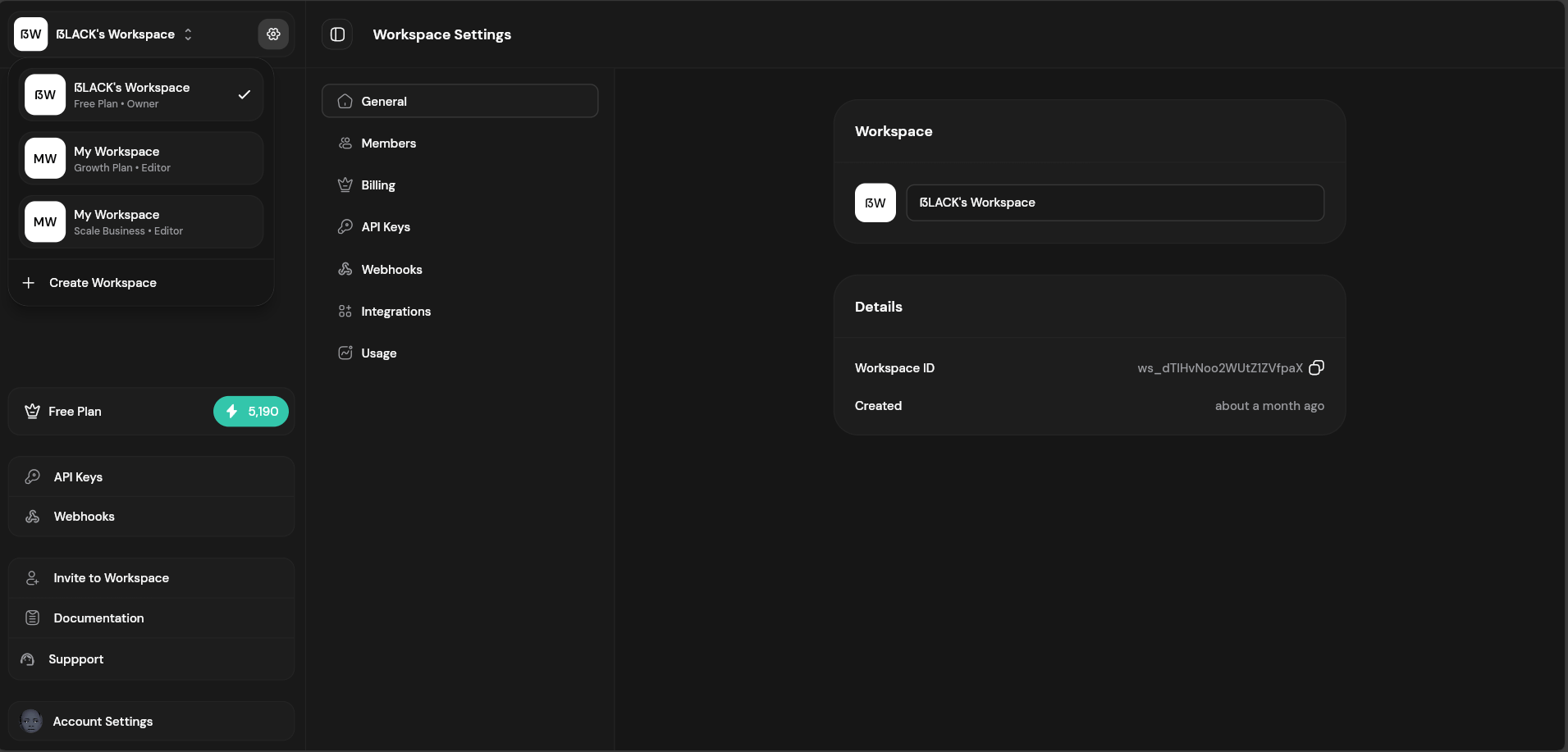 ## Switching Workspaces
Use the workspace dropdown at the top of the sidebar to switch between workspaces. The dropdown shows:
* Workspace name
* Your role (Owner, Editor, Viewer)
* Settings icon for quick access
## Creating a Workspace
Click the workspace dropdown in the sidebar.
Select "Create New Workspace" from the menu.
Provide a name for your workspace. A URL-friendly slug is generated automatically.
Click "Create" to set up your new workspace.
New workspaces start on the Free plan. Upgrade anytime from the Billing section.
## Workspace Settings
Access workspace settings by clicking the gear icon next to your workspace name.
### General Settings
| Setting | Description |
| ---------------- | ------------------------------ |
| **Name** | Display name for the workspace |
| **Slug** | URL-friendly identifier |
| **Storage Mode** | Where to store generated PDFs |
### Storage Modes
Configure how Fileloom stores your generated PDFs:
| Mode | Behavior |
| ------------ | ---------------------------------------- |
| **Fileloom** | Store in Fileloom storage only (default) |
| **External** | Store in your AWS S3 or Supabase only |
| **Both** | Store copies in both locations |
See [Integrations](/integrations/overview) for external storage setup.
## Workspace Roles
Team members can have different access levels:
| Role | Permissions |
| ---------- | ----------------------------------------------------- |
| **Owner** | Full access, billing management, can delete workspace |
| **Editor** | Create/edit templates, manage files, view API keys |
| **Viewer** | Read-only access to templates and files |
## Workspace Limits
Resources are limited per workspace based on your plan:
| Resource | Free | Starter | Growth | Scale |
| ------------ | ------ | ------- | --------- | --------- |
| Team Members | 2 | 3 | 5 | 10 |
| Templates | 5 | 50 | Unlimited | Unlimited |
| API Keys | 1 | 2 | 5 | 10 |
| Retention | 7 days | 30 days | 90 days | 180 days |
## Deleting a Workspace
Deleting a workspace permanently removes all templates, files, and API keys. This action cannot be undone.
Only workspace owners can delete a workspace:
1. Go to **Workspace Settings** → **General**
2. Scroll to the danger zone
3. Click **Delete Workspace**
4. Confirm by typing the workspace name
## Best Practices
* **Separate environments** — Create workspaces for development, staging, and production
* **Client isolation** — Use separate workspaces for different clients or projects
* **Team organization** — Group related projects in a single workspace for shared access
## Switching Workspaces
Use the workspace dropdown at the top of the sidebar to switch between workspaces. The dropdown shows:
* Workspace name
* Your role (Owner, Editor, Viewer)
* Settings icon for quick access
## Creating a Workspace
Click the workspace dropdown in the sidebar.
Select "Create New Workspace" from the menu.
Provide a name for your workspace. A URL-friendly slug is generated automatically.
Click "Create" to set up your new workspace.
New workspaces start on the Free plan. Upgrade anytime from the Billing section.
## Workspace Settings
Access workspace settings by clicking the gear icon next to your workspace name.
### General Settings
| Setting | Description |
| ---------------- | ------------------------------ |
| **Name** | Display name for the workspace |
| **Slug** | URL-friendly identifier |
| **Storage Mode** | Where to store generated PDFs |
### Storage Modes
Configure how Fileloom stores your generated PDFs:
| Mode | Behavior |
| ------------ | ---------------------------------------- |
| **Fileloom** | Store in Fileloom storage only (default) |
| **External** | Store in your AWS S3 or Supabase only |
| **Both** | Store copies in both locations |
See [Integrations](/integrations/overview) for external storage setup.
## Workspace Roles
Team members can have different access levels:
| Role | Permissions |
| ---------- | ----------------------------------------------------- |
| **Owner** | Full access, billing management, can delete workspace |
| **Editor** | Create/edit templates, manage files, view API keys |
| **Viewer** | Read-only access to templates and files |
## Workspace Limits
Resources are limited per workspace based on your plan:
| Resource | Free | Starter | Growth | Scale |
| ------------ | ------ | ------- | --------- | --------- |
| Team Members | 2 | 3 | 5 | 10 |
| Templates | 5 | 50 | Unlimited | Unlimited |
| API Keys | 1 | 2 | 5 | 10 |
| Retention | 7 days | 30 days | 90 days | 180 days |
## Deleting a Workspace
Deleting a workspace permanently removes all templates, files, and API keys. This action cannot be undone.
Only workspace owners can delete a workspace:
1. Go to **Workspace Settings** → **General**
2. Scroll to the danger zone
3. Click **Delete Workspace**
4. Confirm by typing the workspace name
## Best Practices
* **Separate environments** — Create workspaces for development, staging, and production
* **Client isolation** — Use separate workspaces for different clients or projects
* **Team organization** — Group related projects in a single workspace for shared access