> ## Documentation Index
> Fetch the complete documentation index at: https://docs.fileloom.io/llms.txt
> Use this file to discover all available pages before exploring further.
# Team Members
> Invite team members and manage roles in your Fileloom workspace.
Collaborate with your team by inviting members to your workspace. Access team management in **Workspace Settings** → **Members**.
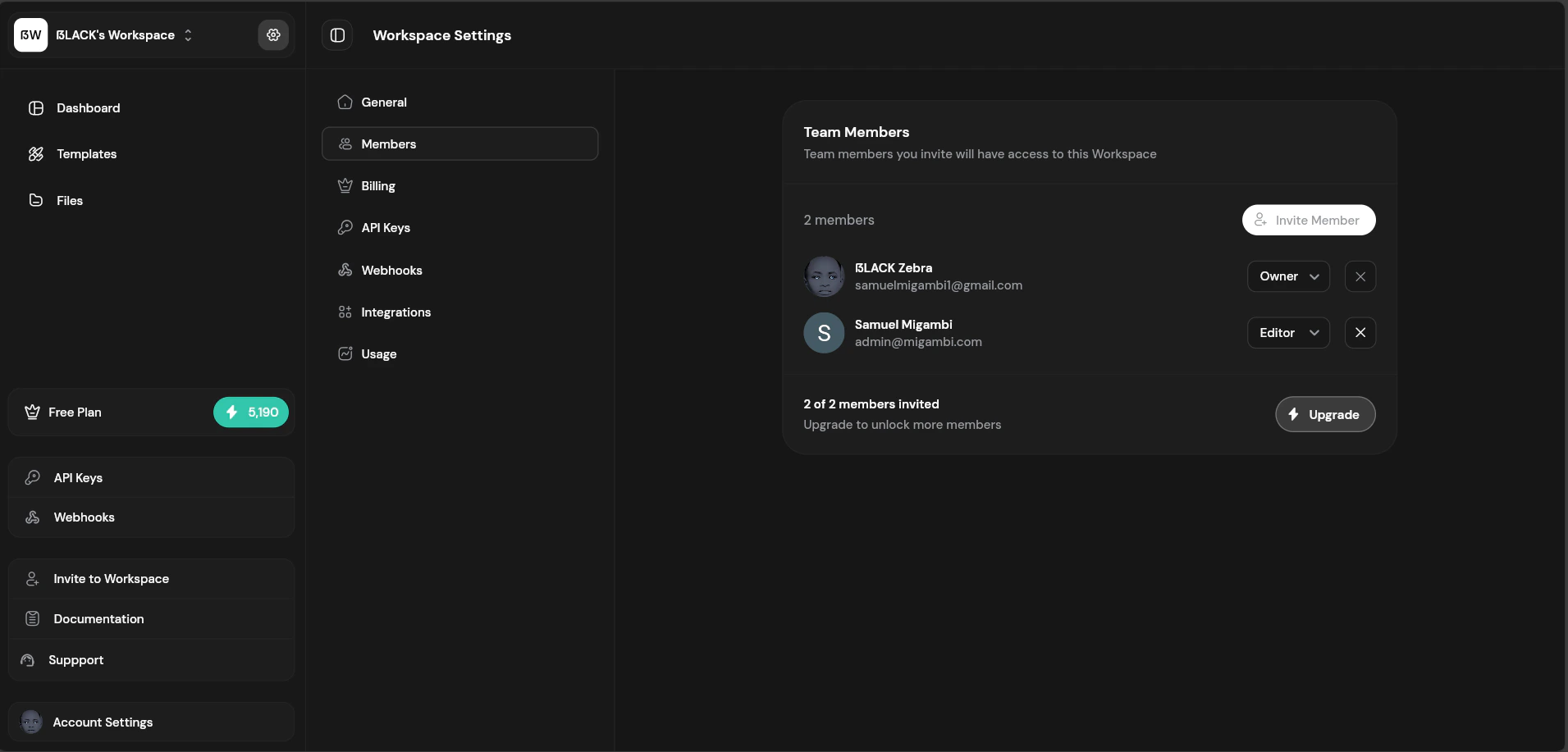 ## Members List
| Column | Description |
| ---------- | ------------------------------ |
| **Member** | Name and email |
| **Role** | Owner, Editor, or Viewer |
| **Joined** | When they joined the workspace |
| **Status** | Active or Pending invitation |
## Inviting Members
Click "Invite Member" button or use the sidebar shortcut.
Enter the email address of the person to invite.
Choose their role: Editor or Viewer.
Click "Send Invite" to send the invitation email.
The invitee receives an email with a link to join your workspace.
## Roles and Permissions
| Permission | Owner | Editor | Viewer |
| ---------------- | ----- | ------ | ------ |
| View templates | ✓ | ✓ | ✓ |
| View files | ✓ | ✓ | ✓ |
| Create templates | ✓ | ✓ | — |
| Edit templates | ✓ | ✓ | — |
| Delete templates | ✓ | ✓ | — |
| Generate PDFs | ✓ | ✓ | — |
| Delete files | ✓ | ✓ | — |
| View API keys | ✓ | ✓ | — |
| Create API keys | ✓ | — | — |
| Manage members | ✓ | — | — |
| Manage billing | ✓ | — | — |
| Delete workspace | ✓ | — | — |
## Changing Member Roles
Owners can change member roles:
1. Find the member in the list
2. Click the role dropdown
3. Select the new role
4. Confirm the change
Role changes take effect immediately. The member's access updates on their next page load.
## Removing Members
To remove a member from the workspace:
1. Find the member in the list
2. Click the menu icon (three dots)
3. Select "Remove from Workspace"
4. Confirm removal
Removed members immediately lose access to the workspace. Any API keys they created remain active.
## Member Limits
Team size limits are based on your plan:
| Plan | Max Members |
| ---------------- | ----------- |
| Free | 2 |
| Starter | 3 |
| Growth | 5 |
| Scale | 10 |
| Scale Business | 25 |
| Scale Enterprise | Unlimited |
## Transferring Ownership
To transfer workspace ownership:
1. Go to **Workspace Settings** → **Members**
2. Click on the member to become owner
3. Select "Transfer Ownership"
4. Confirm the transfer
You'll become an Editor after transferring ownership.
## Best Practices
* **Least privilege** — Assign the minimum role needed for each member's tasks
* **Review regularly** — Periodically audit member access
* **Remove promptly** — Remove members who no longer need access
* **Document ownership** — Ensure multiple people can access critical workspaces
## Members List
| Column | Description |
| ---------- | ------------------------------ |
| **Member** | Name and email |
| **Role** | Owner, Editor, or Viewer |
| **Joined** | When they joined the workspace |
| **Status** | Active or Pending invitation |
## Inviting Members
Click "Invite Member" button or use the sidebar shortcut.
Enter the email address of the person to invite.
Choose their role: Editor or Viewer.
Click "Send Invite" to send the invitation email.
The invitee receives an email with a link to join your workspace.
## Roles and Permissions
| Permission | Owner | Editor | Viewer |
| ---------------- | ----- | ------ | ------ |
| View templates | ✓ | ✓ | ✓ |
| View files | ✓ | ✓ | ✓ |
| Create templates | ✓ | ✓ | — |
| Edit templates | ✓ | ✓ | — |
| Delete templates | ✓ | ✓ | — |
| Generate PDFs | ✓ | ✓ | — |
| Delete files | ✓ | ✓ | — |
| View API keys | ✓ | ✓ | — |
| Create API keys | ✓ | — | — |
| Manage members | ✓ | — | — |
| Manage billing | ✓ | — | — |
| Delete workspace | ✓ | — | — |
## Changing Member Roles
Owners can change member roles:
1. Find the member in the list
2. Click the role dropdown
3. Select the new role
4. Confirm the change
Role changes take effect immediately. The member's access updates on their next page load.
## Removing Members
To remove a member from the workspace:
1. Find the member in the list
2. Click the menu icon (three dots)
3. Select "Remove from Workspace"
4. Confirm removal
Removed members immediately lose access to the workspace. Any API keys they created remain active.
## Member Limits
Team size limits are based on your plan:
| Plan | Max Members |
| ---------------- | ----------- |
| Free | 2 |
| Starter | 3 |
| Growth | 5 |
| Scale | 10 |
| Scale Business | 25 |
| Scale Enterprise | Unlimited |
## Transferring Ownership
To transfer workspace ownership:
1. Go to **Workspace Settings** → **Members**
2. Click on the member to become owner
3. Select "Transfer Ownership"
4. Confirm the transfer
You'll become an Editor after transferring ownership.
## Best Practices
* **Least privilege** — Assign the minimum role needed for each member's tasks
* **Review regularly** — Periodically audit member access
* **Remove promptly** — Remove members who no longer need access
* **Document ownership** — Ensure multiple people can access critical workspaces