> ## Documentation Index
> Fetch the complete documentation index at: https://docs.fileloom.io/llms.txt
> Use this file to discover all available pages before exploring further.
# Files
> View, download, and manage generated PDF files in the Fileloom dashboard.
The **Files** section displays all PDFs generated in your workspace.
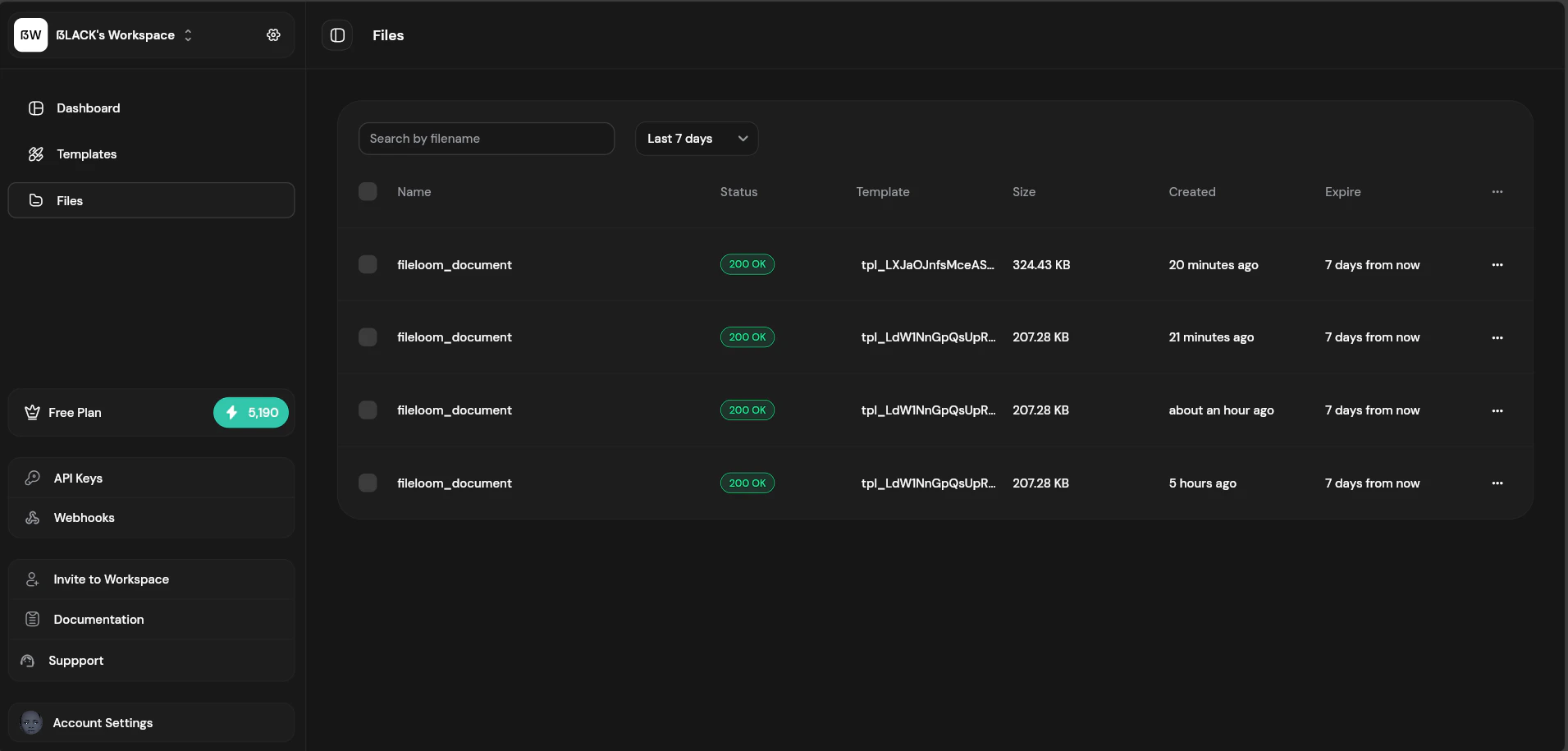 ## Files List
| Column | Description |
| ------------ | ------------------------------ |
| **Filename** | PDF filename |
| **Template** | Template used (or "Raw HTML") |
| **Size** | File size in KB/MB |
| **Created** | Generation timestamp |
| **Status** | Generated, Expired, or Deleted |
| **Actions** | Download, view, delete |
## Filtering Files
Filter files by various criteria:
* **Date range** — Filter by creation date
## File Details
Click a file to view its details:
| Field | Description |
| -------------- | ----------------------------- |
| **File ID** | Unique identifier (file\_xxx) |
| **Public URL** | Permanent download link |
| **Signed URL** | Temporary secure link |
| **Template** | Template used for generation |
| **Size** | File size |
| **Created** | Timestamp |
| **Expires** | When file will be deleted |
| **Downloads** | Number of times downloaded |
## Downloading Files
Multiple ways to download:
1. **Quick download** — Click the download icon in the files list
2. **Detail panel** — Click "Download" in the file details
3. **Public URL** — Copy and open the permanent URL
4. **API** — Use the URL returned from PDF generation
## File Retention
Files are automatically deleted based on your plan:
| Plan | Retention |
| ---------------- | --------- |
| Free | 7 days |
| Starter | 30 days |
| Growth | 90 days |
| Scale | 180 days |
| Scale Business | 365 days |
| Scale Enterprise | 365 days |
Expired files are permanently deleted and cannot be recovered. Download important files before expiration.
## Deleting Files
To delete a file manually:
1. Find the file in the list
2. Click the trash icon or open file details
3. Click "Delete"
4. Confirm deletion
Deleted files cannot be recovered. External storage copies are not automatically deleted.
## Bulk Actions
Select multiple files for bulk operations:
* **Bulk download** — Download selected files as ZIP (Available on paid plans only)
* **Bulk delete** — Delete multiple files at once
## Files List
| Column | Description |
| ------------ | ------------------------------ |
| **Filename** | PDF filename |
| **Template** | Template used (or "Raw HTML") |
| **Size** | File size in KB/MB |
| **Created** | Generation timestamp |
| **Status** | Generated, Expired, or Deleted |
| **Actions** | Download, view, delete |
## Filtering Files
Filter files by various criteria:
* **Date range** — Filter by creation date
## File Details
Click a file to view its details:
| Field | Description |
| -------------- | ----------------------------- |
| **File ID** | Unique identifier (file\_xxx) |
| **Public URL** | Permanent download link |
| **Signed URL** | Temporary secure link |
| **Template** | Template used for generation |
| **Size** | File size |
| **Created** | Timestamp |
| **Expires** | When file will be deleted |
| **Downloads** | Number of times downloaded |
## Downloading Files
Multiple ways to download:
1. **Quick download** — Click the download icon in the files list
2. **Detail panel** — Click "Download" in the file details
3. **Public URL** — Copy and open the permanent URL
4. **API** — Use the URL returned from PDF generation
## File Retention
Files are automatically deleted based on your plan:
| Plan | Retention |
| ---------------- | --------- |
| Free | 7 days |
| Starter | 30 days |
| Growth | 90 days |
| Scale | 180 days |
| Scale Business | 365 days |
| Scale Enterprise | 365 days |
Expired files are permanently deleted and cannot be recovered. Download important files before expiration.
## Deleting Files
To delete a file manually:
1. Find the file in the list
2. Click the trash icon or open file details
3. Click "Delete"
4. Confirm deletion
Deleted files cannot be recovered. External storage copies are not automatically deleted.
## Bulk Actions
Select multiple files for bulk operations:
* **Bulk download** — Download selected files as ZIP (Available on paid plans only)
* **Bulk delete** — Delete multiple files at once