> ## Documentation Index
> Fetch the complete documentation index at: https://docs.fileloom.io/llms.txt
> Use this file to discover all available pages before exploring further.
# Billing
> Manage your Fileloom subscription, view invoices, and purchase credits.
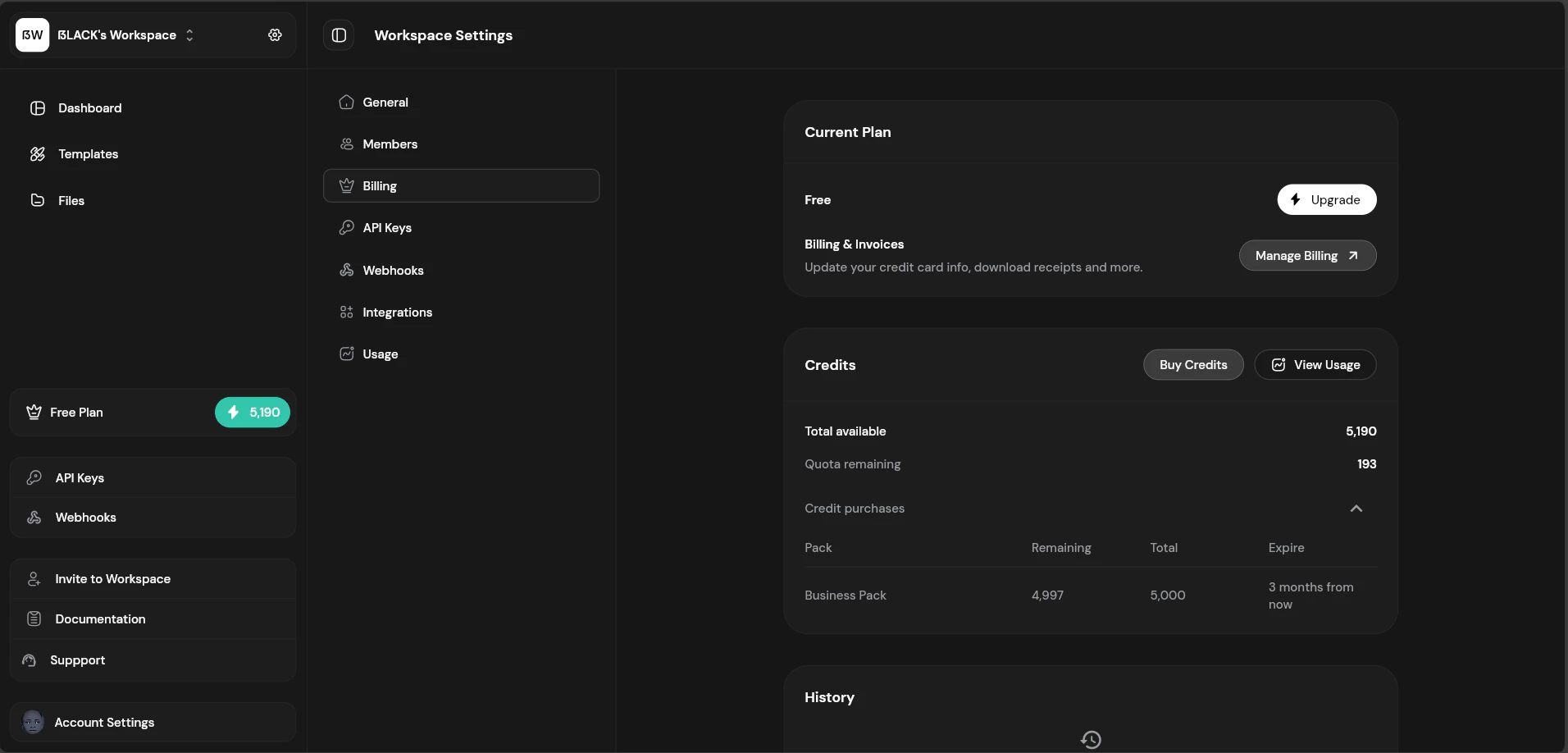
Access billing settings from **Workspace Settings** → **Billing**.
 ## Current Plan
The billing page shows your current subscription:
* **Plan name** — Free, Starter, Growth, Scale, etc.
* **Billing period** — Monthly or Annual
* **Next billing date** — When your subscription renews
* **Monthly quota** — PDFs included in your plan
## Changing Plans
### Upgrading
From the billing page, click "Upgrade Plan".
Choose your new plan and billing period (monthly/annual).
Enter payment details through our secure checkout.
Your new plan limits are active immediately.
Annual billing saves 20% compared to monthly billing.
### Downgrading
Downgrades take effect at the end of your current billing period:
1. Click "Change Plan"
2. Select a lower tier
3. Confirm the change
Your current plan benefits continue until the period ends.
## Payment Methods
Fileloom accepts:
* Credit/debit cards (Visa, Mastercard, American Express)
Manage payment methods in the billing portal.
## Invoices & History
View your billing history:
| Column | Description |
| --------------- | ----------------------------- |
| **Date** | Invoice date |
| **Description** | Plan or credit pack purchased |
| **Amount** | Amount charged |
| **Status** | Paid, Pending, or Failed |
| **Invoice** | Download PDF invoice |
## Credit Packs
Purchase additional credits when you need more PDFs:
| Pack | PDFs | Price | Per PDF |
| ------------ | ------ | ----- | ------- |
| Starter | 500 | \$7 | \$0.014 |
| Professional | 2,000 | \$20 | \$0.010 |
| Business | 5,000 | \$45 | \$0.009 |
| Enterprise | 10,000 | \$80 | \$0.008 |
| Mega | 25,000 | \$175 | \$0.007 |
See [Credits](/billing/credits) for details on purchasing and using credits.
## Cancellation
To cancel your subscription:
1. Go to **Workspace Settings** → **Billing**
2. Click "Manage Billing"
3. Cancel on your billing portal
After cancellation, your workspace downgrades to Free at the end of the billing period. Templates and files remain but may be affected by lower limits.
## Failed Payments
If a payment fails:
1. Update your payment method in the billing portal
2. Retry the payment
3. Contact support if issues persist
After multiple failed payments, your subscription may be paused.
## Current Plan
The billing page shows your current subscription:
* **Plan name** — Free, Starter, Growth, Scale, etc.
* **Billing period** — Monthly or Annual
* **Next billing date** — When your subscription renews
* **Monthly quota** — PDFs included in your plan
## Changing Plans
### Upgrading
From the billing page, click "Upgrade Plan".
Choose your new plan and billing period (monthly/annual).
Enter payment details through our secure checkout.
Your new plan limits are active immediately.
Annual billing saves 20% compared to monthly billing.
### Downgrading
Downgrades take effect at the end of your current billing period:
1. Click "Change Plan"
2. Select a lower tier
3. Confirm the change
Your current plan benefits continue until the period ends.
## Payment Methods
Fileloom accepts:
* Credit/debit cards (Visa, Mastercard, American Express)
Manage payment methods in the billing portal.
## Invoices & History
View your billing history:
| Column | Description |
| --------------- | ----------------------------- |
| **Date** | Invoice date |
| **Description** | Plan or credit pack purchased |
| **Amount** | Amount charged |
| **Status** | Paid, Pending, or Failed |
| **Invoice** | Download PDF invoice |
## Credit Packs
Purchase additional credits when you need more PDFs:
| Pack | PDFs | Price | Per PDF |
| ------------ | ------ | ----- | ------- |
| Starter | 500 | \$7 | \$0.014 |
| Professional | 2,000 | \$20 | \$0.010 |
| Business | 5,000 | \$45 | \$0.009 |
| Enterprise | 10,000 | \$80 | \$0.008 |
| Mega | 25,000 | \$175 | \$0.007 |
See [Credits](/billing/credits) for details on purchasing and using credits.
## Cancellation
To cancel your subscription:
1. Go to **Workspace Settings** → **Billing**
2. Click "Manage Billing"
3. Cancel on your billing portal
After cancellation, your workspace downgrades to Free at the end of the billing period. Templates and files remain but may be affected by lower limits.
## Failed Payments
If a payment fails:
1. Update your payment method in the billing portal
2. Retry the payment
3. Contact support if issues persist
After multiple failed payments, your subscription may be paused.