> ## Documentation Index
> Fetch the complete documentation index at: https://docs.fileloom.io/llms.txt
> Use this file to discover all available pages before exploring further.
# API Keys
> Create and manage API keys for authenticating with the Fileloom API.
API keys authenticate your requests to the Fileloom API. Manage them in **Workspace Settings** → **API Keys**.
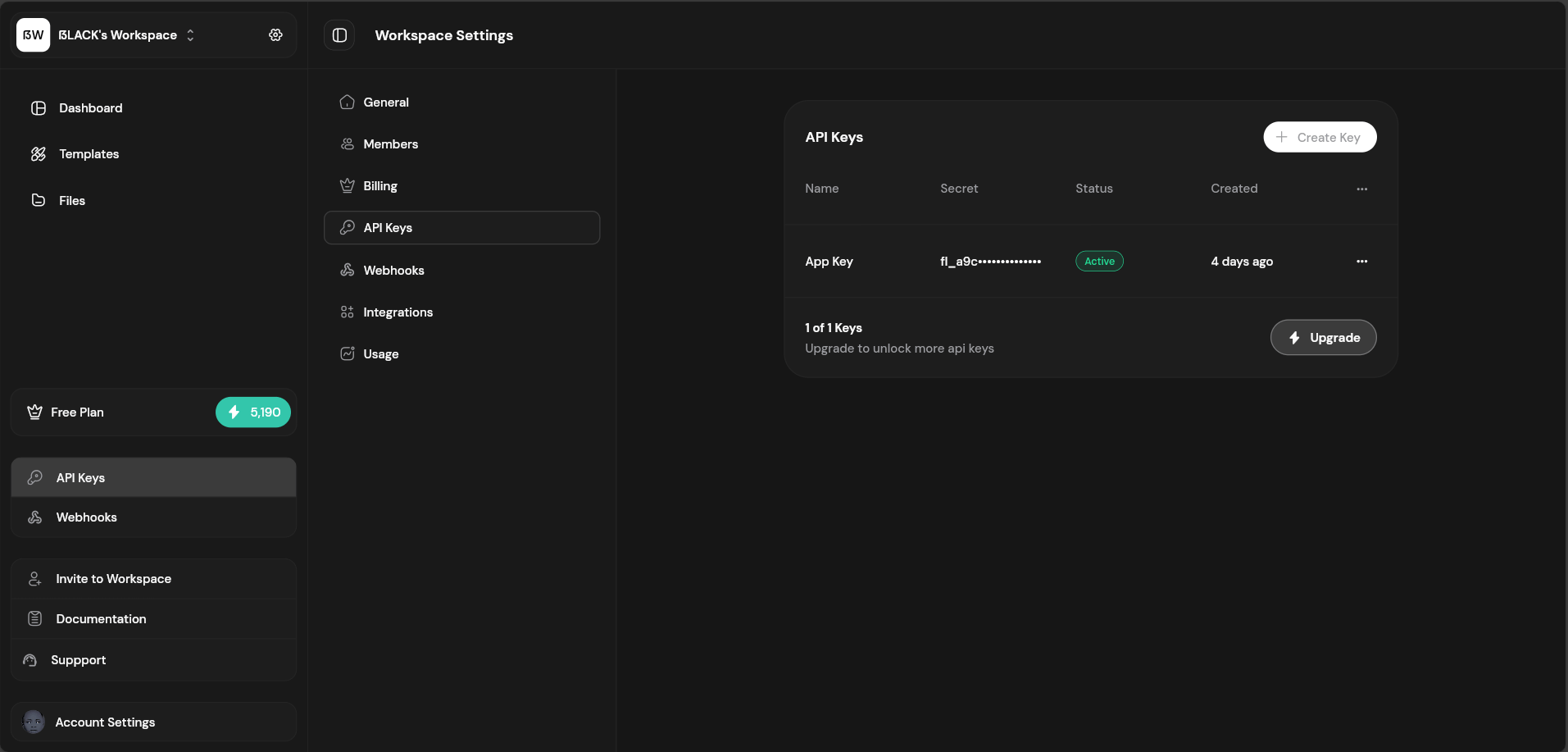 ## API Keys List
| Column | Description |
| -------------- | --------------------------------- |
| **Name** | Friendly name for the key |
| **Key Prefix** | First 8 characters (fl\_xxxxxxxx) |
| **Created** | When the key was created |
| **Last Used** | Most recent API call |
| **Status** | Active or Revoked |
## Creating an API Key
From the API Keys page, click "Create API Key".
Give the key a descriptive name (e.g., "Production Server", "Development").
Copy the full key immediately — it won't be shown again!
The full API key is only shown once when created. Store it securely — we cannot recover it.
## Key Permissions
| Permission | Description |
| ---------------- | ------------------------------------ |
| **pdf.generate** | Generate PDFs from HTML or templates |
## Using API Keys
Include your API key in the `X-API-Key` header:
```bash theme={null}
curl -X POST https://api.fileloom.io/v1/pdf/generate \
-H "X-API-Key: fl_your_api_key_here" \
-H "Content-Type: application/json" \
-d '{"htmlContent": "
## API Keys List
| Column | Description |
| -------------- | --------------------------------- |
| **Name** | Friendly name for the key |
| **Key Prefix** | First 8 characters (fl\_xxxxxxxx) |
| **Created** | When the key was created |
| **Last Used** | Most recent API call |
| **Status** | Active or Revoked |
## Creating an API Key
From the API Keys page, click "Create API Key".
Give the key a descriptive name (e.g., "Production Server", "Development").
Copy the full key immediately — it won't be shown again!
The full API key is only shown once when created. Store it securely — we cannot recover it.
## Key Permissions
| Permission | Description |
| ---------------- | ------------------------------------ |
| **pdf.generate** | Generate PDFs from HTML or templates |
## Using API Keys
Include your API key in the `X-API-Key` header:
```bash theme={null}
curl -X POST https://api.fileloom.io/v1/pdf/generate \
-H "X-API-Key: fl_your_api_key_here" \
-H "Content-Type: application/json" \
-d '{"htmlContent": "Hello World
"}'
```
Or use the Authorization header:
```bash theme={null}
Authorization: Bearer fl_your_api_key_here
```
## Revoking Keys
To revoke an API key:
1. Find the key in the list
2. Click the menu icon (three dots)
3. Select "Revoke Key"
4. Confirm revocation
Revoked keys immediately stop working. Any applications using the key will receive authentication errors.
## Key Limits
API key limits are based on your plan:
| Plan | Max Keys |
| ---------------- | --------- |
| Free | 1 |
| Starter | 2 |
| Growth | 5 |
| Scale | 10 |
| Scale Business | 25 |
| Scale Enterprise | Unlimited |
## Best Practices
* **Use descriptive names** — Name keys by environment or purpose
* **Minimum permissions** — Only grant permissions the key needs
* **Rotate regularly** — Create new keys and revoke old ones periodically
* **Never commit keys** — Use environment variables, not hardcoded keys
* **Monitor usage** — Check for unusual activity regularly