> ## Documentation Index
> Fetch the complete documentation index at: https://docs.fileloom.io/llms.txt
> Use this file to discover all available pages before exploring further.
# Account
> Manage your Fileloom user profile, preferences, and security settings.
Access account settings by clicking **Account** in the sidebar.
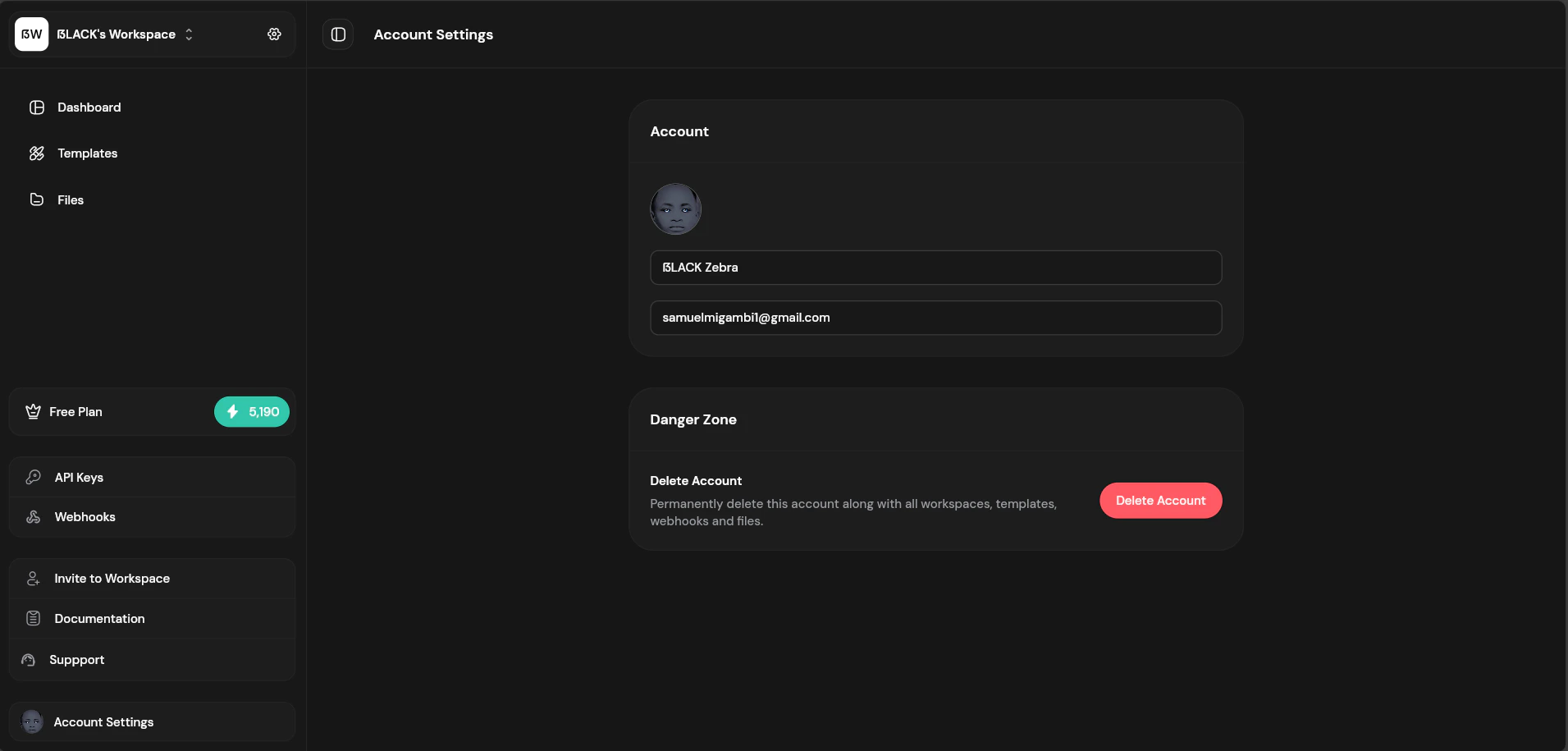 ## Profile Settings
Update your personal information:
| Setting | Description |
| ---------------- | ------------------------------------------------ |
| **Display Name** | Your name shown in the dashboard |
| **Email** | Account email (used for login and notifications) |
| **Photo** | Profile picture (from Google/GitHub or uploaded) |
### Connected Accounts
If you signed up with Google or GitHub, your authentication is managed by that provider. To change your password, use your Google or GitHub account settings.
## Deleting Your Account
Account deletion is permanent. All your data, including workspaces you own, will be deleted.
To delete your account:
1. Go to **Account** → **Delete Account**
2. Enter your password to confirm
3. Acknowledge the consequences
4. Click "Delete Account"
Before deleting:
* Transfer ownership of any workspaces you want to preserve
* Download any files you need to keep
* Export templates you want to save
## Support
Need help? Contact us:
* **Email:** [support@fileloom.io](mailto:support@fileloom.io)
Check the [Support](/resources/support) page for common questions and troubleshooting tips.
## Profile Settings
Update your personal information:
| Setting | Description |
| ---------------- | ------------------------------------------------ |
| **Display Name** | Your name shown in the dashboard |
| **Email** | Account email (used for login and notifications) |
| **Photo** | Profile picture (from Google/GitHub or uploaded) |
### Connected Accounts
If you signed up with Google or GitHub, your authentication is managed by that provider. To change your password, use your Google or GitHub account settings.
## Deleting Your Account
Account deletion is permanent. All your data, including workspaces you own, will be deleted.
To delete your account:
1. Go to **Account** → **Delete Account**
2. Enter your password to confirm
3. Acknowledge the consequences
4. Click "Delete Account"
Before deleting:
* Transfer ownership of any workspaces you want to preserve
* Download any files you need to keep
* Export templates you want to save
## Support
Need help? Contact us:
* **Email:** [support@fileloom.io](mailto:support@fileloom.io)
Check the [Support](/resources/support) page for common questions and troubleshooting tips.